> ## Documentation Index
> Fetch the complete documentation index at: https://docs.coloop.ai/llms.txt
> Use this file to discover all available pages before exploring further.
# Skills
> Skills are reusable prompt templates that guide how the Thought Partner chat responds. Create personal skills, publish them across your project or organization, and manage organization-wide skills as an admin.
## What are Skills?
Skills are saved prompt templates that customize how the Thought Partner chat analyzes your data. Instead of rewriting complex instructions each time, you can create a skill once and reuse it across chats and projects.
The CoLoop team creates and maintains a library of high-quality qualitative research skills across a variety of domains, available to all users out of the box.
You can access skills via the **Explore Skills** dialog in the project sidebar.
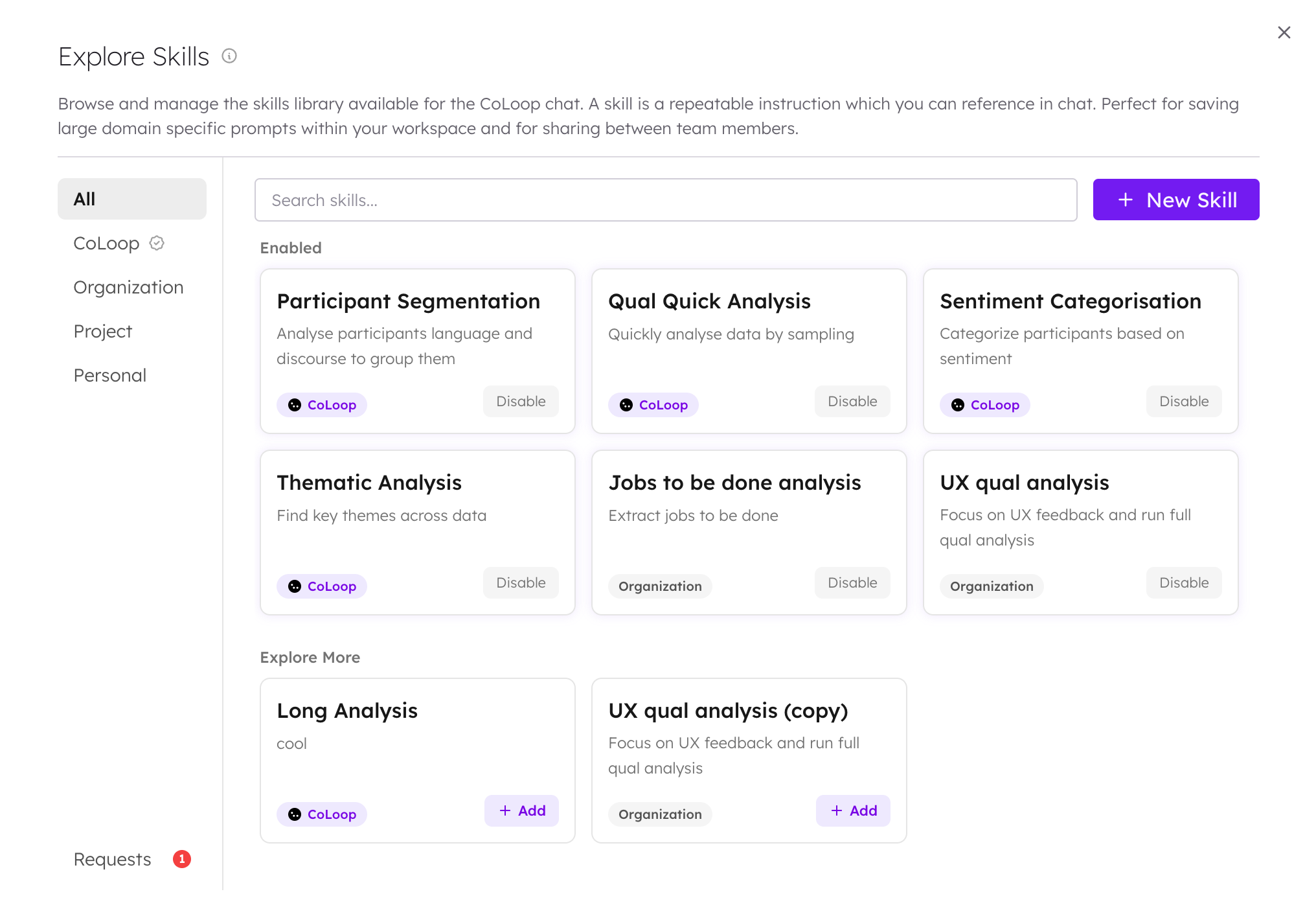 ## Skill Scopes
Skills exist at four levels. What you can see and do depends on your role and where the skill was created.
| Scope | Visible to | Who can create | Who can delete |
| ---------------- | --------------------- | --------------------------------------------------------------- | ---------------------------------------- |
| **CoLoop** | Everyone | Managed by CoLoop | Managed by CoLoop |
| **Organization** | All workspace members | Organization admins (directly or by approving publish requests) | Organization admins |
| **Project** | All project members | Any project member | The skill creator or organization admins |
| **Personal** | Only you | Any user | The creator |
## Creating a Skill
1. Open a project and click **Explore Skills** in the sidebar.
2. Select the **Personal** tab and click **New Skill**.
3. Give the skill a name, optional description, and write the instructions for the skill.
4. Click **Save**.
The skill is now available in your personal skill list across all your projects.
## Skill Scopes
Skills exist at four levels. What you can see and do depends on your role and where the skill was created.
| Scope | Visible to | Who can create | Who can delete |
| ---------------- | --------------------- | --------------------------------------------------------------- | ---------------------------------------- |
| **CoLoop** | Everyone | Managed by CoLoop | Managed by CoLoop |
| **Organization** | All workspace members | Organization admins (directly or by approving publish requests) | Organization admins |
| **Project** | All project members | Any project member | The skill creator or organization admins |
| **Personal** | Only you | Any user | The creator |
## Creating a Skill
1. Open a project and click **Explore Skills** in the sidebar.
2. Select the **Personal** tab and click **New Skill**.
3. Give the skill a name, optional description, and write the instructions for the skill.
4. Click **Save**.
The skill is now available in your personal skill list across all your projects.
 ## Publishing Skills
You can publish a personal skill to a broader audience:
* **Publish to Project** — copies the skill to the current project so all project members can use it.
* **Publish to Organization** (admin only) — copies the skill so everyone in your workspace can use it.
* **Request Publish to Organization** (non-admin) — sends a request for an organization admin to review and approve.
After publishing, your original personal skill remains unchanged. The published copy is independent.
## Managing Organization Skill Requests
If you're an organization admin, you will see a wand icon in the top bar of your workspace. Clicking it opens the **Organization Skill Requests** dialog where you can review pending publish requests from your team.
For each request you can:
* Expand the row to preview the full skill instructions.
* **Approve** — the skill becomes available to everyone in your workspace.
* **Reject** — optionally provide a reason. The requester's original skill is not affected.
To browse, edit, or delete all organization skills, open **Explore Skills** from any project and select the **Organization** tab.
## Enabling and Disabling Skills
You can toggle skills on or off from the Explore Skills dialog. Disabling a skill hides it from your skill picker without deleting it.
## Admin Skill Management
Organization admins with internal admin access can manage built-in skills from the admin panel under **Skills**. This allows creating, editing, and deleting system-wide built-in skills.
## Publishing Skills
You can publish a personal skill to a broader audience:
* **Publish to Project** — copies the skill to the current project so all project members can use it.
* **Publish to Organization** (admin only) — copies the skill so everyone in your workspace can use it.
* **Request Publish to Organization** (non-admin) — sends a request for an organization admin to review and approve.
After publishing, your original personal skill remains unchanged. The published copy is independent.
## Managing Organization Skill Requests
If you're an organization admin, you will see a wand icon in the top bar of your workspace. Clicking it opens the **Organization Skill Requests** dialog where you can review pending publish requests from your team.
For each request you can:
* Expand the row to preview the full skill instructions.
* **Approve** — the skill becomes available to everyone in your workspace.
* **Reject** — optionally provide a reason. The requester's original skill is not affected.
To browse, edit, or delete all organization skills, open **Explore Skills** from any project and select the **Organization** tab.
## Enabling and Disabling Skills
You can toggle skills on or off from the Explore Skills dialog. Disabling a skill hides it from your skill picker without deleting it.
## Admin Skill Management
Organization admins with internal admin access can manage built-in skills from the admin panel under **Skills**. This allows creating, editing, and deleting system-wide built-in skills.