> ## Documentation Index
> Fetch the complete documentation index at: https://docs.coloop.ai/llms.txt
> Use this file to discover all available pages before exploring further.
# Adding Files & Images to Chat
> Attach images, PDFs, Word, PowerPoint, and text files to a chat to bring extra context into your analysis, plus the supported formats, size limits, and how each file type is handled.
You can attach files and images directly to a [Thought Partner chat](/docs/analysis/thought-partner-chat). Use this to give the AI extra context alongside your project data, such as a discussion guide, a stimulus image, a slide deck, or a brief.
Attachments apply to the message you send them with. The AI reads them as part of that question.
## How to add a file or image
There are three ways to attach files to a chat:
* **Click the paperclip** icon in the chat input, then choose files from your computer.
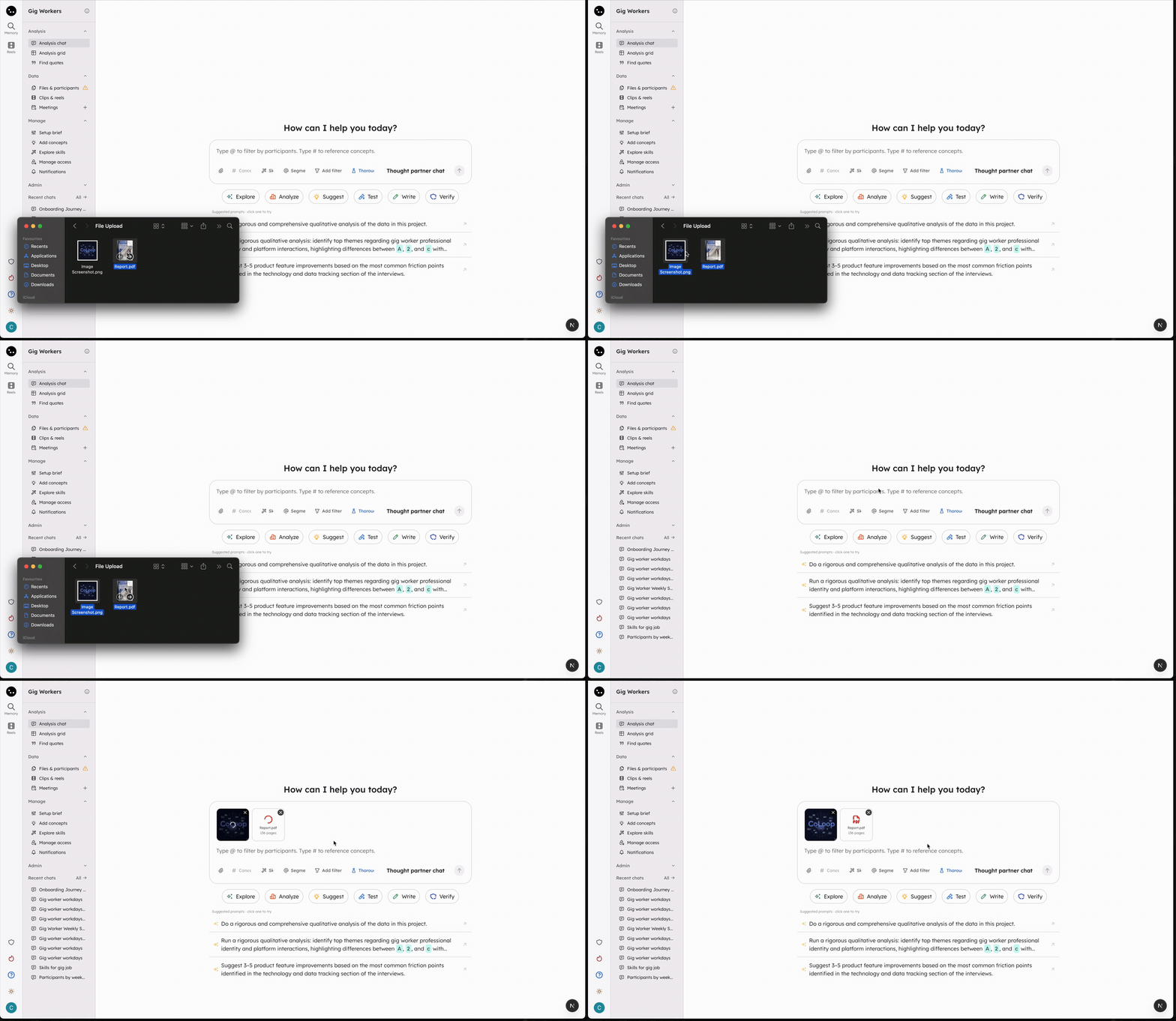
* **Drag and drop** one or more files anywhere onto the chat.
* **Paste** an image or file you have copied to your clipboard.
You can attach **up to 4 files per message**. Add a message describing what you want the AI to do with the files, then send.
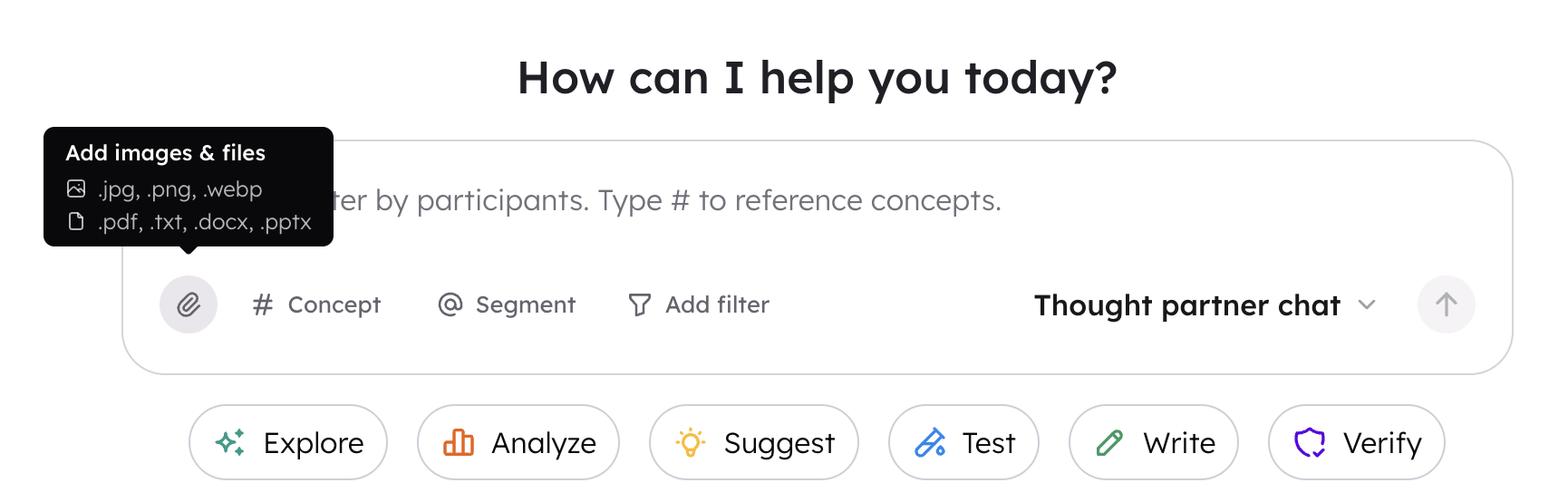 When you drag a file over the page, a **Drop file to attach** overlay appears. Release the file anywhere on the chat to attach it. Attached files then appear as previews above the message input, where you can remove any you added by mistake before sending.
 ## Supported file types and limits
| File type | Extensions | Max size | Other limits |
| -------------- | ----------------------- | -------- | -------------------------------------------------------------------------- |
| **Images** | `.jpg`, `.png`, `.webp` | 5 MB | Up to 2000px on the longest side (larger images are resized automatically) |
| **PDF** | `.pdf` | 50 MB | Up to 1,000 pages |
| **Word** | `.docx` | 30 MB | Text only (images are not read); up to 800,000 characters |
| **PowerPoint** | `.pptx` | 25 MB | Up to 1,000 slides |
| **Text** | `.txt` | 1 MB | Up to 800,000 characters |
If a file is the wrong type or over a limit, CoLoop tells you when you try to attach it and skips that file.
## How your files are handled
**Images are resized automatically.** If an image is larger than 2000px on its longest side or over the 5 MB limit, CoLoop resizes it before sending so you rarely need to worry about size. If an image is still too large after resizing, upload a smaller version.
**PowerPoint is converted to a PDF.** When you attach a `.pptx` file, CoLoop converts it to a PDF so the AI can read each slide visually, including charts, images, and layout. This happens automatically after upload.
**Word files are read as text only.** For `.docx` files, the AI reads the text content. Images, charts, and other visuals embedded in the document are not recognized.
Word documents are the exception: their visuals are not read. If a `.docx` relies on charts or images, save it as a PDF or attach those visuals as separate images so the AI can see them. PowerPoint files do not need this — they are converted to PDF automatically.
## Supported file types and limits
| File type | Extensions | Max size | Other limits |
| -------------- | ----------------------- | -------- | -------------------------------------------------------------------------- |
| **Images** | `.jpg`, `.png`, `.webp` | 5 MB | Up to 2000px on the longest side (larger images are resized automatically) |
| **PDF** | `.pdf` | 50 MB | Up to 1,000 pages |
| **Word** | `.docx` | 30 MB | Text only (images are not read); up to 800,000 characters |
| **PowerPoint** | `.pptx` | 25 MB | Up to 1,000 slides |
| **Text** | `.txt` | 1 MB | Up to 800,000 characters |
If a file is the wrong type or over a limit, CoLoop tells you when you try to attach it and skips that file.
## How your files are handled
**Images are resized automatically.** If an image is larger than 2000px on its longest side or over the 5 MB limit, CoLoop resizes it before sending so you rarely need to worry about size. If an image is still too large after resizing, upload a smaller version.
**PowerPoint is converted to a PDF.** When you attach a `.pptx` file, CoLoop converts it to a PDF so the AI can read each slide visually, including charts, images, and layout. This happens automatically after upload.
**Word files are read as text only.** For `.docx` files, the AI reads the text content. Images, charts, and other visuals embedded in the document are not recognized.
Word documents are the exception: their visuals are not read. If a `.docx` relies on charts or images, save it as a PDF or attach those visuals as separate images so the AI can see them. PowerPoint files do not need this — they are converted to PDF automatically.