> ## Documentation Index
> Fetch the complete documentation index at: https://docs.coloop.ai/llms.txt
> Use this file to discover all available pages before exploring further.
# Colour Tagging Concept Testing
> Colour tagging is a unique CoLoop feature that enhances accuracy in concept testing by detecting visual cues accurately from your stimulus deck. This guide walks you through setting up and using colour tagging in your project workflow.
Navigating this page:
* [**Colour Tagging Concept Testing**](/docs/concept-testing/colour-tagging-concept-testing#when-to-use-colour-tagging)
* [**Multiple Concepts per Slide**](/docs/concept-testing/colour-tagging-concept-testing#multiple-concepts-per-slide)
* [**Multiple Decks in One Project**](/docs/concept-testing/colour-tagging-concept-testing#multi-market-%26-multi-deck-projects)
### When to use colour tagging
CoLoop’s colour tagging method is designed to enhance accuracy in concept testing by automatically identifying and tagging concepts during video analysis.
This method requires 2 components for accurate results.
* You'll need to prepare a stimulus deck with the parameters below.
* You'll need to show this exact deck during interviews and have it presented full-screen in the recordings.
If you have a stimulus deck you've already created and haven't set up colour tagging, please follow the regular stim deck flow [**here**](https://coloop-knowledge-base.help.usepylon.com/articles/5639474011-concept-testing-with-a-stimulus-deck-but-no-colour-tagging).
# Concept Testing using the Colour Tagging Method
### Prepare your stimulus deck
To ensure effective concept tagging, follow these steps when creating your stimulus deck:
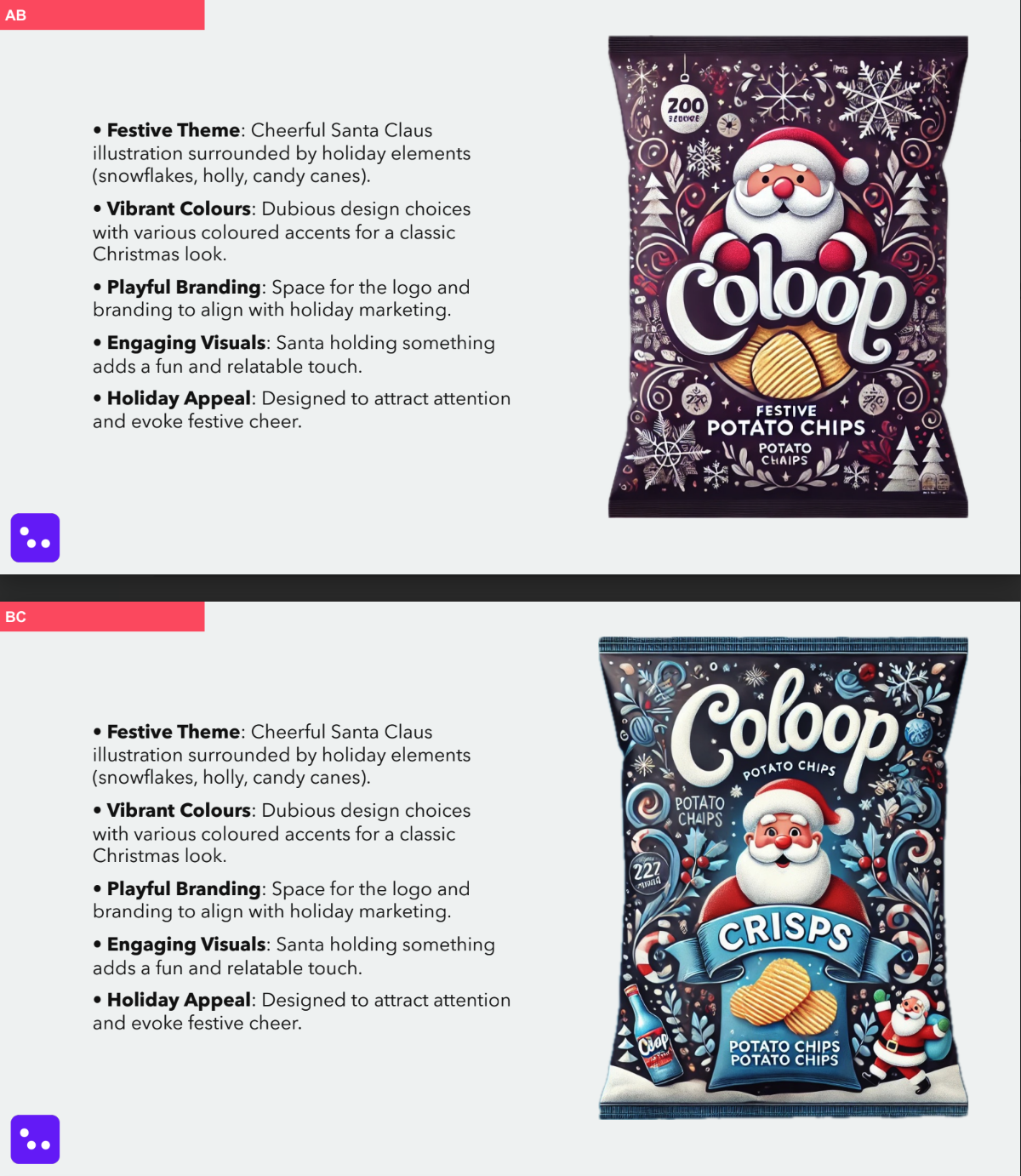
**One Concept Per Slide**: Each slide should focus on a single concept, whether it’s an image or text.
*If you have more than once concept per slide* [*please see below*](/docs/concept-testing/colour-tagging-concept-testing#multiple-concepts-per-slide)
**Add a Distinct Colour Box**:
* Place a small colour box in one corner of the each slide.
* The colour box must be unique from other elements on the slides to avoid confusion during analysis.
* Use the same colour throughout the deck for all concepts.
* Add the name of the concept inside the colour box, and make sure the concept name stays on a single line.
 Be sure to present this deck during your interviews and confirm that the recording clearly captures the slides.
### Set up your project
Once your stimulus deck is ready and you've collected your data, you can set up your project in Coloop:
1. **Create a New Project**:
* Log into Coloop and create a new project as you normally would.
* Upload your discussion guide if applicable.
2. **Enable Concept Testing**:
* Turn on the “concept testing” feature within your project settings.
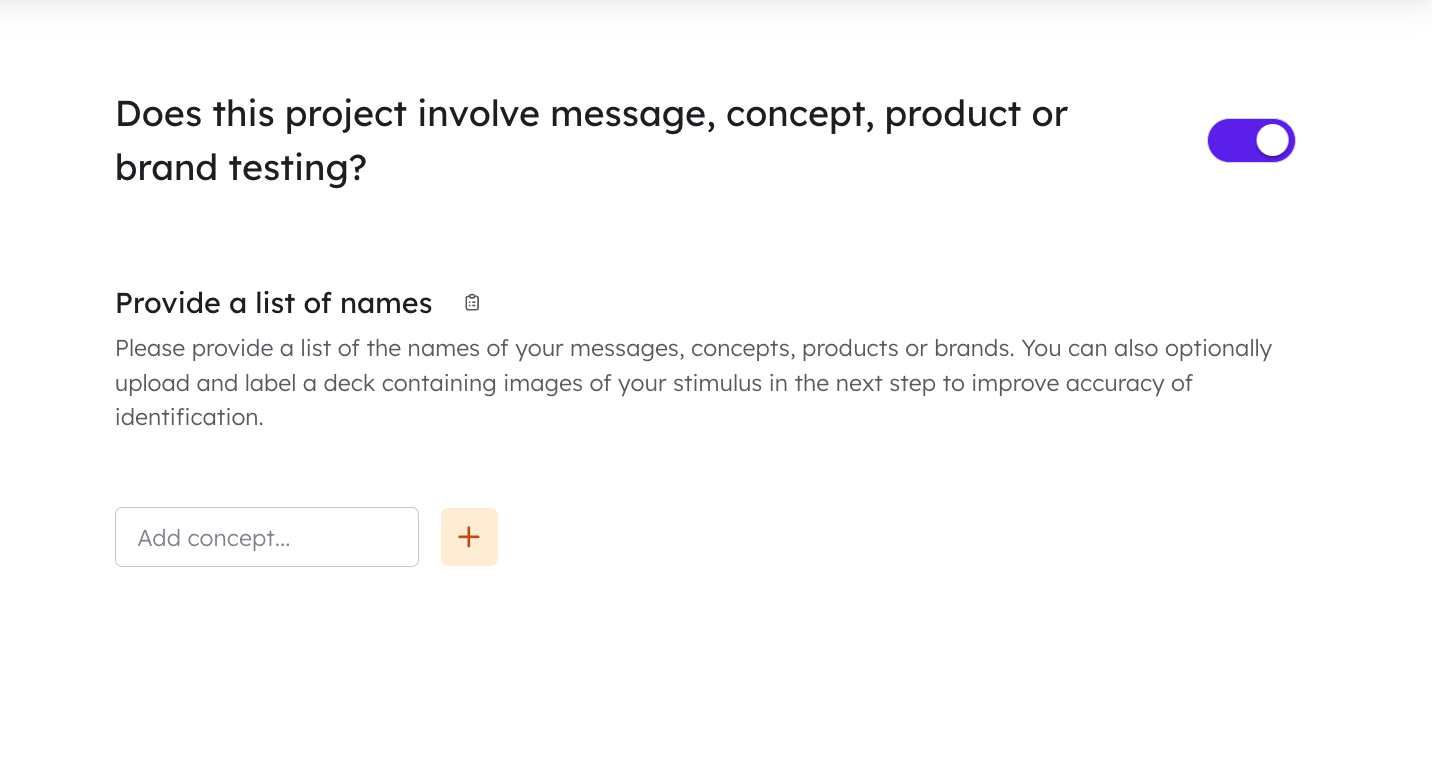
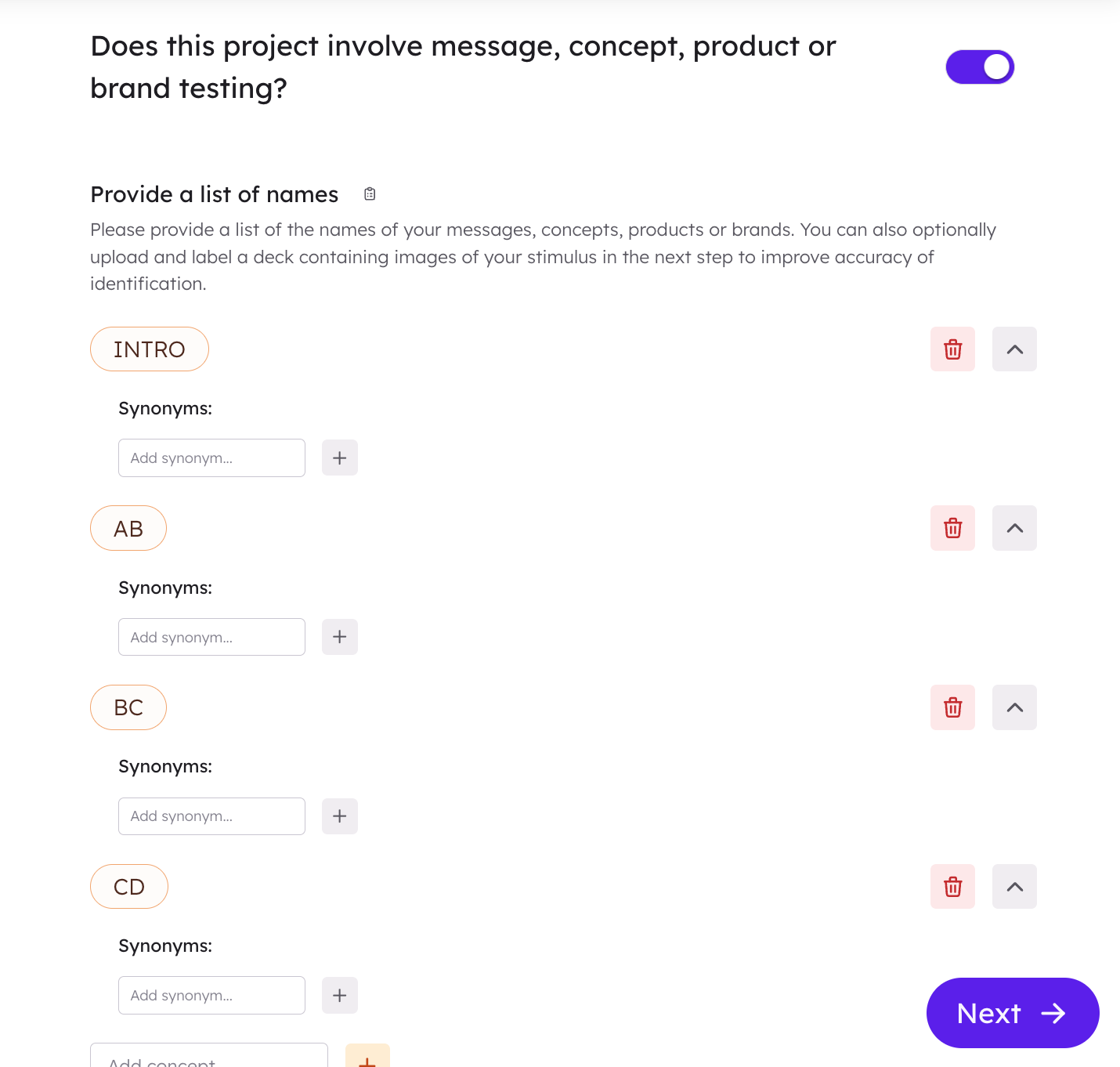
* Input all relevant concept names into Coloop so they can be linked to their respective slides later.
Be sure to present this deck during your interviews and confirm that the recording clearly captures the slides.
### Set up your project
Once your stimulus deck is ready and you've collected your data, you can set up your project in Coloop:
1. **Create a New Project**:
* Log into Coloop and create a new project as you normally would.
* Upload your discussion guide if applicable.
2. **Enable Concept Testing**:
* Turn on the “concept testing” feature within your project settings.

* Input all relevant concept names into Coloop so they can be linked to their respective slides later.
 ### **Upload your slide deck**
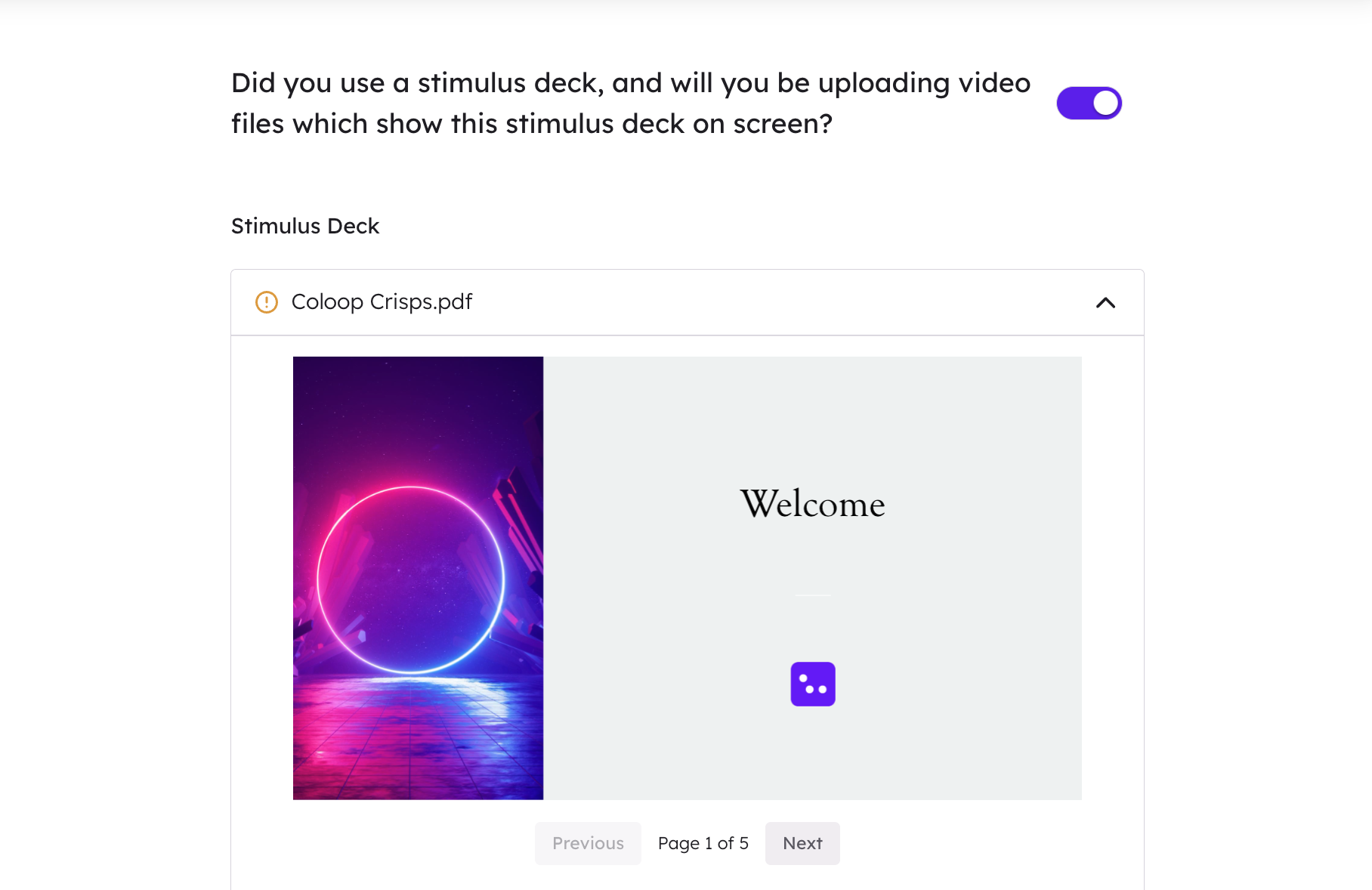
* Upload your prepared slide deck into CoLoop.
* Please note your slide deck must be in PDF format.
3. **Enable Colour Detection**
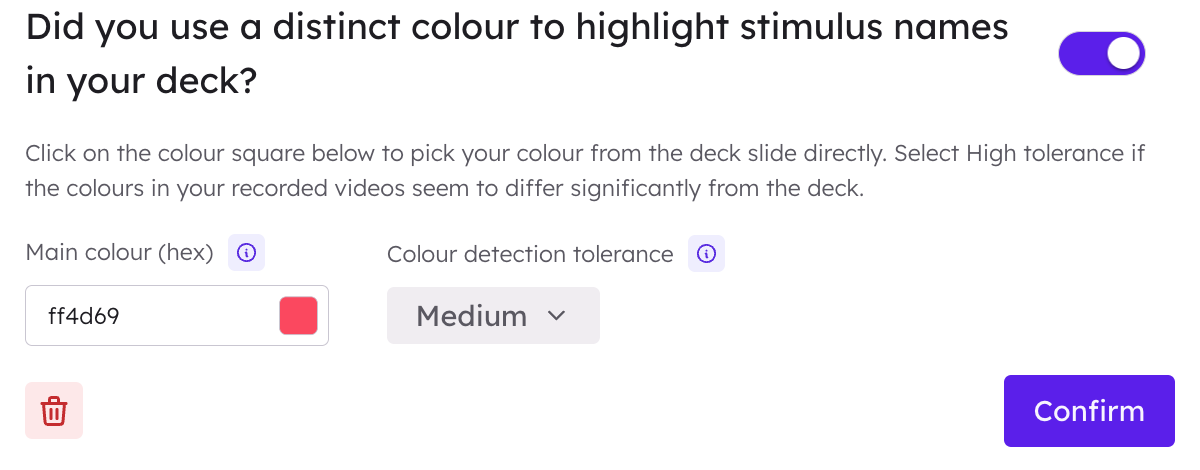
* Enable colour detection by selecting the toggle beneath your uploaded slide deck.
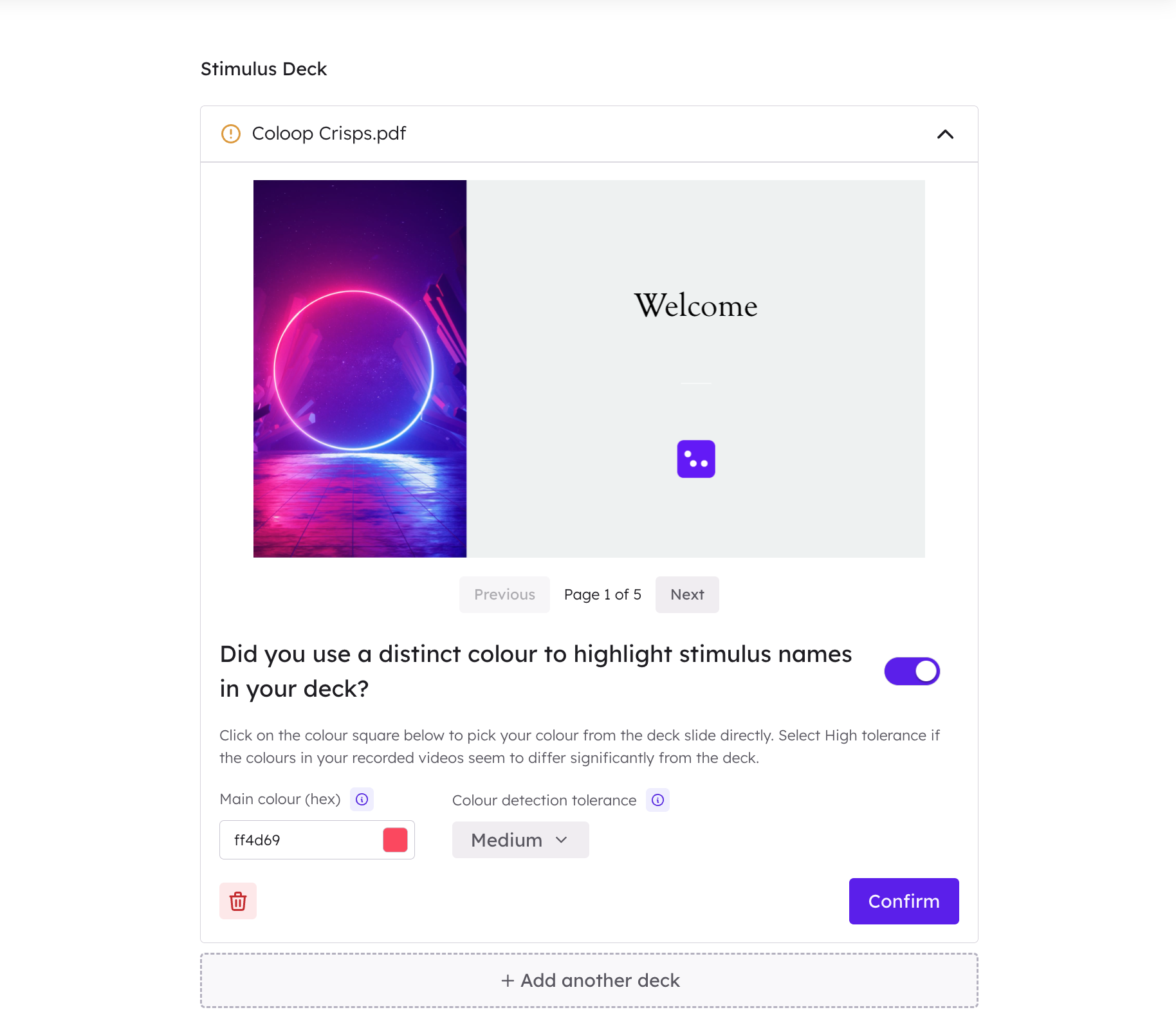
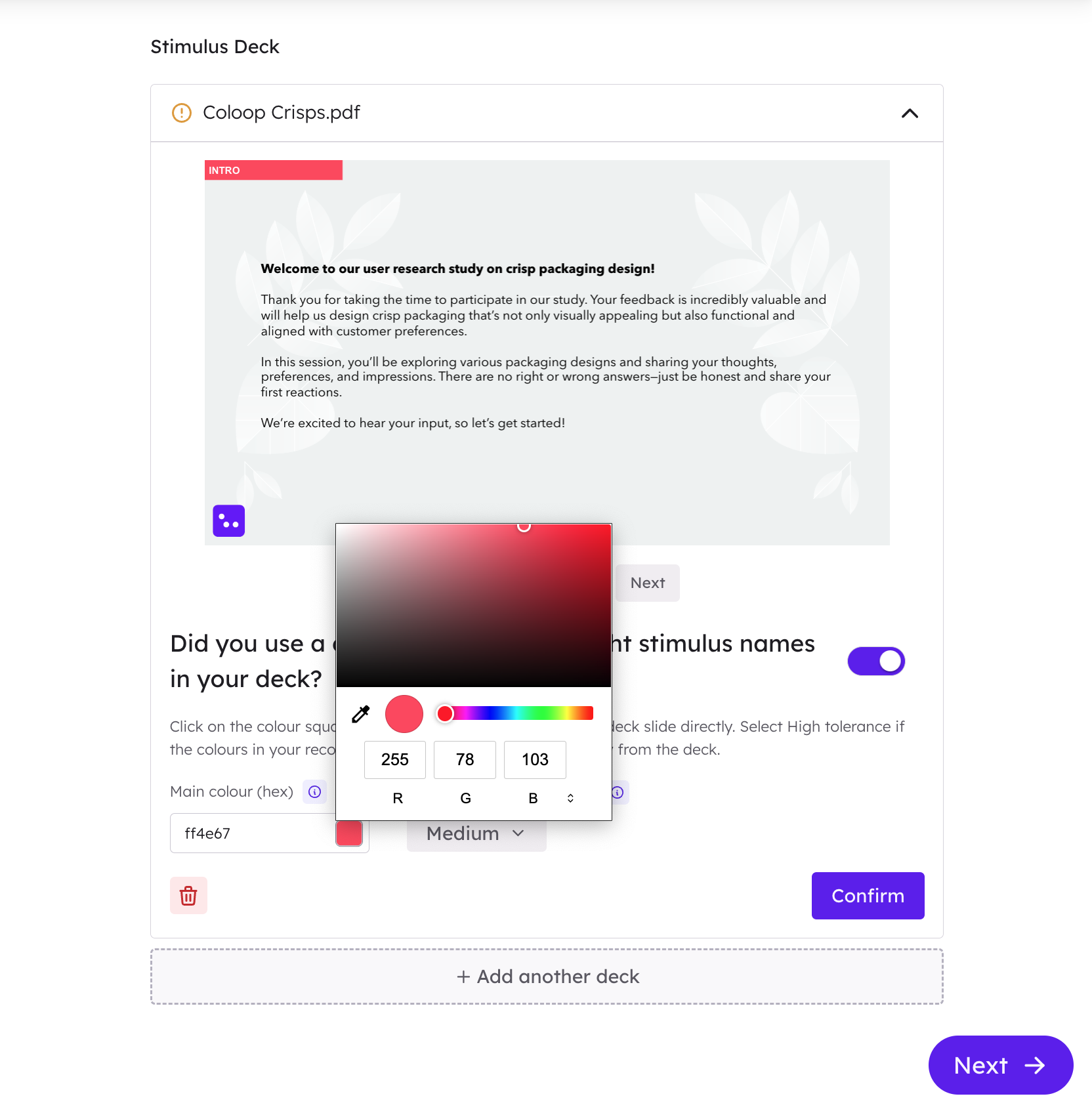
* Use Coloop’s pipette tool to align its internal colour tag boxes with those on your slides.
* Select the colour from your uploaded slides using the pipette tool to match them with their corresponding concepts in Coloop.
4. **Set Colour Detection Tolerance**
* Coloop uses tolerance levels to determine how closely colours need to match between what appears on-screen and what was uploaded in your slide deck:
* Choose between low, medium, or high tolerance depending on how precise you want detection to be.
* If unsure about which setting works best, start with medium tolerance as it provides balanced results.
5. **Import Video Content**
Import the video files of your interviews using the 'Video' import function.
6. **Verify Auto-Labelling**
Before proceeding and transcribing video content:
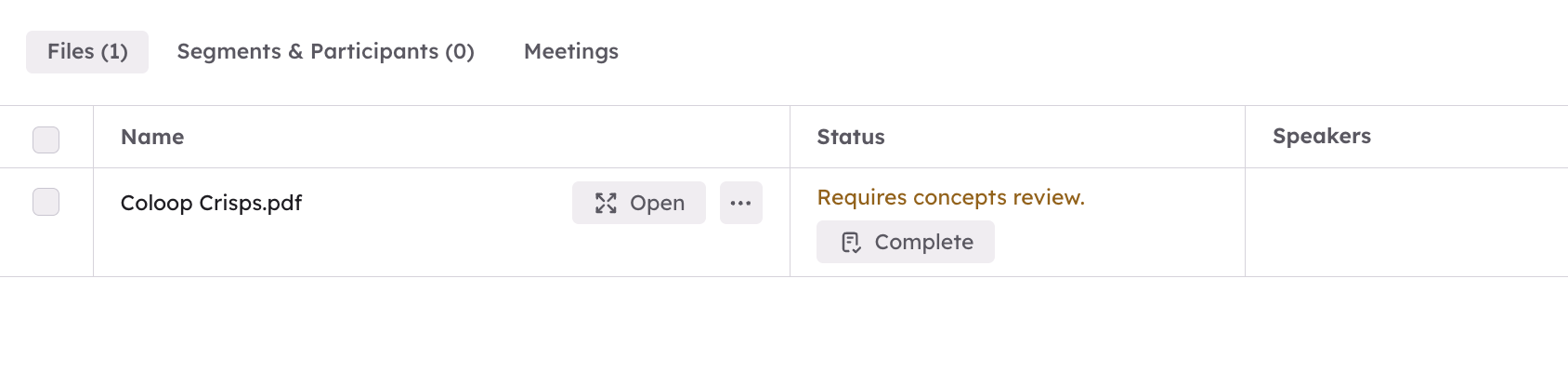
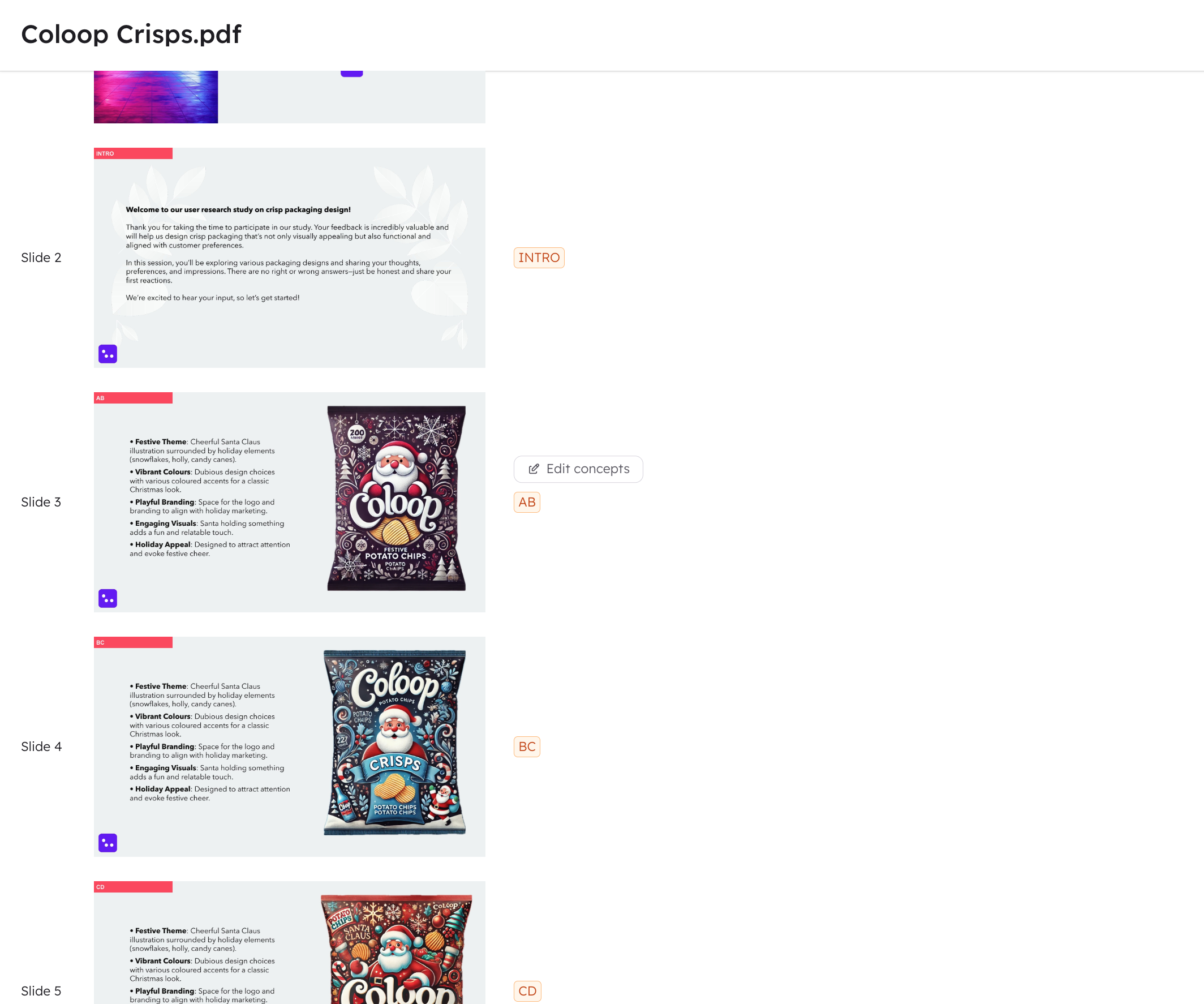
1. Review auto-labelled PDFs generated by Coloop after uploading your files.
2. Ensure that all concepts have been tagged correctly based on their associated colours and names. Click 'Complete' to review the pdf.
### **Upload your slide deck**
* Upload your prepared slide deck into CoLoop.
* Please note your slide deck must be in PDF format.

3. **Enable Colour Detection**
* Enable colour detection by selecting the toggle beneath your uploaded slide deck.

* Use Coloop’s pipette tool to align its internal colour tag boxes with those on your slides.
* Select the colour from your uploaded slides using the pipette tool to match them with their corresponding concepts in Coloop.

4. **Set Colour Detection Tolerance**
* Coloop uses tolerance levels to determine how closely colours need to match between what appears on-screen and what was uploaded in your slide deck:
* Choose between low, medium, or high tolerance depending on how precise you want detection to be.
* If unsure about which setting works best, start with medium tolerance as it provides balanced results.

5. **Import Video Content**
Import the video files of your interviews using the 'Video' import function.
6. **Verify Auto-Labelling**
Before proceeding and transcribing video content:
1. Review auto-labelled PDFs generated by Coloop after uploading your files.
2. Ensure that all concepts have been tagged correctly based on their associated colours and names. Click 'Complete' to review the pdf.
 7. **Transcribe Videos & Assign Concept Decks**
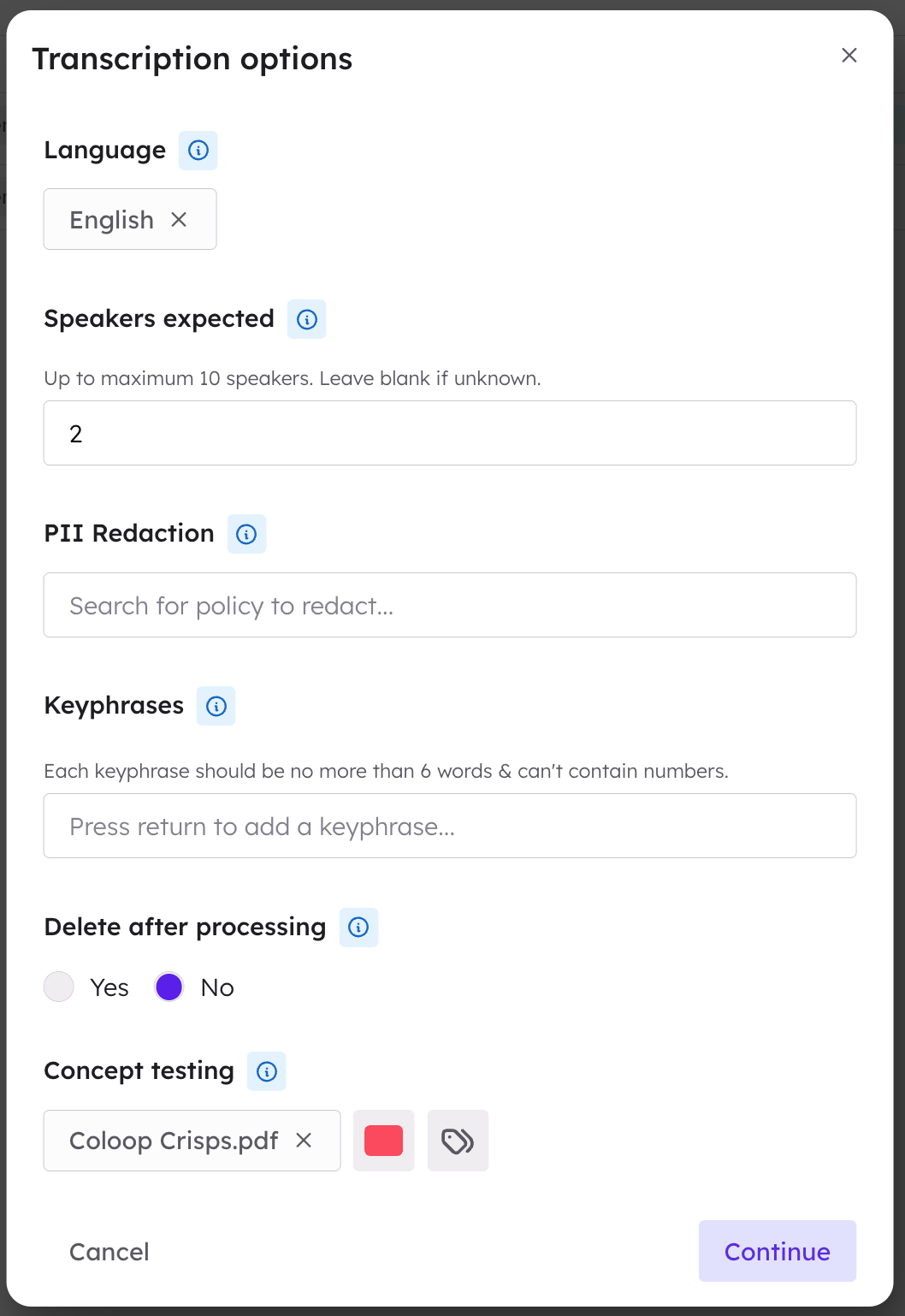
Transcribe your videos following these steps:
1. Set language preferences and specify the number of speakers involved in discussions.
2. Select the uploaded slide deck as a reference point during transcription setup.
3. After transcription is complete, confirm speaker identities within Coloop’s interface.
7. **Transcribe Videos & Assign Concept Decks**
Transcribe your videos following these steps:
1. Set language preferences and specify the number of speakers involved in discussions.
2. Select the uploaded slide deck as a reference point during transcription setup.
3. After transcription is complete, confirm speaker identities within Coloop’s interface.
 8. **Review Transcripts and Check Concept Tags**
* Review auto-tagged text segments that correspond to specific concepts visible on-screen at particular times during discussions.
* This allows you to analyze participant feedback directly tied to individual concepts without manual effort.
8. **Review Transcripts and Check Concept Tags**
* Review auto-tagged text segments that correspond to specific concepts visible on-screen at particular times during discussions.
* This allows you to analyze participant feedback directly tied to individual concepts without manual effort.
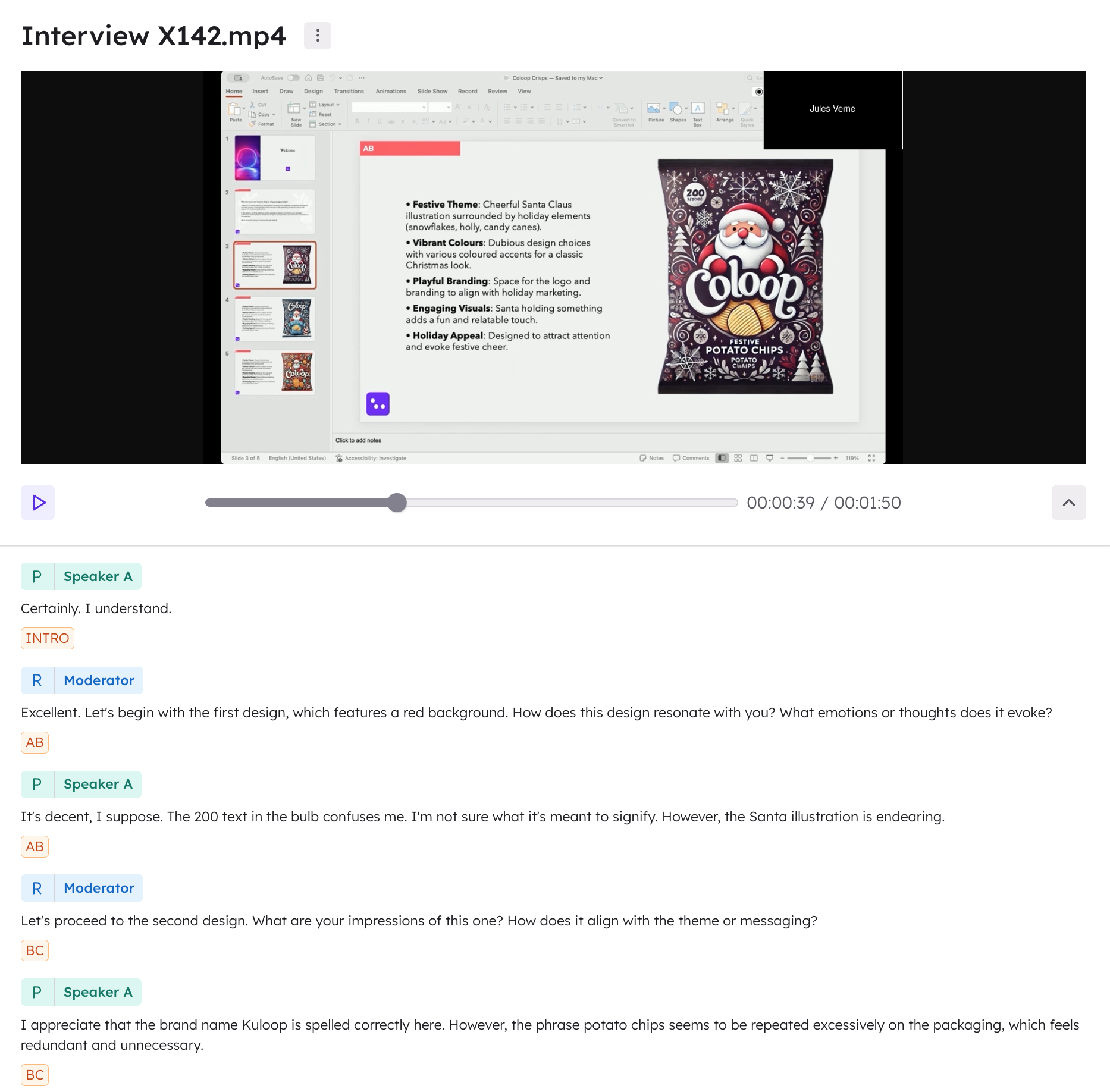 # Multiple Concepts Per Slide
We strongly recommend having one concept per slide wherever possible.
# Multiple Concepts Per Slide
We strongly recommend having one concept per slide wherever possible.
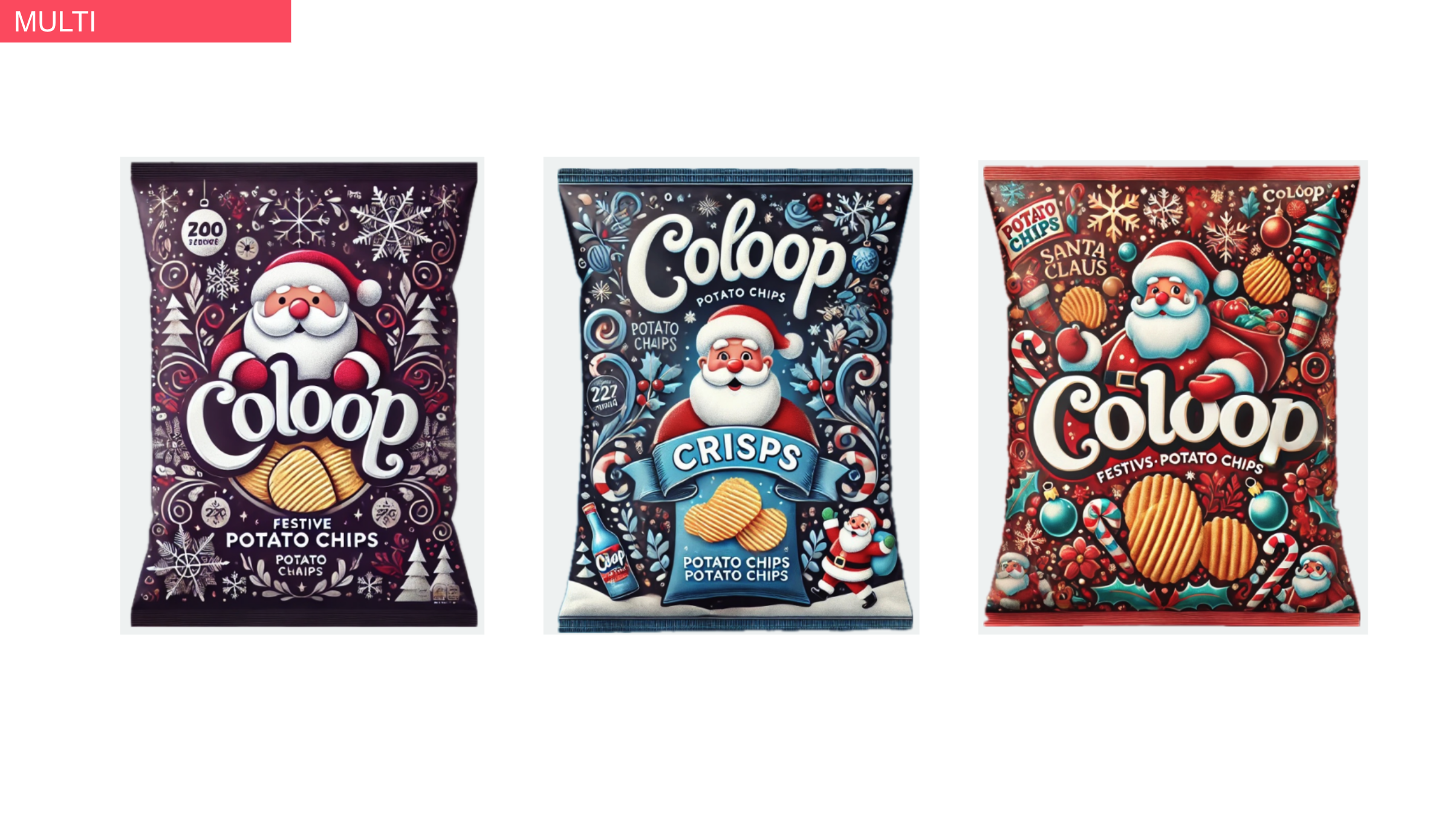
CoLoop cannot differentiate between multiple coloured boxes on one slide. Therefore, if any slides contain more than one concept you will need to follow these steps:
1. Label such slides under one title (e.g., “multi”) within your stimulus deck before uploading it into Coloop.
2. Add additional labels manually to the PDF once loaded into CoLoop in the files section. Open the PDF and edit concept labels. Press submit when ready to confirm labels.
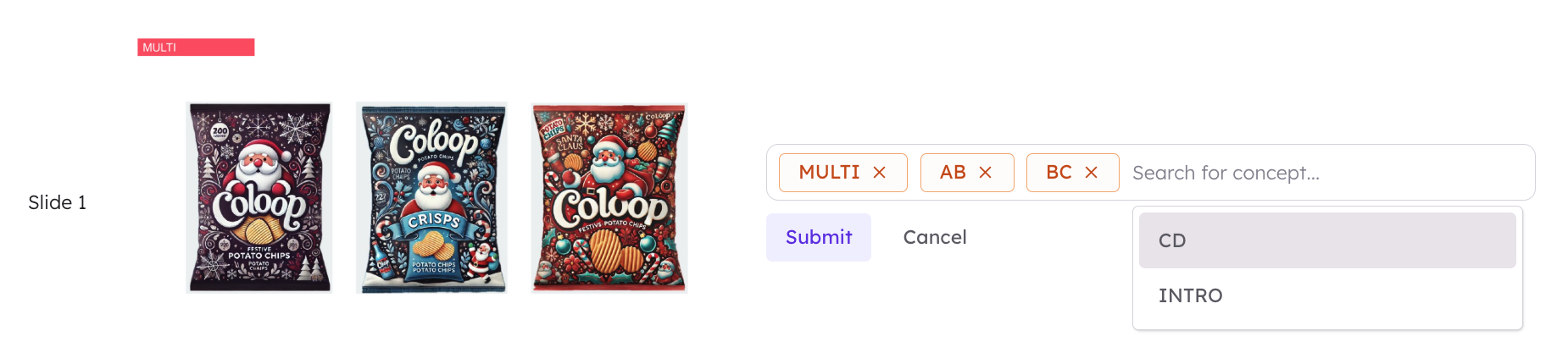
CoLoop will automatically apply all the labels you assign to the slide to any relevant sections while that slide is onscreen. You can review and edit these labels afterward if needed.
# Multi-Market & Multi Deck Projects
Colour tagging is especially helpful when you're running multi-market or multi-language concept tests and have separate stimulus decks for each group.
It’s ideal when:
* You have multiple decks (e.g. English, French) with the same concepts presented in each slide
* Each slide shows one concept, with consistent colour tags across all versions
* Participant videos are recorded while they view the matching deck
This setup allows CoLoop to accurately identify concepts across different markets, even if the deck content is translated, by relying on consistent colour cues.
### Prepare your stimulus decks
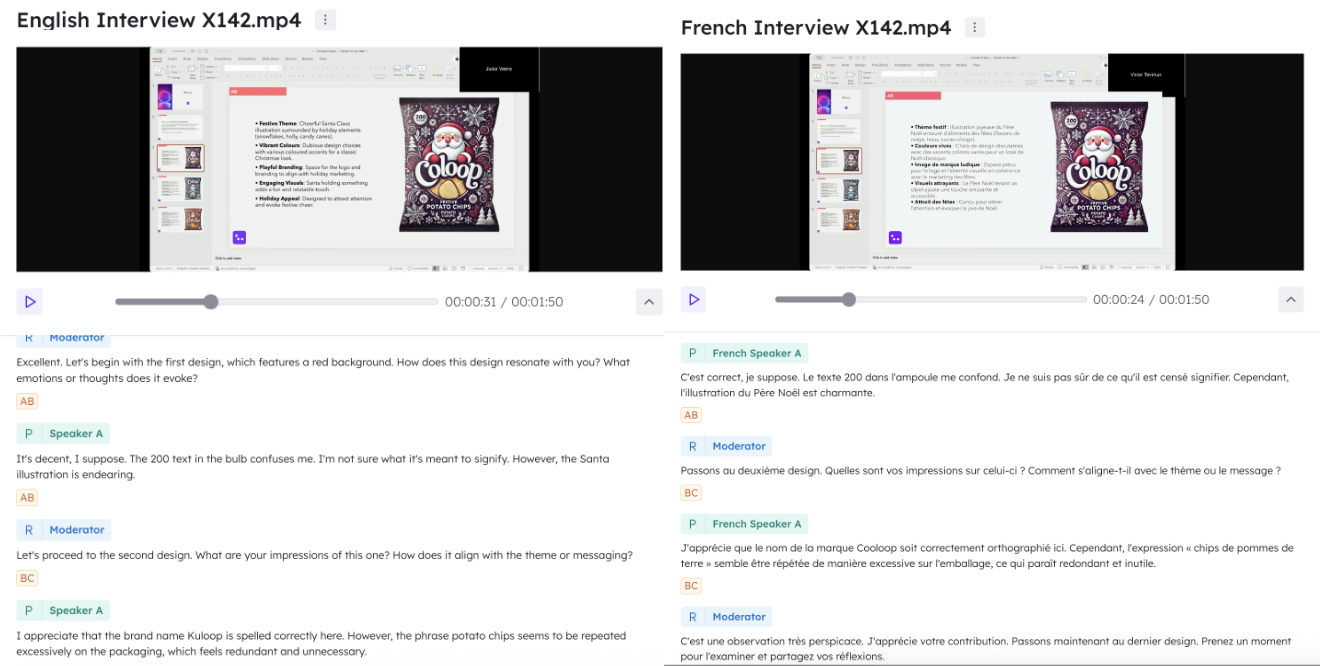
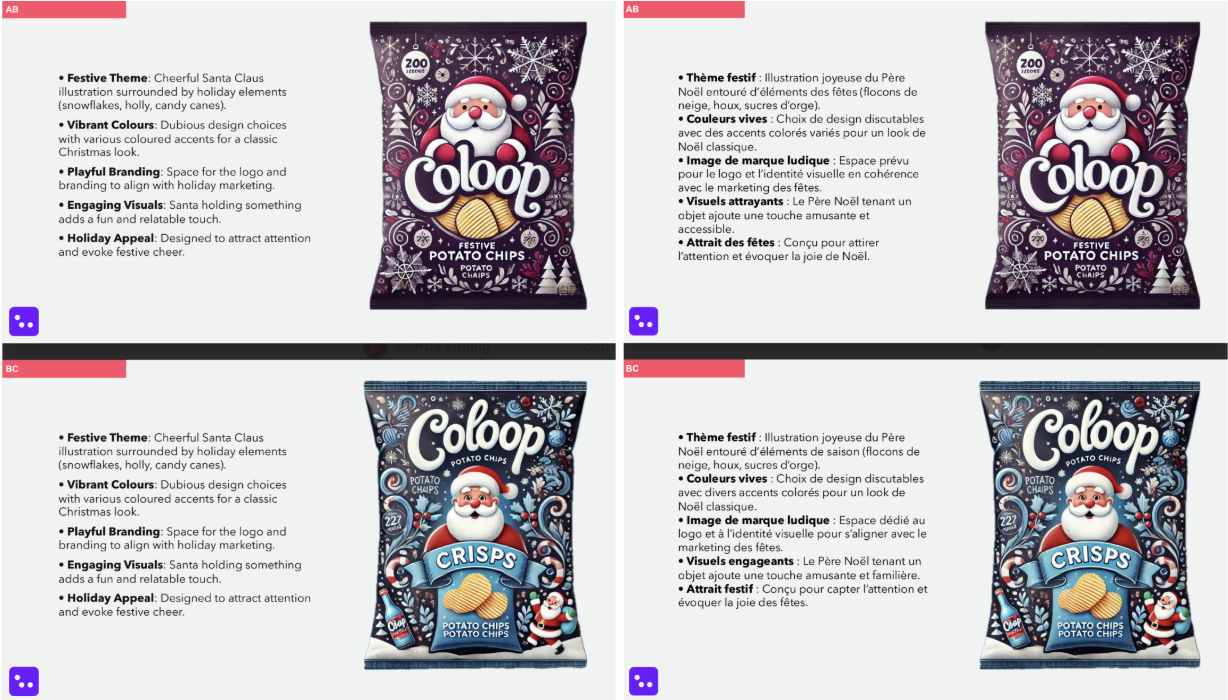
To prepare, make sure you have consistent colour highlights across all of your decks. The same concept should appear with the same label and same colour across all of the slides.
Like in the example below, the English (left) and French (right) decks have slightly different content on them but the concepts names and colour highlights are exactly the same.
### Set up your project
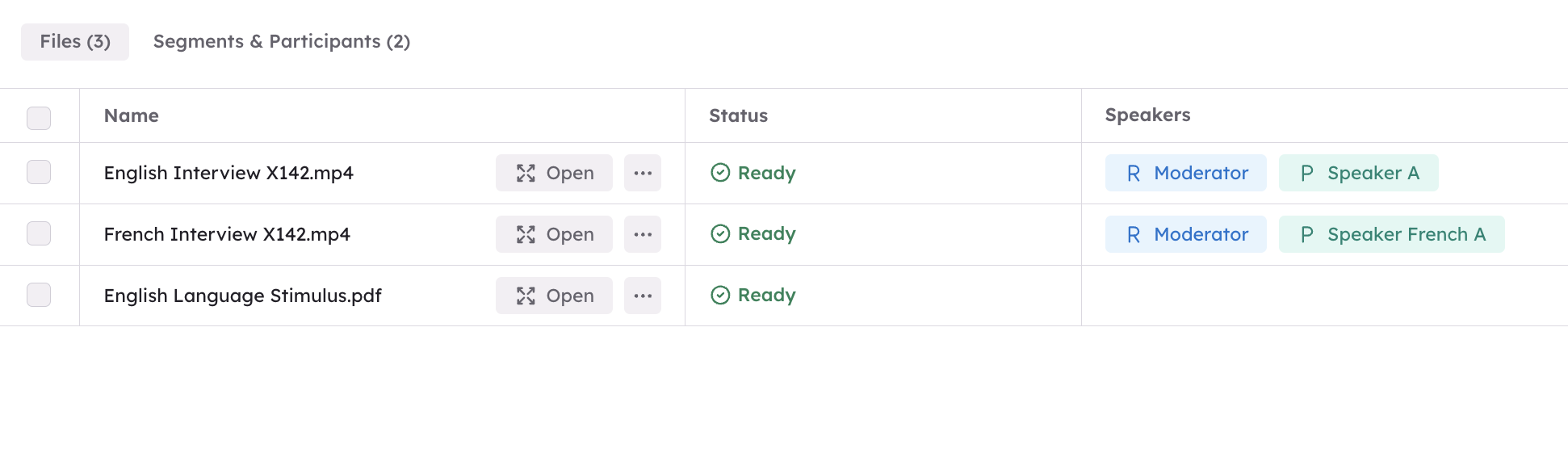
Set up your project in the same way outlined above. Since the colour highlights and concept names are the same across all of the decks, regardless of the language, you only have to upload one version of the stimulus deck.
In the example below, only the English version of the deck was uploaded, but the concepts were detected correctly in both the English and the French recording.