> ## Documentation Index
> Fetch the complete documentation index at: https://docs.coloop.ai/llms.txt
> Use this file to discover all available pages before exploring further.
# Stimulus Deck Concept Testing
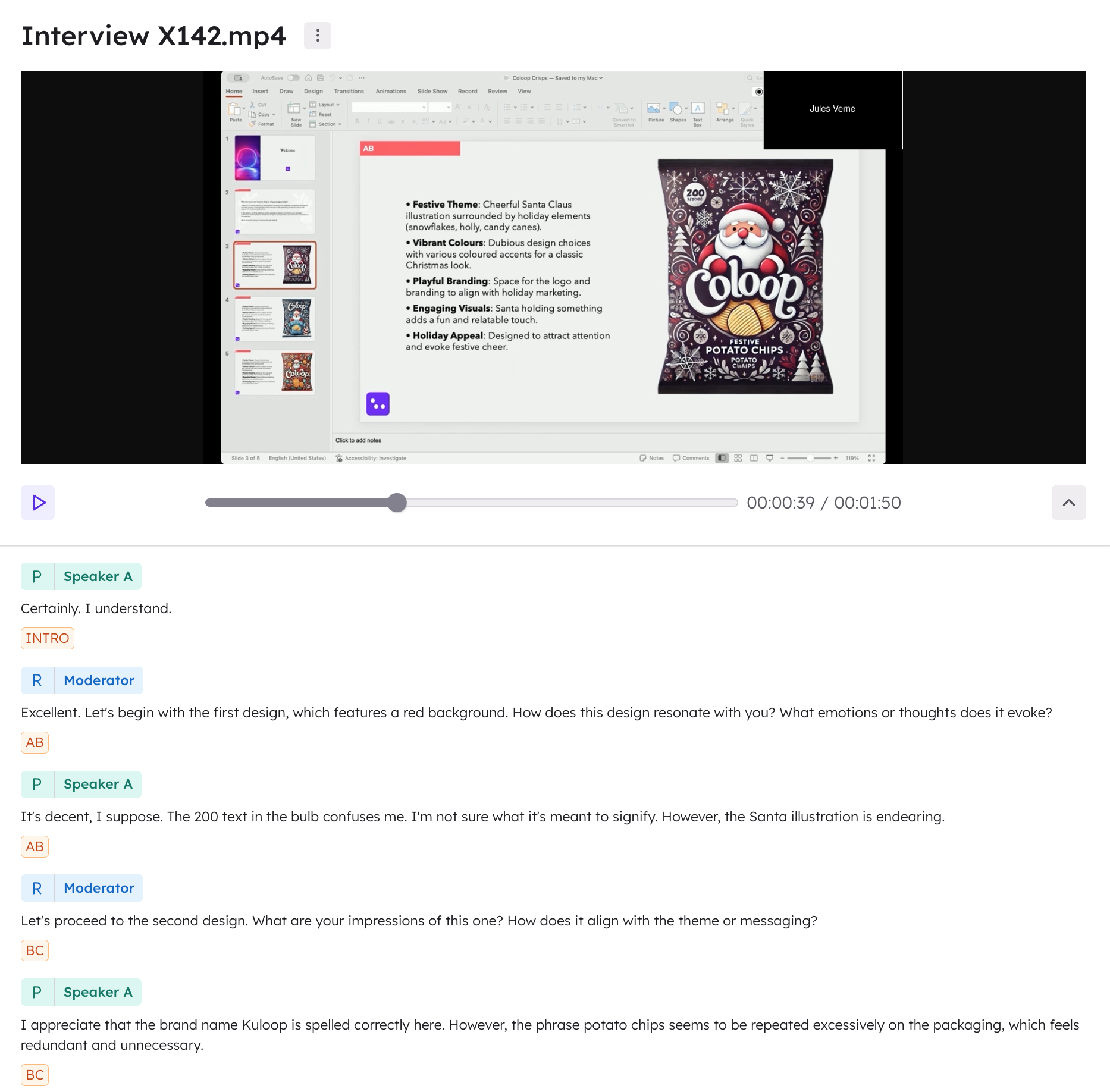
> CoLoop detects your slides in interview recordings automatically, tagging concepts as they appear on screen. This guide walks you through setting up and using a stimulus deck in your project workflow.
Navigating this page:
* [**Stimulus Deck Concept Testing**](/docs/concept-testing/stimulus-deck-concept-testing#when-to-use-a-stimulus-deck)
* [**Multiple Concepts per Slide**](/docs/concept-testing/stimulus-deck-concept-testing#multiple-concepts-per-slide)
* [**Multiple Decks in One Project**](/docs/concept-testing/stimulus-deck-concept-testing#multi-market-%26-multi-deck-projects)
### When to use a stimulus deck
CoLoop identifies and tags concepts automatically during video analysis by matching what appears on screen in your recordings against the stimulus deck you upload.
This method requires 2 components for accurate results.
* You'll need to prepare a stimulus deck with the parameters below.
* You'll need to show this exact deck during interviews and have it presented full-screen in the recordings.
Color tagging is no longer required. CoLoop used to ask you to add colored label boxes to each slide and pick that color in the app. Slide detection is now automatic, so your deck needs no tags, labels or other preparation. Projects already set up with color tagging keep working.
# Concept Testing using a Stimulus Deck
### Prepare your stimulus deck
To ensure effective concept tagging, follow these steps when creating your stimulus deck:
**One Concept Per Slide**: Each slide should focus on a single concept, whether it’s an image or text.
*If you have more than once concept per slide* [*please see below*](/docs/concept-testing/stimulus-deck-concept-testing#multiple-concepts-per-slide)
**Export as PDF**: Export the deck exactly as you showed it. Do not re-order or restyle the slides, as CoLoop matches your recordings against these exact slides.
Be sure to present this deck during your interviews and confirm that the recording clearly captures the slides.
### Set up your project
Once your stimulus deck is ready and you've collected your data, you can set up your project in Coloop:
1. **Create a New Project**:
* Log into Coloop and create a new project as you normally would.
* Upload your discussion guide if applicable.
2. **Enable Concept Testing**:
* Turn on the “concept testing” feature within your project settings.
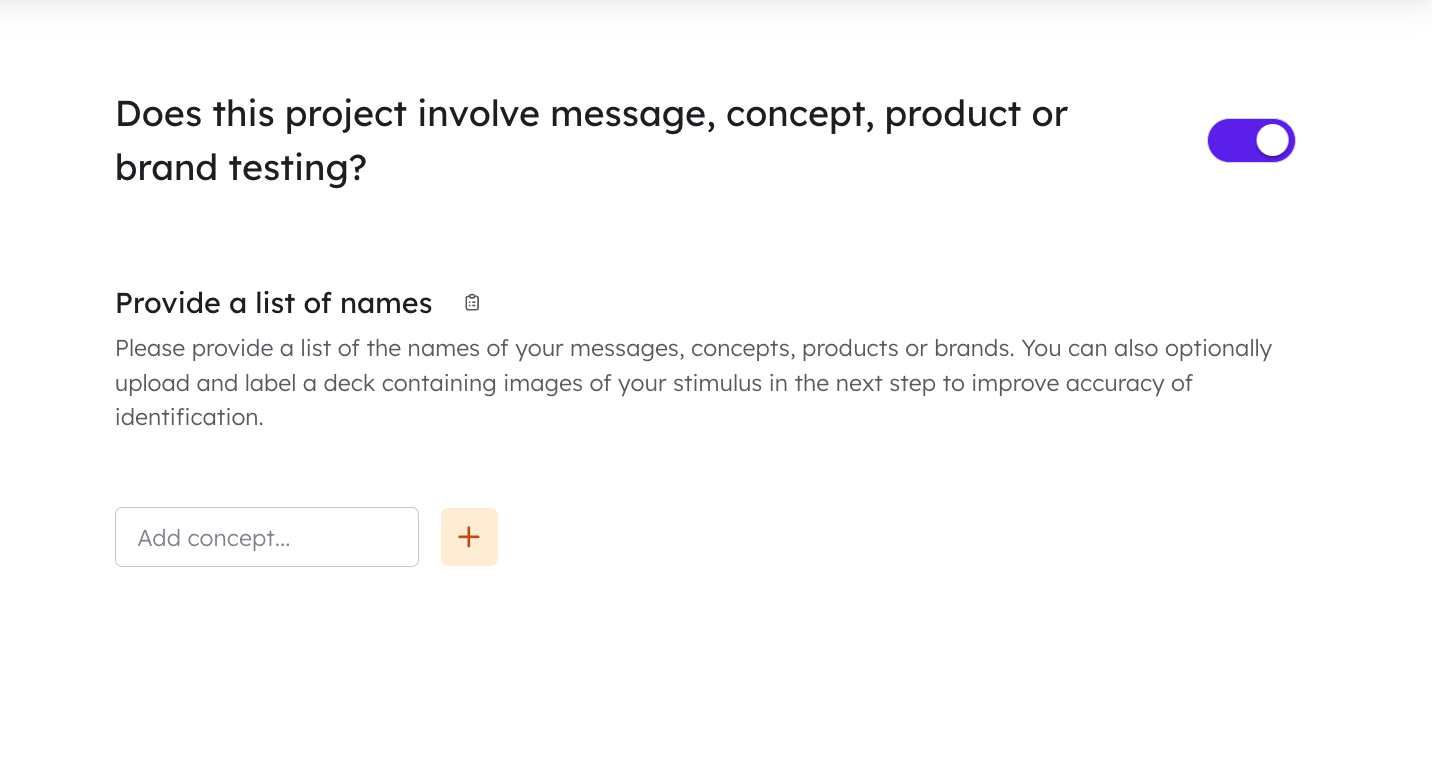
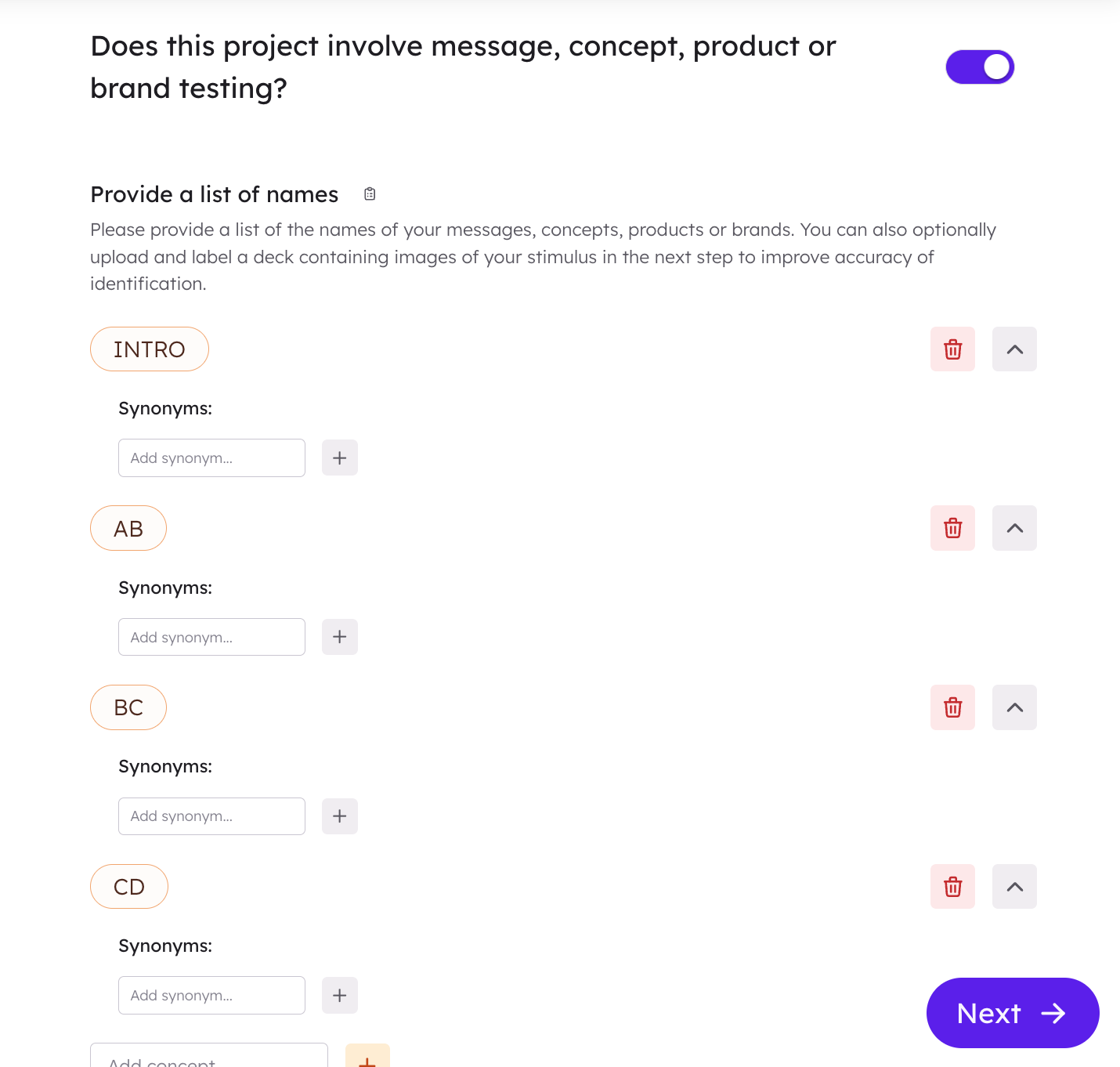
* Input all relevant concept names into Coloop so they can be linked to their respective slides later.
 ### **Upload your slide deck**
* Upload your prepared slide deck into CoLoop.
* Please note your slide deck must be in PDF format.
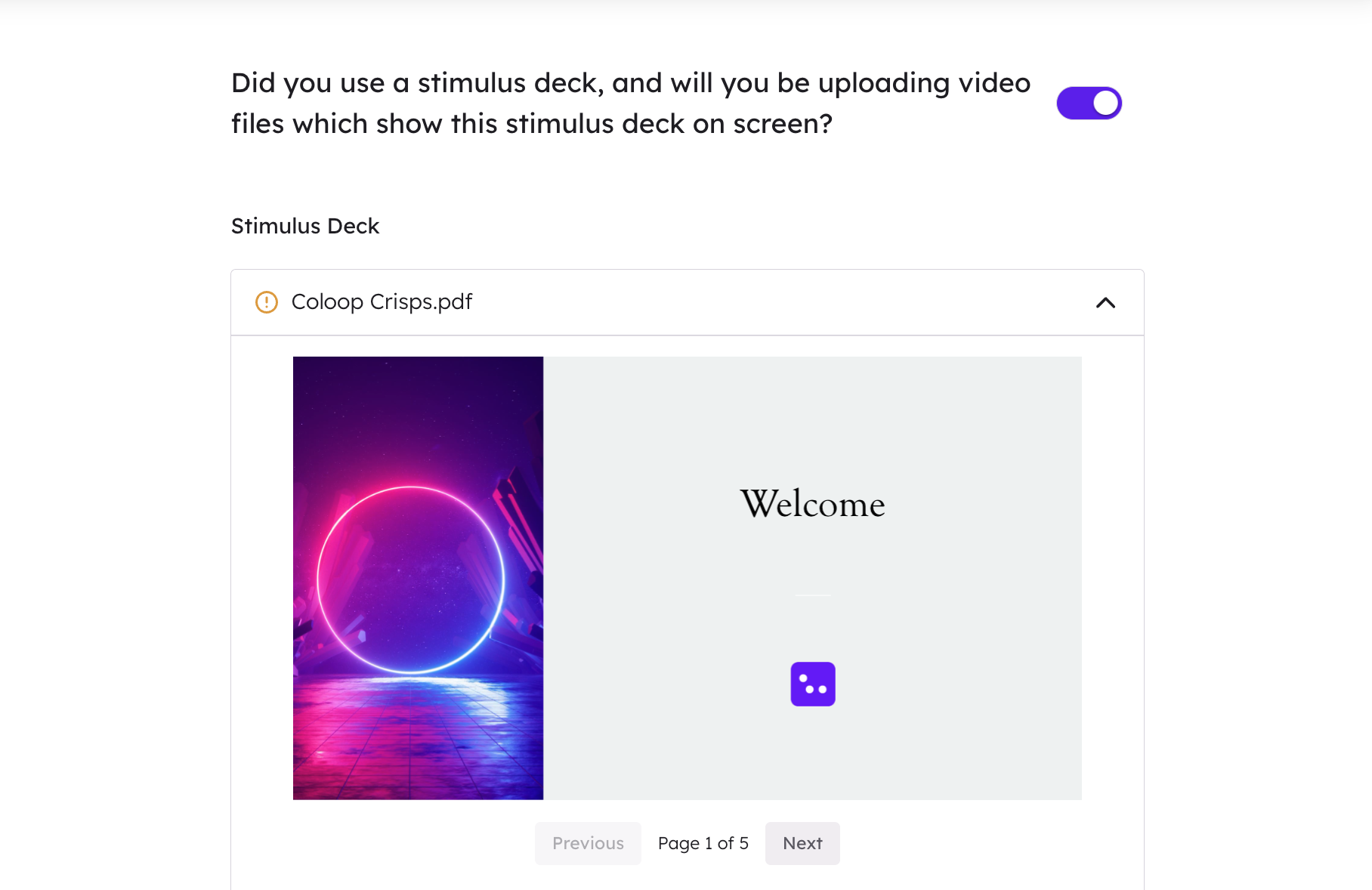
3. **Import Video Content**
Import the video files of your interviews using the 'Video' import function.
4. **Verify Auto-Labeling**
Before proceeding and transcribing video content:
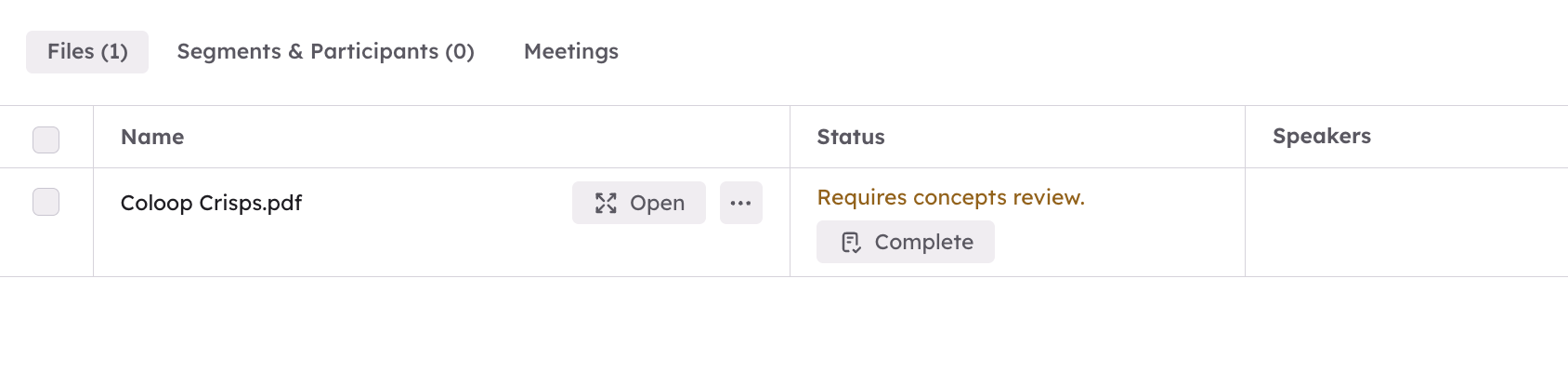
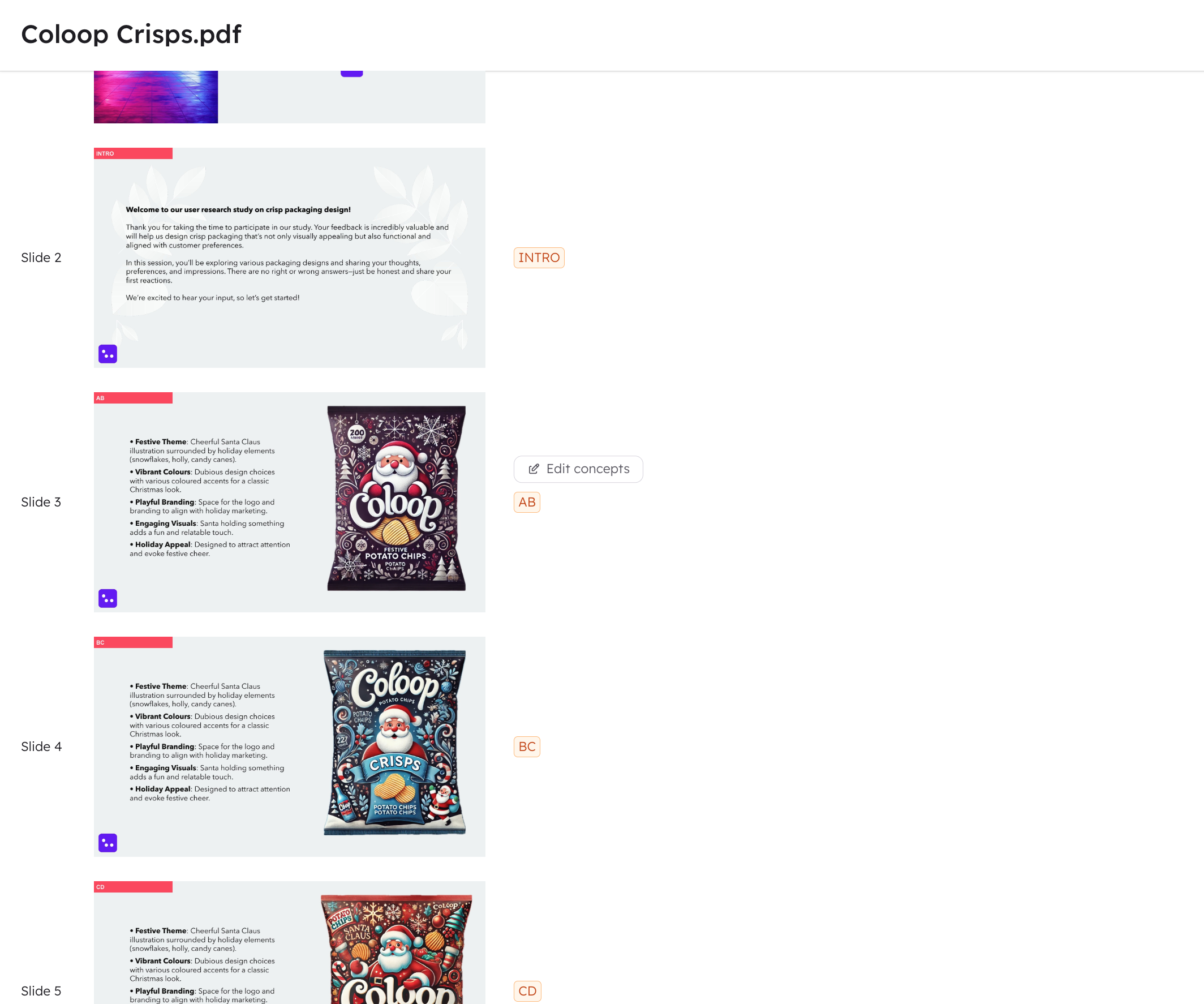
1. Review auto-labeled PDFs generated by Coloop after uploading your files.
2. Ensure that all concepts have been matched to the right slides. Click 'Complete' to review the pdf.
### **Upload your slide deck**
* Upload your prepared slide deck into CoLoop.
* Please note your slide deck must be in PDF format.

3. **Import Video Content**
Import the video files of your interviews using the 'Video' import function.
4. **Verify Auto-Labeling**
Before proceeding and transcribing video content:
1. Review auto-labeled PDFs generated by Coloop after uploading your files.
2. Ensure that all concepts have been matched to the right slides. Click 'Complete' to review the pdf.
 5. **Transcribe Videos & Assign Concept Decks**
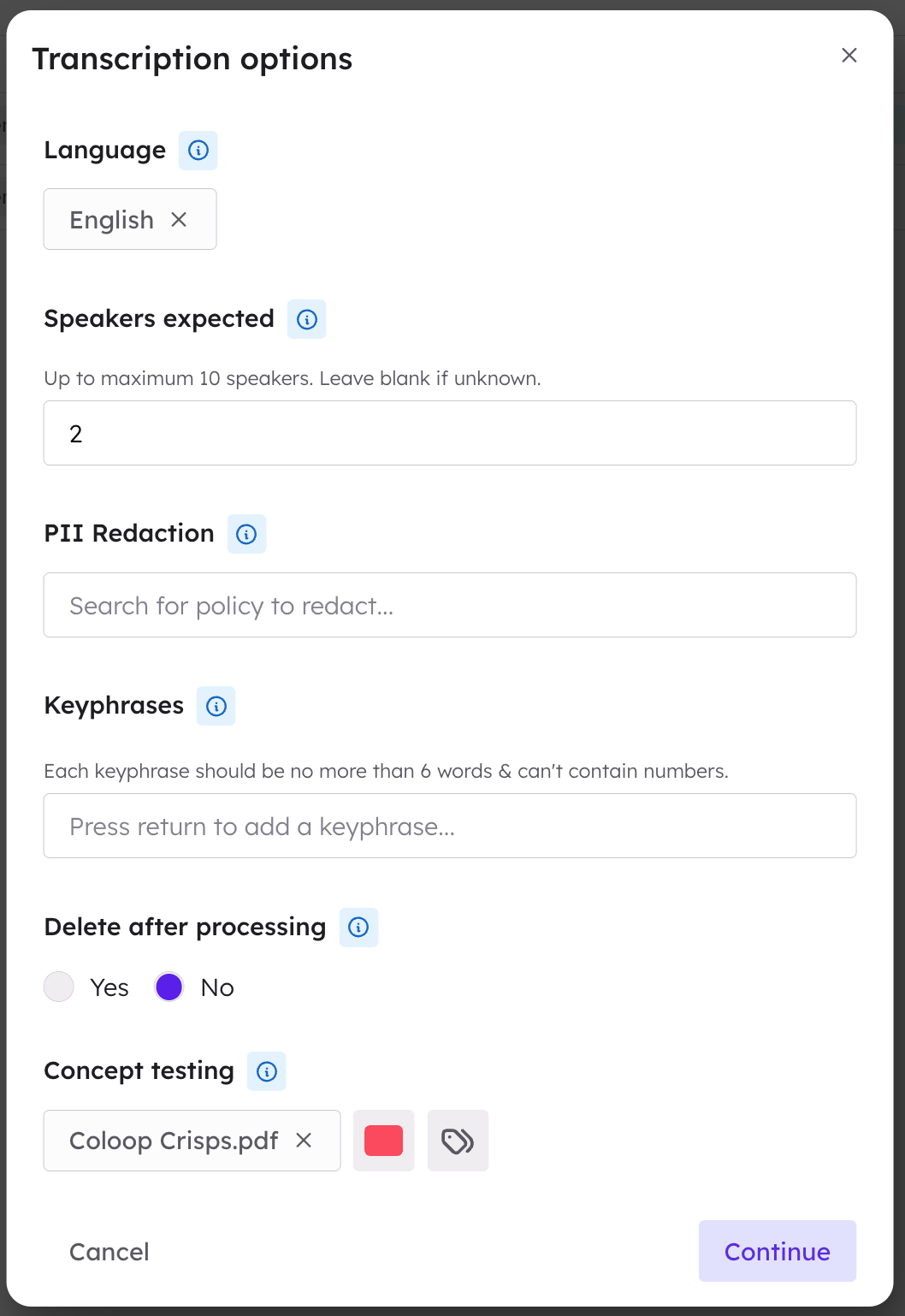
Transcribe your videos following these steps:
1. Set language preferences and specify the number of speakers involved in discussions.
2. Select the uploaded slide deck as a reference point during transcription setup.
3. After transcription is complete, confirm speaker identities within Coloop’s interface.
5. **Transcribe Videos & Assign Concept Decks**
Transcribe your videos following these steps:
1. Set language preferences and specify the number of speakers involved in discussions.
2. Select the uploaded slide deck as a reference point during transcription setup.
3. After transcription is complete, confirm speaker identities within Coloop’s interface.
 6. **Review Transcripts and Check Concept Tags**
* Review auto-tagged text segments that correspond to specific concepts visible on-screen at particular times during discussions.
* This allows you to analyze participant feedback directly tied to individual concepts without manual effort.
6. **Review Transcripts and Check Concept Tags**
* Review auto-tagged text segments that correspond to specific concepts visible on-screen at particular times during discussions.
* This allows you to analyze participant feedback directly tied to individual concepts without manual effort.
 # Multiple Concepts Per Slide
We strongly recommend having one concept per slide wherever possible.
# Multiple Concepts Per Slide
We strongly recommend having one concept per slide wherever possible.
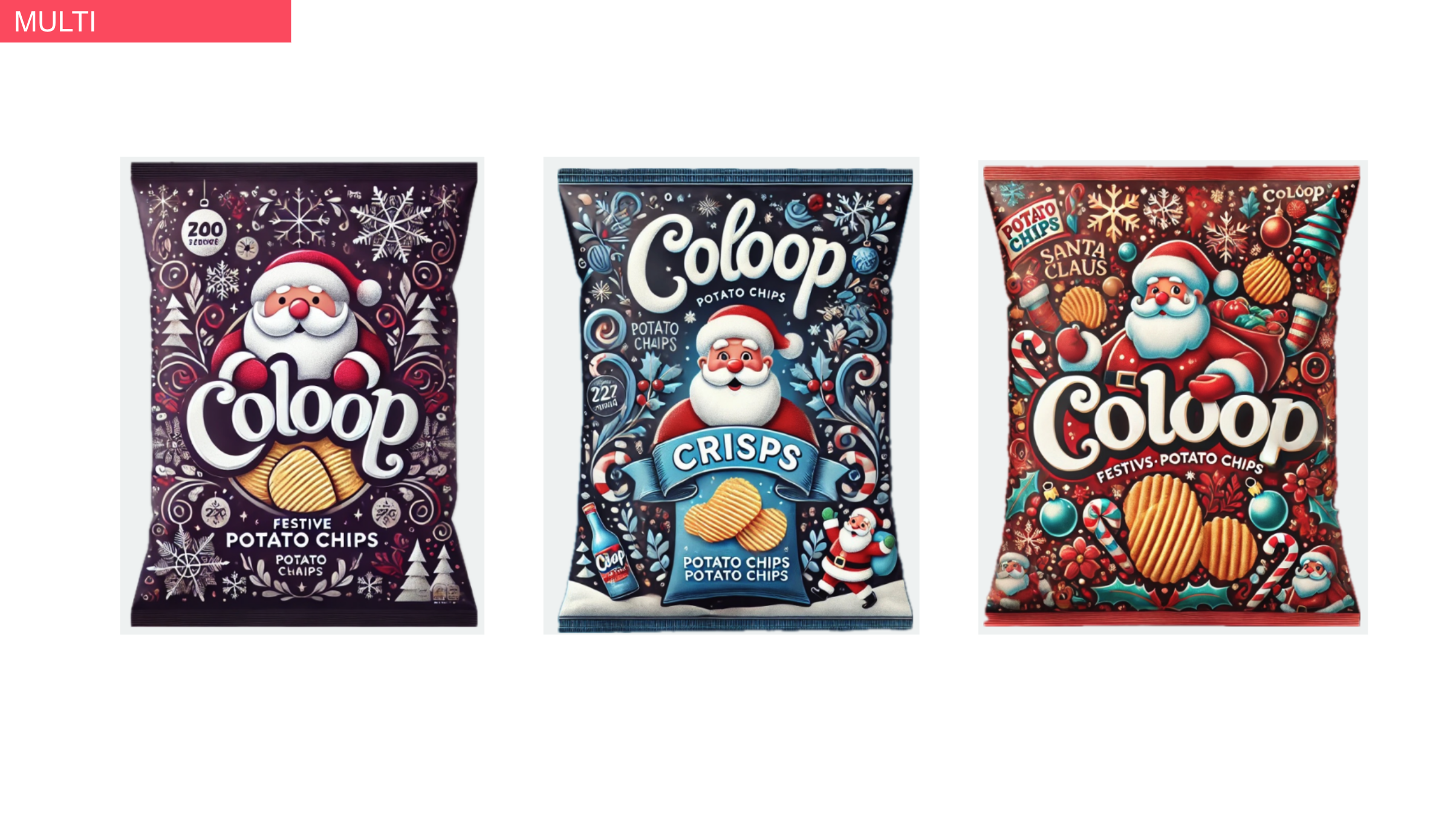
CoLoop detects which slide is on screen, not which part of a slide a participant is discussing. Therefore, if any slides contain more than one concept you will need to follow these steps:
1. Label such slides under one title (e.g., “multi”) within your stimulus deck before uploading it into Coloop.
2. Add additional labels manually to the PDF once loaded into CoLoop in the files section. Open the PDF and edit concept labels. Press submit when ready to confirm labels.
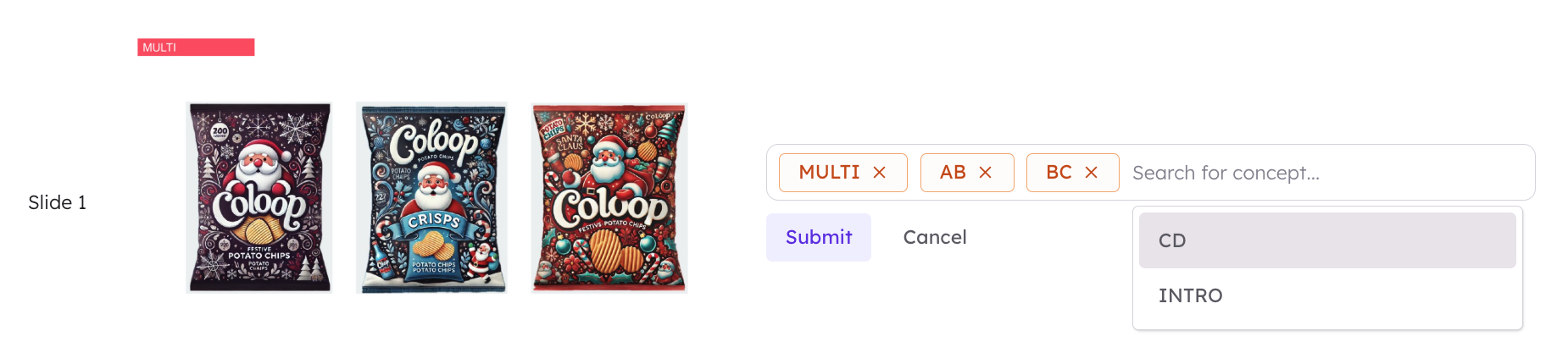
CoLoop will automatically apply all the labels you assign to the slide to any relevant sections while that slide is onscreen. You can review and edit these labels afterward if needed.
# Multi-Market & Multi Deck Projects
Stimulus decks are especially helpful when you're running multi-market or multi-language concept tests and have separate decks for each group.
It’s ideal when:
* You have multiple decks (e.g. English, French) with the same concepts presented in each slide
* Each slide shows one concept, in the same order across all versions
* Participant videos are recorded while they view the matching deck
This setup allows CoLoop to accurately identify concepts across different markets, even if the deck content is translated, by matching the slide layouts it sees on screen.
### Prepare your stimulus decks
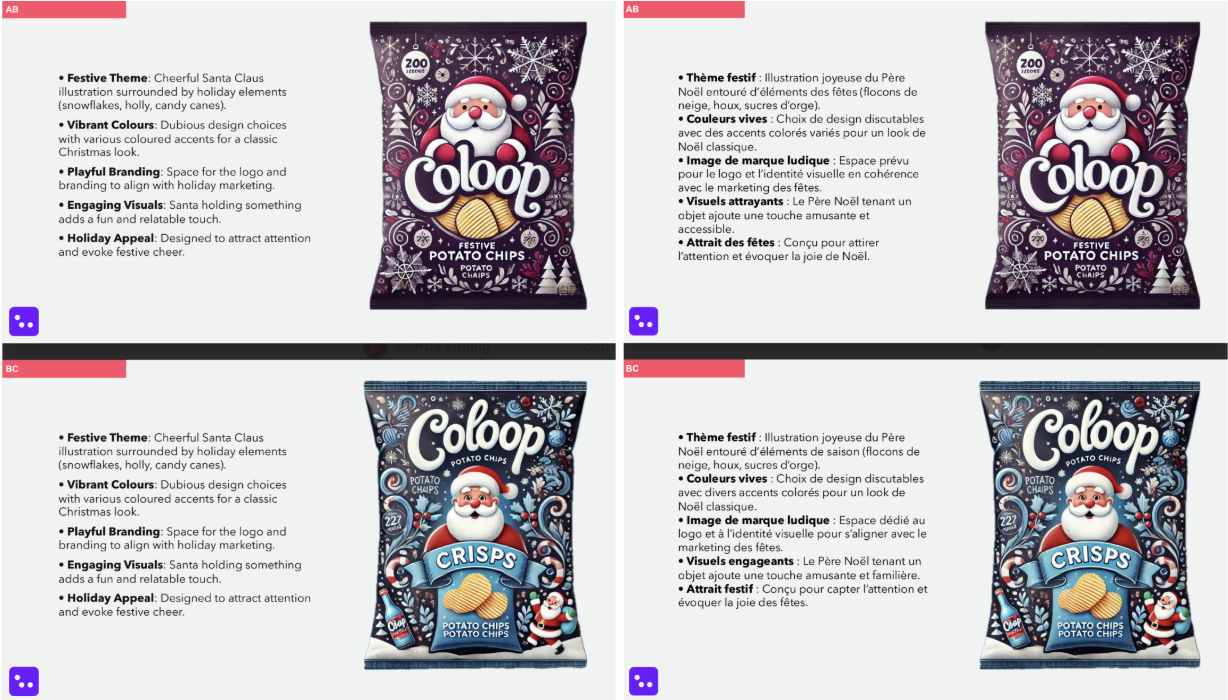
To prepare, keep the same concepts in the same slide order across all of your decks.
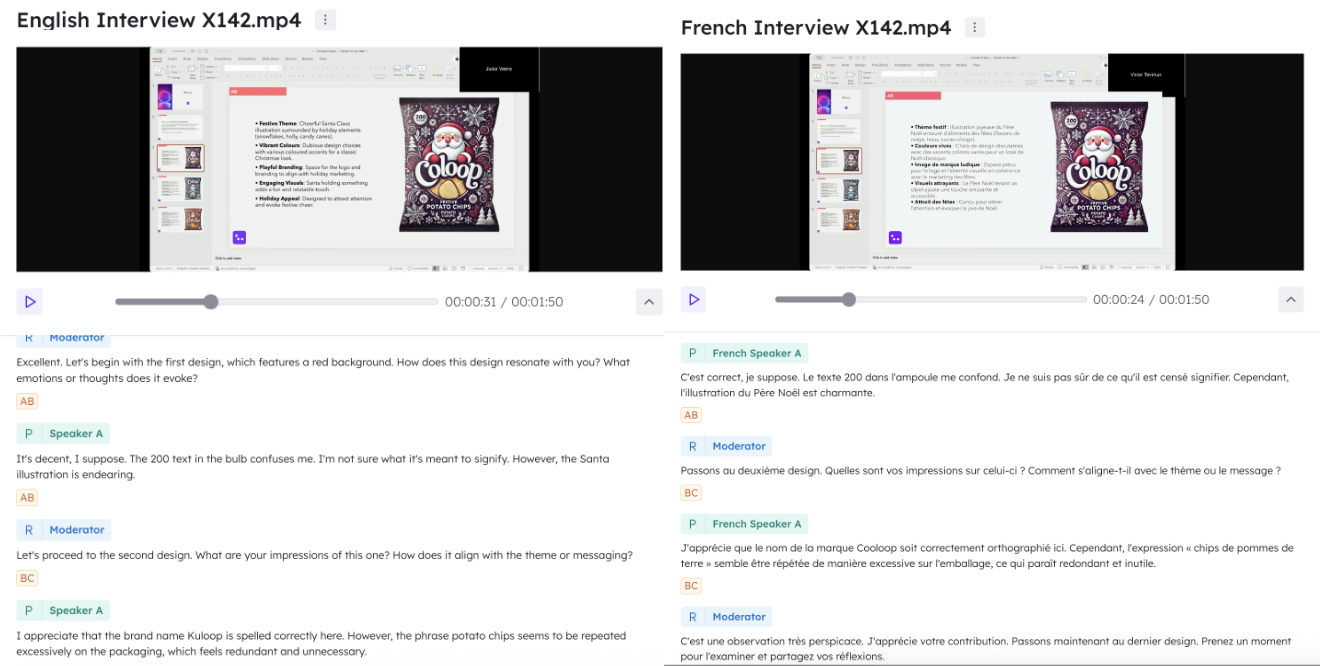
Like in the example below, the English (left) and French (right) decks have slightly different content on them but the concepts and slide order are exactly the same.
### Set up your project
Set up your project in the same way outlined above. Where translated decks share the same layout and slide order, you only have to upload one version of the stimulus deck.
In the example below, only the English version of the deck was uploaded, but the concepts were detected correctly in both the English and the French recording.