> ## Documentation Index
> Fetch the complete documentation index at: https://docs.coloop.ai/llms.txt
> Use this file to discover all available pages before exploring further.
# Arranging a recording for a future meeting
For meetings scheduled in advance, CoLoop offers a way to arrange a recording before the meeting starts.
## 1. Create a Microsoft Calendar Event
### Teams meeting
Create a calendar event and set it up as you normally would. The subject will appear as title of your meeting in CoLoop.
Ensure the teams toggle is turned on.
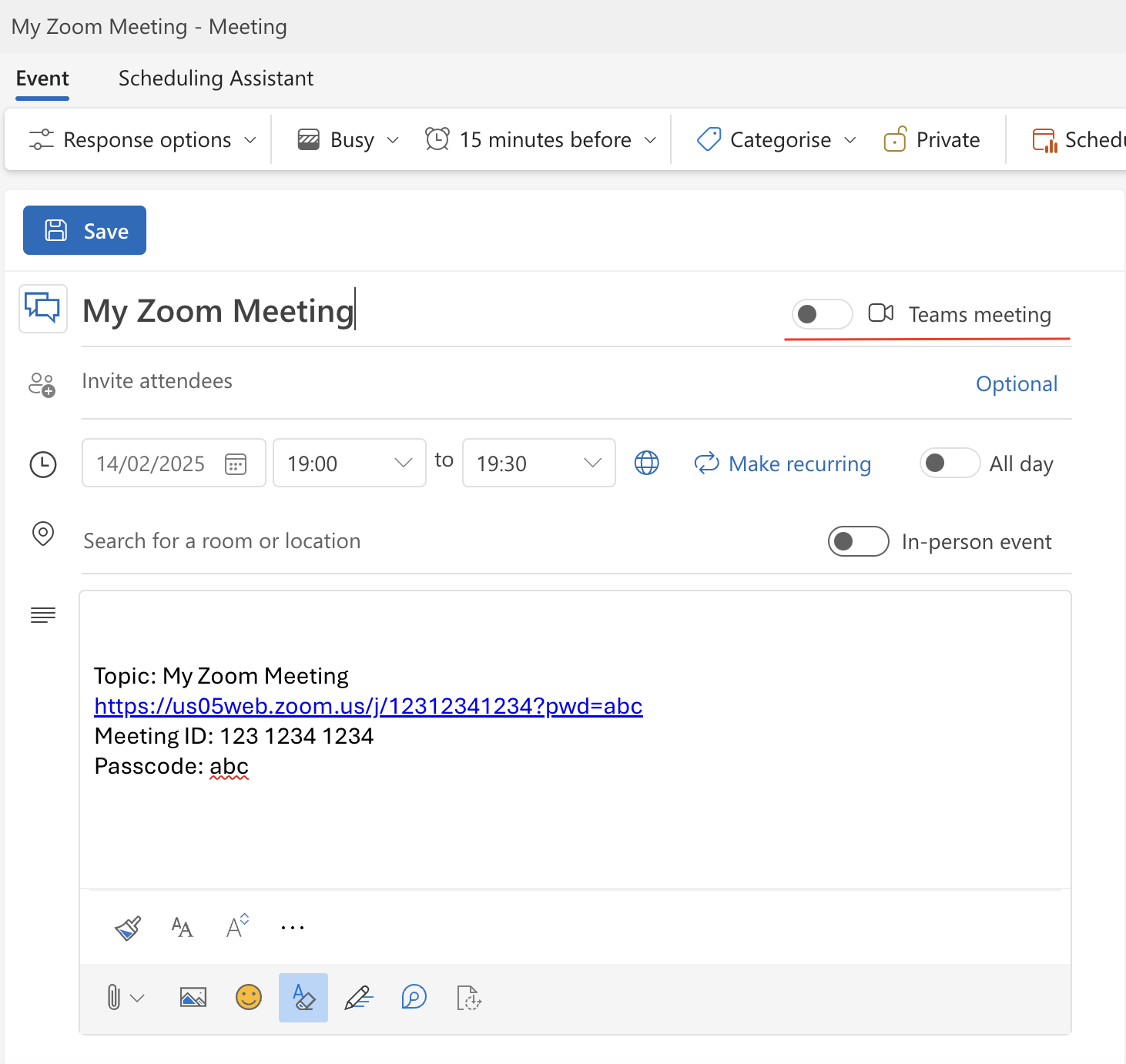
 ### Zoom meeting
Paste the Zoom URL into the event description and save the event.
Microsoft will recognize this as an online meeting and display a **Join** button.
After inviting participants to a meeting, the 'Teams Meeting' toggle will
automatically be turned on. Make sure to **switch it off** if your meeting is
a Zoom meeting. If left on, Microsoft will override the Zoom link with a Teams
URL, causing the bot to join the wrong meeting.
### Zoom meeting
Paste the Zoom URL into the event description and save the event.
Microsoft will recognize this as an online meeting and display a **Join** button.
After inviting participants to a meeting, the 'Teams Meeting' toggle will
automatically be turned on. Make sure to **switch it off** if your meeting is
a Zoom meeting. If left on, Microsoft will override the Zoom link with a Teams
URL, causing the bot to join the wrong meeting.
 ## 2. Arrange the recording in CoLoop
* Go to the **Meetings** tab and click **Arrange**.
* Sign in with your Microsoft account to fetch your upcoming meeting events.
* In the popout view, select any meetings you want the bot to join in the future and click **Save**.
* A new meeting row will appear in the table, indicating a pre-arranged recording that is not yet started.
In Teams meetings, the recorder may initially enter a waiting lobby, the
meeting organizer must permit the recorder entry. If the bot is denied
entry, no recording will occur.
## 2. Arrange the recording in CoLoop
* Go to the **Meetings** tab and click **Arrange**.
* Sign in with your Microsoft account to fetch your upcoming meeting events.
* In the popout view, select any meetings you want the bot to join in the future and click **Save**.
* A new meeting row will appear in the table, indicating a pre-arranged recording that is not yet started.
In Teams meetings, the recorder may initially enter a waiting lobby, the
meeting organizer must permit the recorder entry. If the bot is denied
entry, no recording will occur.