> ## Documentation Index
> Fetch the complete documentation index at: https://docs.coloop.ai/llms.txt
> Use this file to discover all available pages before exploring further.
# Recording Using CoLoop
> This guide will introduce the CoLoop Recorder, and describe how to capture your online interviews and focus groups when recording with Zoom, Google Meet, Microsoft Teams or Webex.
Instead of having to run an interview, save the file, and then manually upload it to CoLoop, our system offers a recording bot service. The bot joins your meeting as a participant and quietly listens in the background. When the meeting ends, the video or audio recording is automatically sent to CoLoop — no manual upload required!
To capture and record interviews live as they are conducted, CoLoop can be integrated directly with:
* [Teams](/integration/integration/teams)
* [Zoom](/integration/integration/zoom)
* [Google Meets](/integration/integration/google-meet)
* [Webex](/integration/integration/webex)
This can help streamline research ops and will also significantly improve speaker accuracy particularly when conducting focus groups with multiple participants.
There are **two easy methods** to add CoLoop to your calls:
* Use +Join to invite the recorder with a meeting link
* Create a project-specific email address to add to your calendar invites
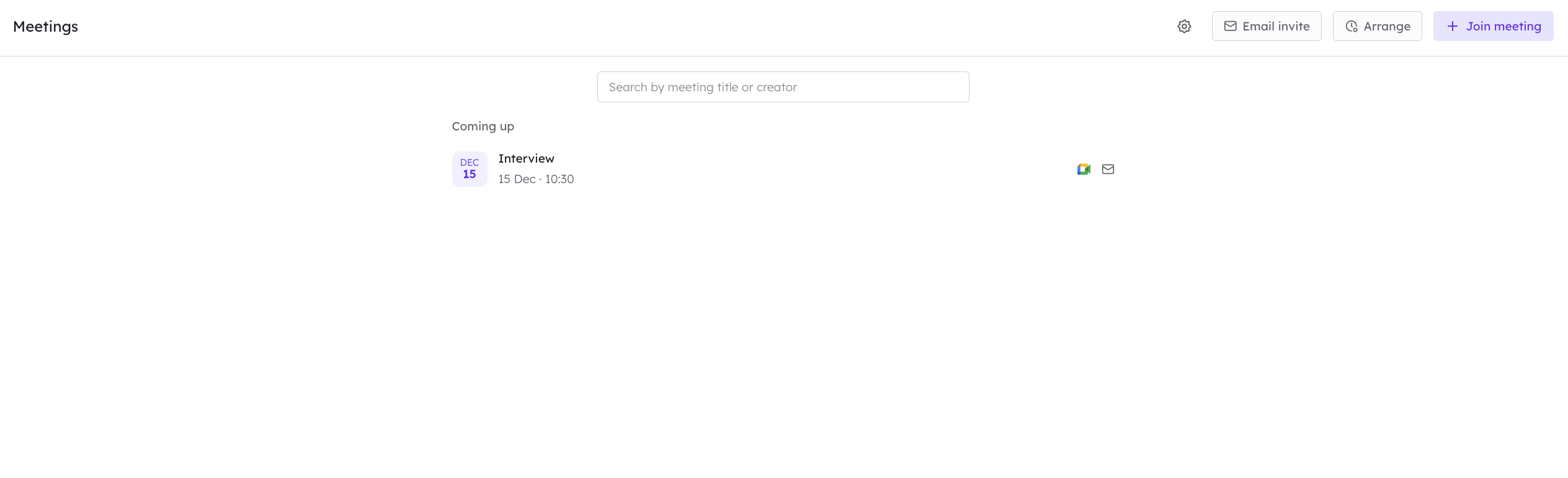
The status of the recorder bot is visible in the **Meetings** tab so you can track its progress. Once the file is automatically uploaded to CoLoop, it will appear in the **Files** tab where it can be transcribed and prepared for analysis.
**Important:**
* Please read the specific guidance document for the platform you are recording with prior to using the meeting recorder.
### Join Meeting Button
To invite the recording bot to a meeting that is start, follow these steps:
1. Navigate to the **Meetings** section in CoLoop.
2. Select + **Join Meeting**.
3. Paste in your Zoom, Teams, Google Meets or Webex meeting invite URL (the same URL you’d share with a participant).
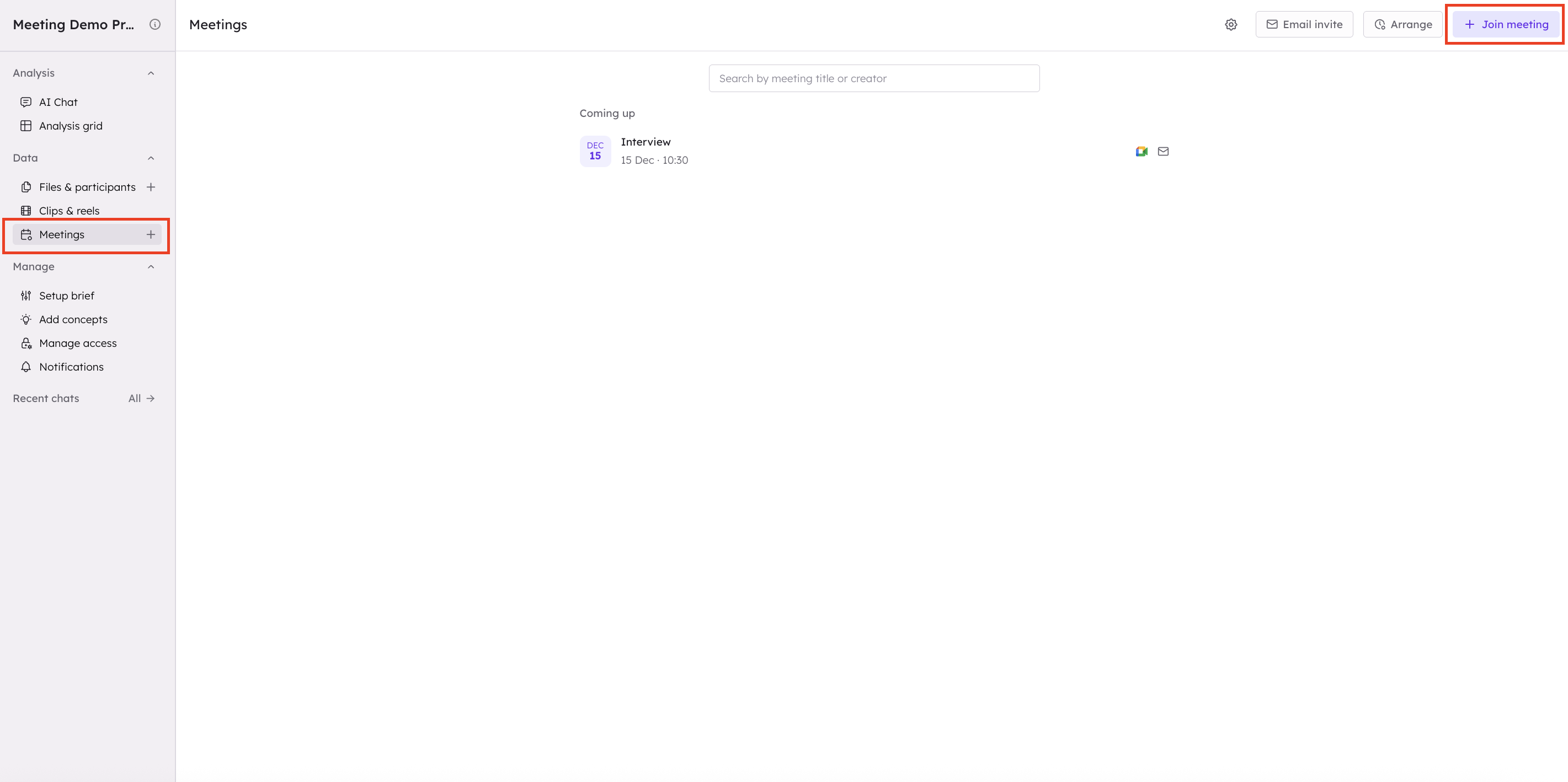 **Meeting Starting Soon**
For a meeting starting within 10 minutes or that has recently started please select 'Now'.
**Meeting Starting Soon**
For a meeting starting within 10 minutes or that has recently started please select 'Now'.
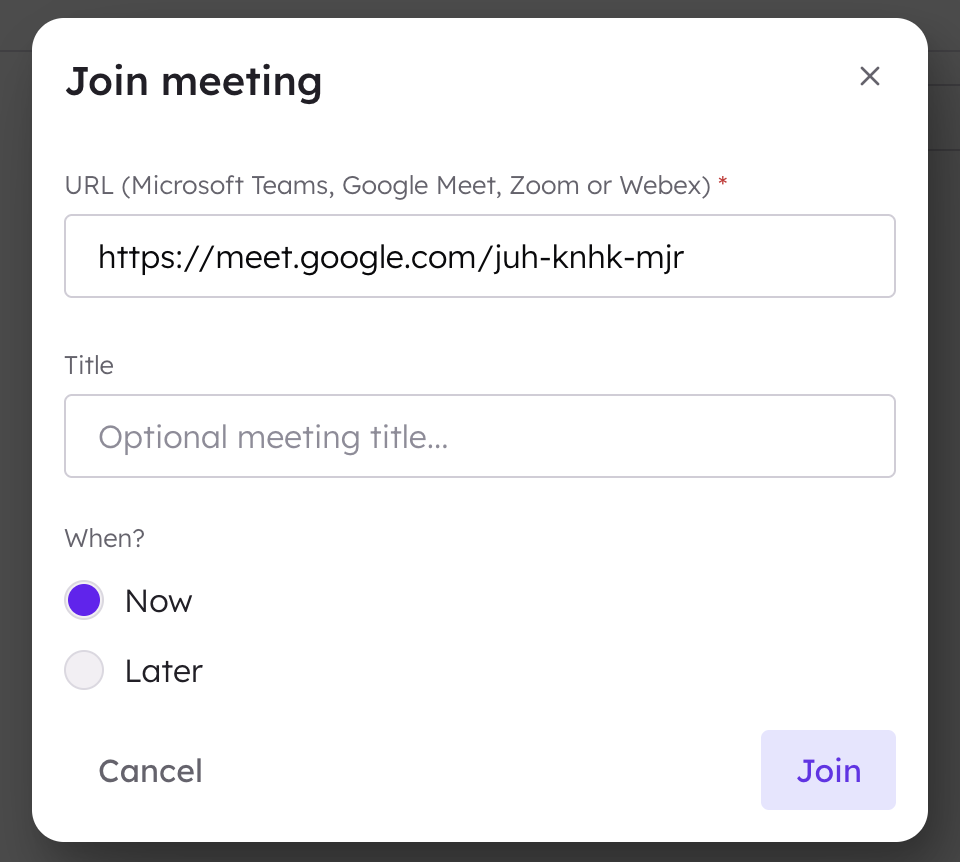 **Schedule Meeting For Later**
For a meeting starting later or in the future select 'Later' and then enter the date and time of the meeting. Please note the time shown will always match the timezone of your device.
**Schedule Meeting For Later**
For a meeting starting later or in the future select 'Later' and then enter the date and time of the meeting. Please note the time shown will always match the timezone of your device.
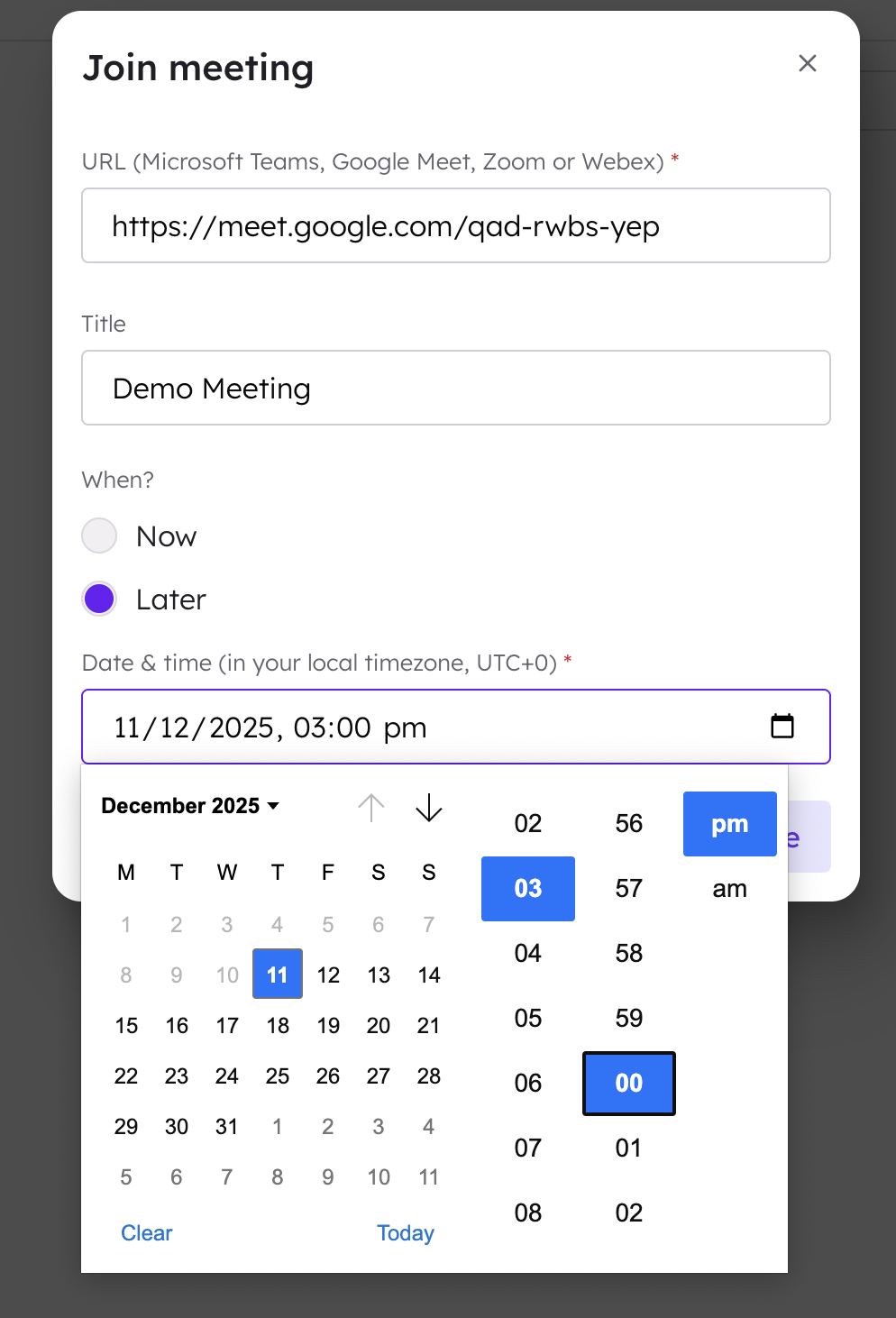 ### Project Email Invite
Users can also create an email address for specific CoLoop projects and add that email to all associated calls.
This method is ideal for adding CoLoop to multiple meetings or for allowing third parties to schedule calls by using the project-specific email.
1. Navigate to the **Meetings** section in CoLoop.
2. Select **Email Invite** and create an email address for the project.
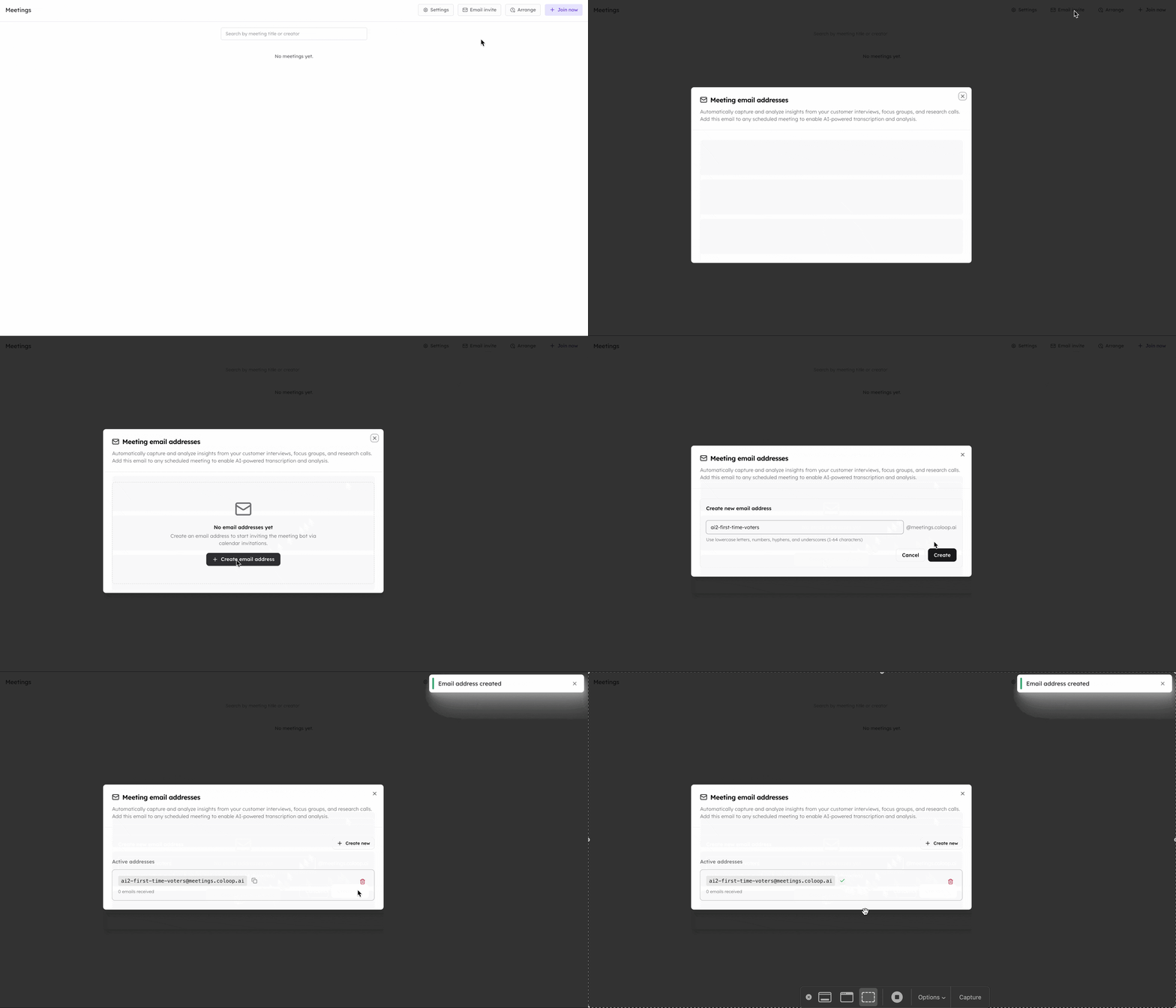
3. Once the project email address is created, copy it and add it to all call invites.
### Project Email Invite
Users can also create an email address for specific CoLoop projects and add that email to all associated calls.
This method is ideal for adding CoLoop to multiple meetings or for allowing third parties to schedule calls by using the project-specific email.
1. Navigate to the **Meetings** section in CoLoop.
2. Select **Email Invite** and create an email address for the project.

3. Once the project email address is created, copy it and add it to all call invites.
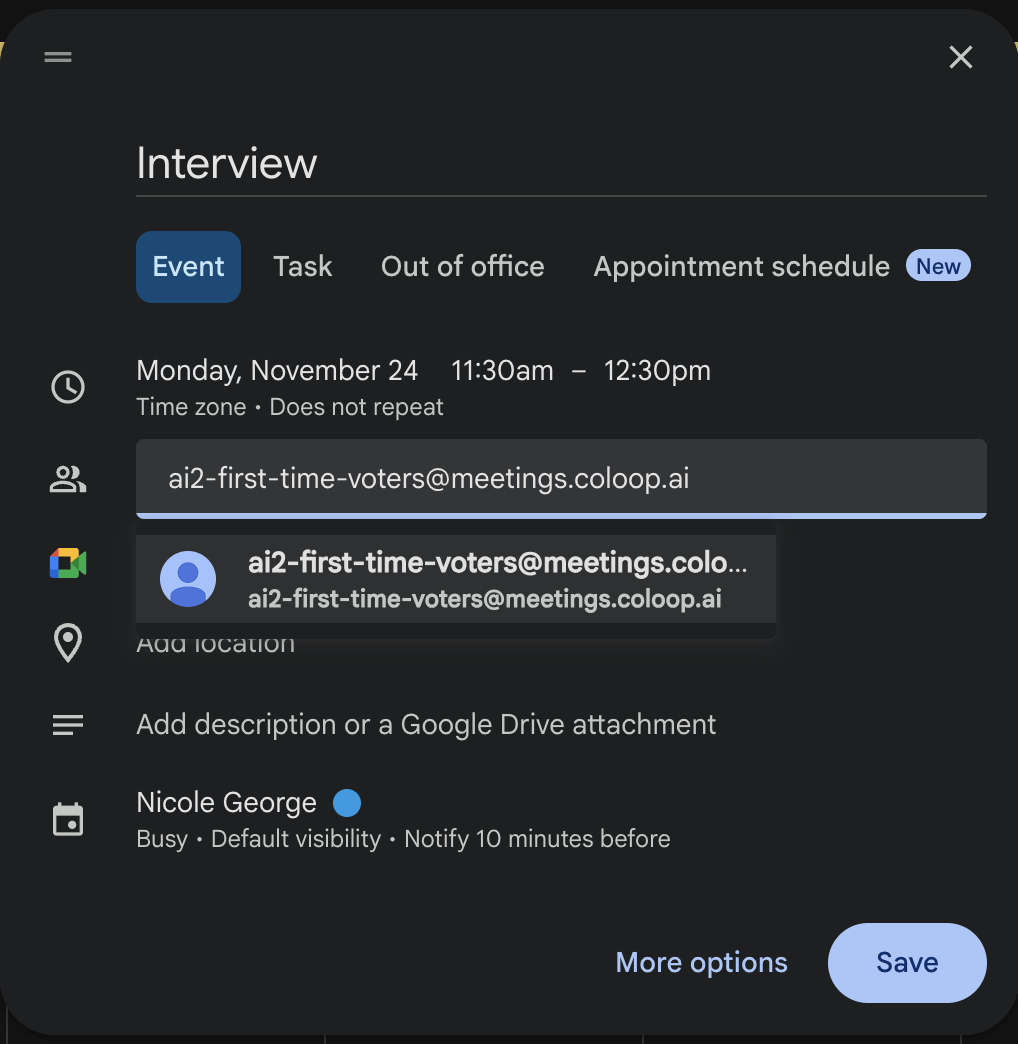 4. All scheduled meetings will be displayed in the **Meetings** section. This method can be used to arrange the CoLoop recording bot well ahead of the interview time.