> ## Documentation Index
> Fetch the complete documentation index at: https://docs.coloop.ai/llms.txt
> Use this file to discover all available pages before exploring further.
# Fixing speaker names and roles
> How to rename and re-role speakers across many files at once by describing the naming you want, then reviewing the proposed changes before they are applied.
Speaker labels often arrive in a shape you did not choose: "Speaker 1" across
every file, a moderator named differently in each transcript, or participants
who need the session number in their name. The **Fix speakers** action lets
you describe the names and roles you want in your own words and apply them
across a selection of files at once.
Nothing is written until you review the proposed changes.
## Renaming a selection
1. In the files view, select the files you want to rename speakers in.
2. Choose **Fix speakers** in the toolbar.
3. Describe the naming you want, for example "Prefix each participant with the
session number from the file name" or "The moderator is called Sarah in
every file".
4. Choose **Preview changes** and wait for the preview.
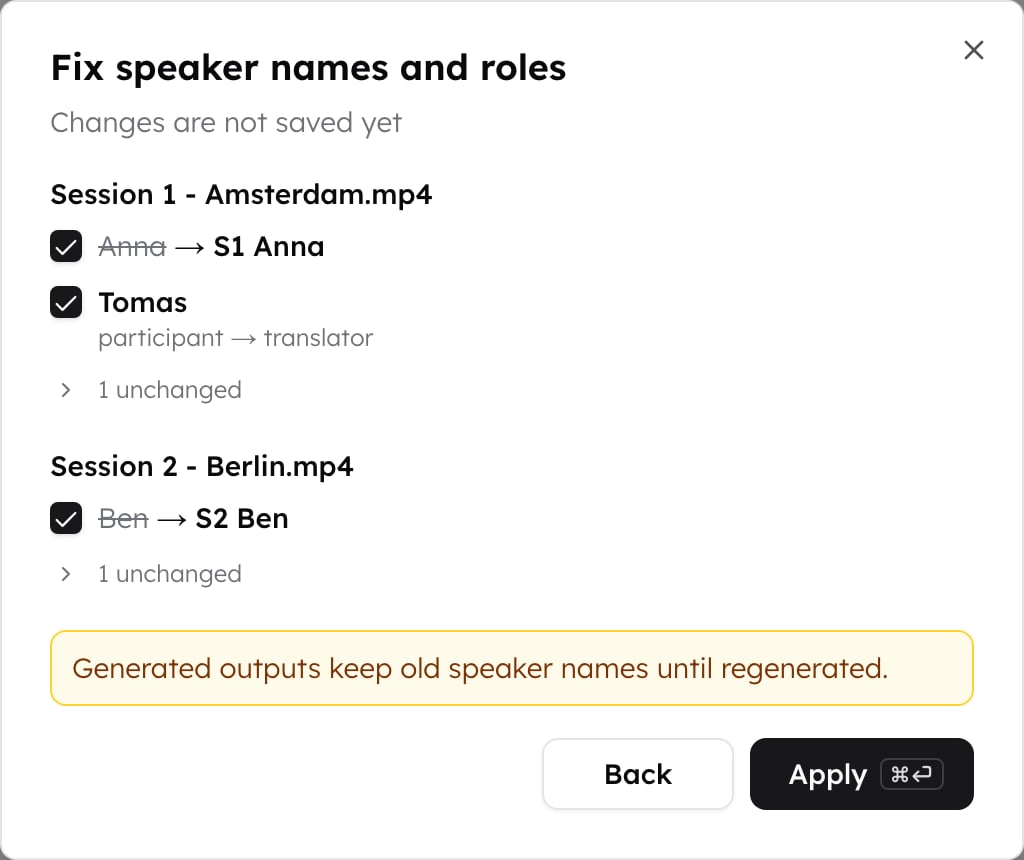
5. Review the changes, grouped by file, untick any you do not want, then
choose **Apply**.
File names are part of the context, so instructions can refer to what they
encode: a session number, a date, a market, a respondent.
 ## Reviewing the proposal
Every speaker in the selection is accounted for:
* **Changed rows** show the old name struck through and the new name beside
it. Role changes are listed too.
* **Unchanged speakers** are collapsed behind a count under each file.
Expand it to see each speaker with a short reason, for example that the
instruction did not say anything about it, or that the name already
matches.
An instruction that only resolves some of your speakers still works. The rest
are left exactly as they are, and you can go **Back** to reword the
instruction and propose again.
## What applying does
Applied changes are confirmed, because reviewing the difference is the check
that confirmation asks for. They apply per file, so a speaker who appears in
several files is renamed only in the files you selected.
Answers, themes, and other outputs generated before the rename keep the old
speaker names until you regenerate them.
## Speakers who appear in several files
A speaker merged across files is decided separately for each one, so an
instruction that reads file names can give that speaker a different name in
each file. Renaming never merges two speakers, and never splits one: each
keeps its own turns.
## When a name is already taken
If a proposed name is already used by another speaker in the same file, both
are kept apart by numbering the later one, `Amelia` and `Amelia (1)`, the same
way [confirming speakers](/docs/setting-up-a-project/confirming-speakers)
does. The same name in two different files is left alone, since those are
separate speakers.
## Reviewing the proposal
Every speaker in the selection is accounted for:
* **Changed rows** show the old name struck through and the new name beside
it. Role changes are listed too.
* **Unchanged speakers** are collapsed behind a count under each file.
Expand it to see each speaker with a short reason, for example that the
instruction did not say anything about it, or that the name already
matches.
An instruction that only resolves some of your speakers still works. The rest
are left exactly as they are, and you can go **Back** to reword the
instruction and propose again.
## What applying does
Applied changes are confirmed, because reviewing the difference is the check
that confirmation asks for. They apply per file, so a speaker who appears in
several files is renamed only in the files you selected.
Answers, themes, and other outputs generated before the rename keep the old
speaker names until you regenerate them.
## Speakers who appear in several files
A speaker merged across files is decided separately for each one, so an
instruction that reads file names can give that speaker a different name in
each file. Renaming never merges two speakers, and never splits one: each
keeps its own turns.
## When a name is already taken
If a proposed name is already used by another speaker in the same file, both
are kept apart by numbering the later one, `Amelia` and `Amelia (1)`, the same
way [confirming speakers](/docs/setting-up-a-project/confirming-speakers)
does. The same name in two different files is left alone, since those are
separate speakers.