> ## Documentation Index
> Fetch the complete documentation index at: https://docs.coloop.ai/llms.txt
> Use this file to discover all available pages before exploring further.
# Import a translated transcript
> Add a human translation to an interview recording without uploading the recording again.
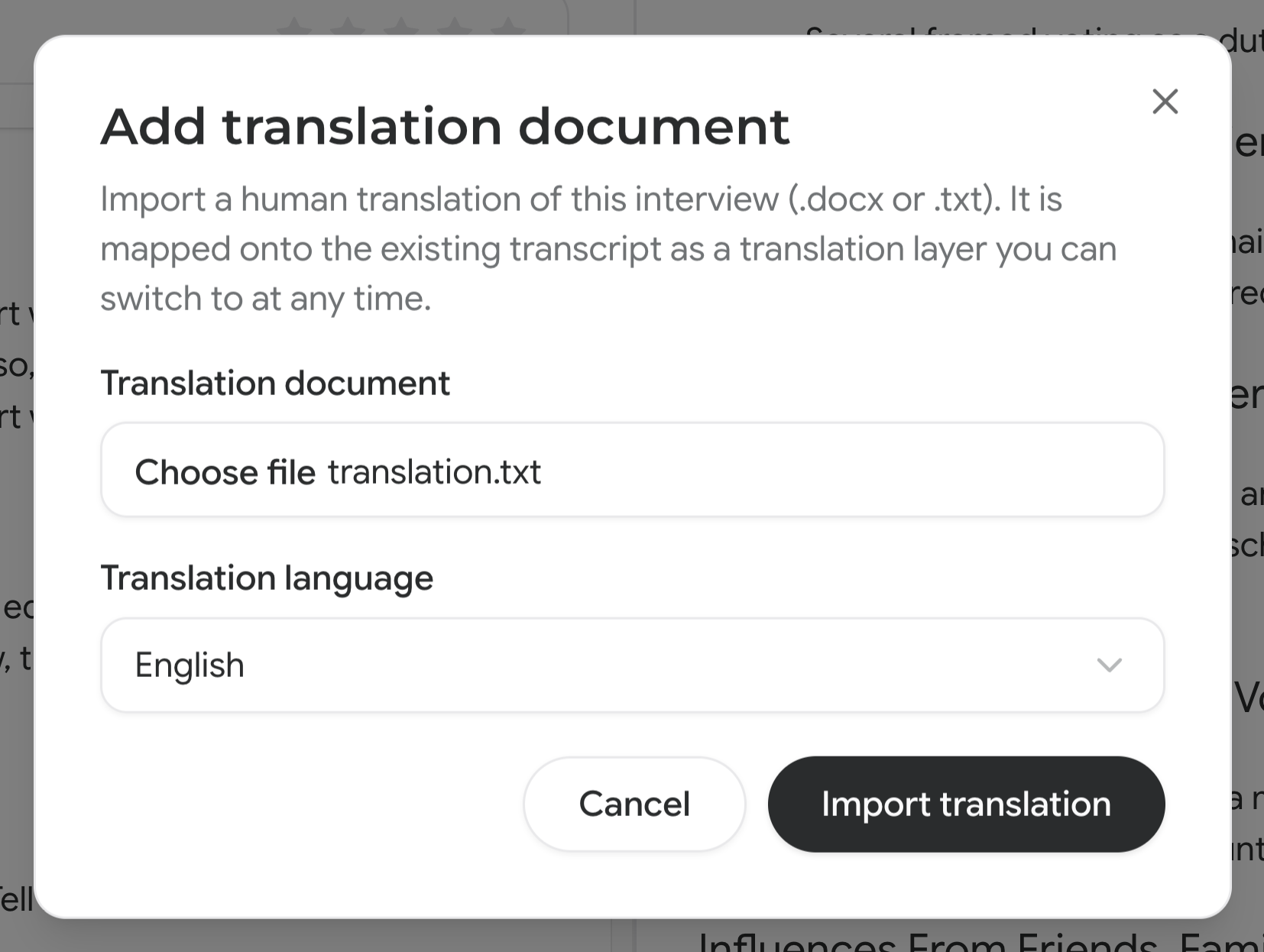
Add a translated document to an existing audio or video transcript. CoLoop matches the translation to the original speakers and keeps both languages available.
To upload a recording and translation together, follow [Import simultaneous translation](/docs/setting-up-a-project/simultaneous-translation#upload-separate-files), using the document under **Translator Recording or Document**.
## Prepare the translation
* Use a translation of the same interview, with the conversation in its original order.
* Save the document as Word (`.docx`), plain text (`.txt`), or Markdown (`.md`), under 50 MB. The document must contain text.
* Use a language different from the original transcript's language. The **Translation language** menu excludes the original language.
* [Transcribe the original audio or video](/docs/setting-up-a-project/create-a-transcript) before adding the document to an existing file.
Only one imported translation can be attached to a recording. A completed imported translation cannot be replaced through **Add translation document**.
Importing a document replaces an existing automatic translation in the same
language. The original transcript remains available.
## Add the document
1. Open the original audio or video transcript.
2. Open **Transcript actions** using the three-dot button next to the file name.
3. Select **Add translation document**.
4. Choose the file under **Translation document**.
5. Set **Translation language** to the document's language.
6. Click **Import translation**.
 After processing, select the language marked **Translator** in the language dropdown next to the file name. Follow the [transcript review steps](/docs/setting-up-a-project/simultaneous-translation#review-the-transcript) to check speakers and automatically translated passages before analysis or export.
Playback uses the original recording when the translation comes from a document.
## Resolve import problems
* **Add translation document is missing:** The option requires a transcribed audio or video file without an interpreter recording or a completed imported translation. For an eligible file, [contact support](/docs/troubleshooting/contact-support) to check access.
* **The document is rejected:** Check the file format and size, and confirm the document contains text.
* **The wrong translation was imported:** [Contact support](/docs/troubleshooting/contact-support) for help replacing the translation.
After processing, select the language marked **Translator** in the language dropdown next to the file name. Follow the [transcript review steps](/docs/setting-up-a-project/simultaneous-translation#review-the-transcript) to check speakers and automatically translated passages before analysis or export.
Playback uses the original recording when the translation comes from a document.
## Resolve import problems
* **Add translation document is missing:** The option requires a transcribed audio or video file without an interpreter recording or a completed imported translation. For an eligible file, [contact support](/docs/troubleshooting/contact-support) to check access.
* **The document is rejected:** Check the file format and size, and confirm the document contains text.
* **The wrong translation was imported:** [Contact support](/docs/troubleshooting/contact-support) for help replacing the translation.