

Prepare your export
- Download the Crosstab Excel (
.xlsx) export for your study in QualBoard. Choose the workbook with a Participants sheet and Section sheets containing individual responses. - Keep the worksheet names, question headers, and response layout unchanged.
- If the workbook requires a password to open, use Excel to save a copy without the password before uploading it.
CoLoop imports the participant and question data from the Crosstab workbook and
skips its Crosstab Report sheet. Keep all sheets in the workbook when you
upload it. Polling exports (
.xlsm) are not supported; saving them as .xlsx
does not make their different layout compatible.Import into CoLoop
- Open your CoLoop project.
- Click Add Files.
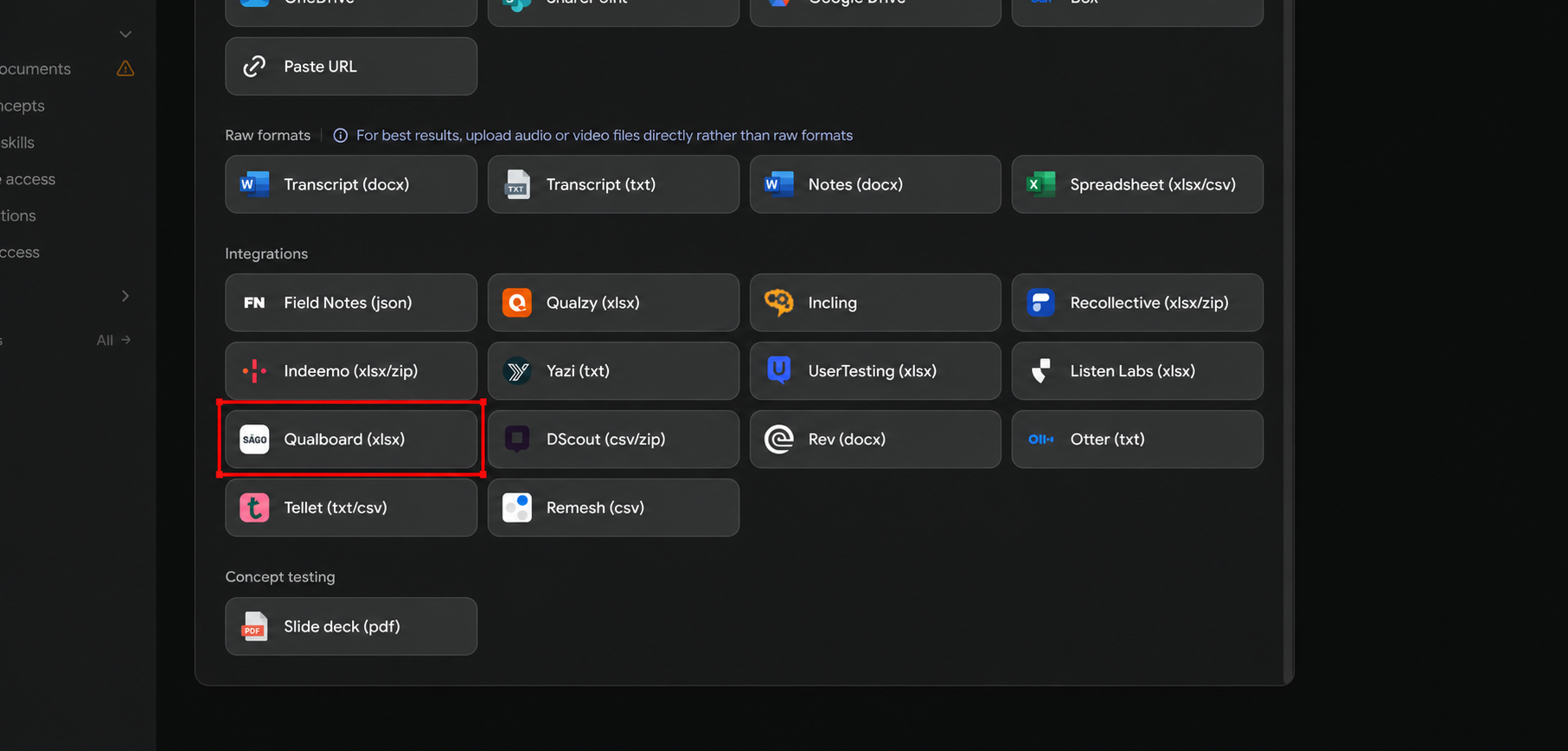
- Find Qualboard in the Integrations section.
- Select your exported
.xlsxfile. - Wait for CoLoop to finish processing the file.
 CoLoop imports text responses, choice selections, comments, and follow-up conversations. Card sort and matrix multiple-answer responses appear as text grouped under their category or option labels.
Review your import
- Open the processed file in your project.
- Review a question and its participant responses using the community data browser.
- Check that participant group tags appear as segments.
If your import fails
- Password error: Delete the failed upload, remove the password from a copy of the workbook in Excel, and upload that copy through Qualboard.
- Missing participant segments: Check that your export includes the Participants sheet and its group tags or tag membership columns.
- Missing responses or a processing error: Export a fresh
.xlsxworkbook and upload it without changing its layout. If it still fails, contact support.