> ## Documentation Index
> Fetch the complete documentation index at: https://docs.coloop.ai/llms.txt
> Use this file to discover all available pages before exploring further.
# SharePoint
> Import files and whole projects from SharePoint into CoLoop.
You can import large audio and video files directly from SharePoint into CoLoop for analysis. An organization admin connects your SharePoint site once, then everyone in the organization can import files from it.
## Setting up the connection
You must be an organization admin to set or change the SharePoint URL for an organization workspace. If you use a personal workspace, you can configure the URL yourself.
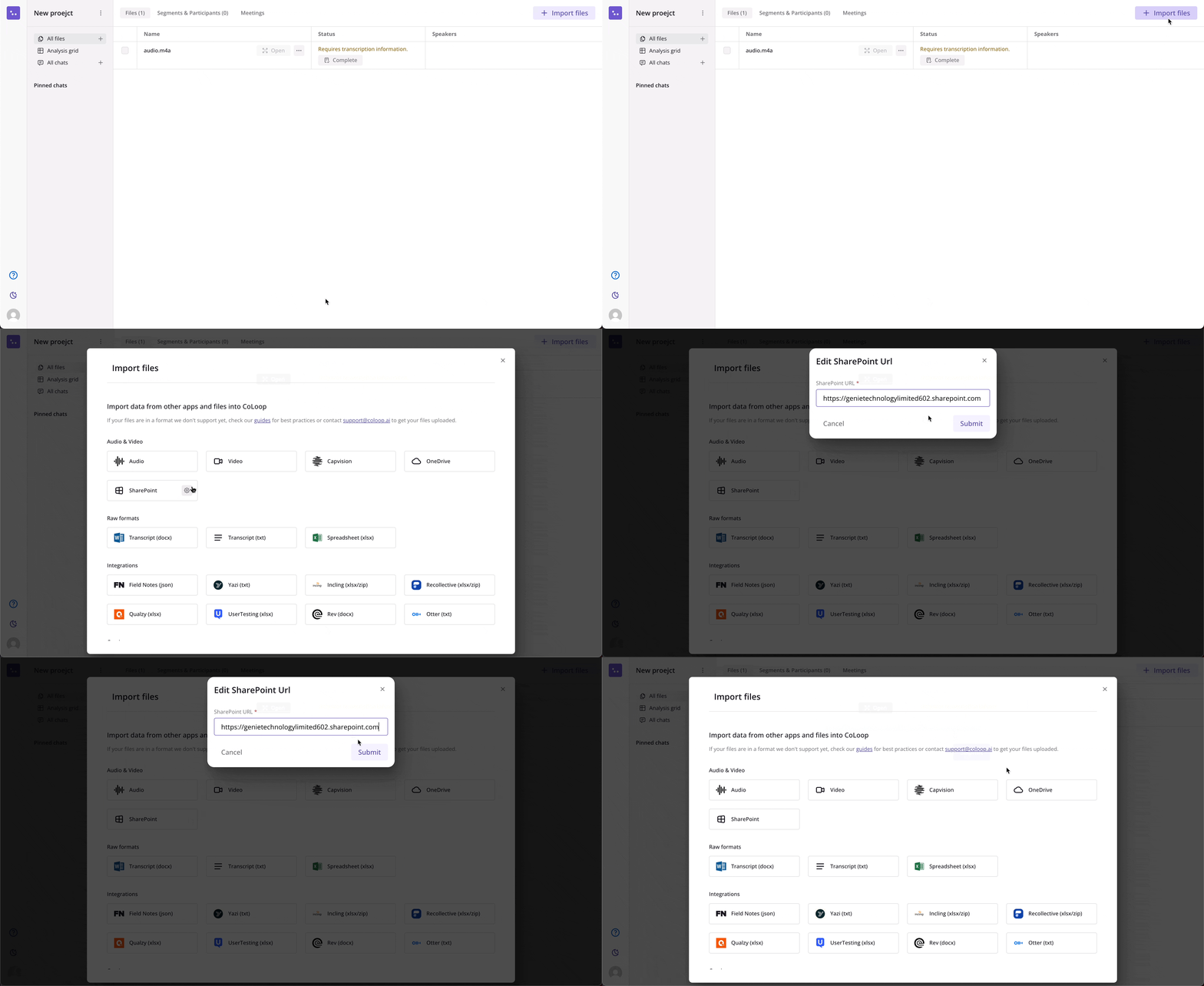
1. Inside a CoLoop project, click **Import Files**.
2. Move your pointer over **SharePoint**, then click the settings icon.
3. Paste the full URL of your SharePoint site, including any site path. For example: `https://contoso.sharepoint.com/sites/research`.
4. Click **Submit**.
The URL must use HTTPS and belong to SharePoint Online. CoLoop supports sites hosted on `sharepoint.com`, `sharepoint.us`, and `sharepoint.cn`. Do not include a custom port, query parameters, or a URL fragment.
If you are not an organization admin and SharePoint has not been configured, ask an admin to complete these steps. After setup, organization members can import files without changing the shared URL.
 ## Importing a file
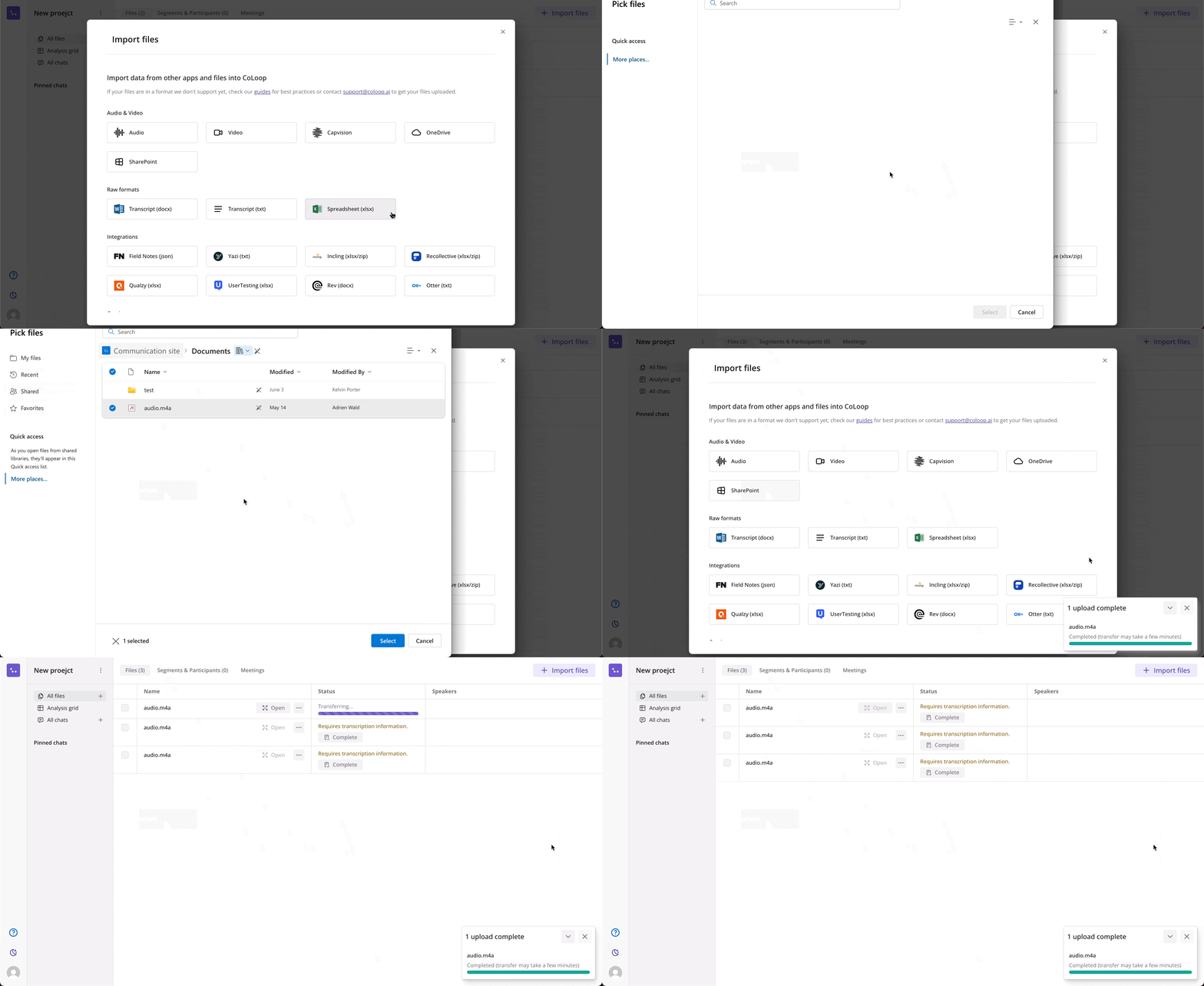
* Click on the SharePoint option in the Import files window
* Follow the steps to securely sign into your Microsoft account
* Choose file(s) from the list shown and click `Select`
* CoLoop will rapidly upload multiple files
* From here you can transcribe, process, and analyze your files
## Importing a file
* Click on the SharePoint option in the Import files window
* Follow the steps to securely sign into your Microsoft account
* Choose file(s) from the list shown and click `Select`
* CoLoop will rapidly upload multiple files
* From here you can transcribe, process, and analyze your files
 ## Importing whole projects from a folder
This feature is being rolled out gradually and may not be enabled for your account yet. [Contact support](mailto:support@coloop.ai) to request access.
If your research is already organized into folders in SharePoint, you can create many projects at once instead of importing files one project at a time.
1. From your CoLoop home space, click **Import Projects** next to **Create**.
2. Connect your Microsoft account if you haven't already, then paste your SharePoint site URL.
3. Select the folders you want to import. Each selected folder becomes its own project, named after the folder.
4. Review the preview. CoLoop shows the transcript count and discussion guide it will use for each project.
5. Deselect any folders you don't want, then confirm.
For each selected folder, CoLoop creates a project and imports its contents:
* A `.docx` file is used as the project's **discussion guide**. If a folder contains more than one `.docx`, CoLoop suggests the most likely guide (preferring files in a folder named `Discussion Guide`); you can pick a different one, or no guide, from the dropdown in the preview.
* All `.txt`, audio, and video files (including those in nested subfolders) are imported as **transcript resources**.
* `.docx` files inside a folder named `Transcripts` are imported as transcripts rather than treated as guide candidates. The folder name must match exactly, including capitalization.
* When the same recording exists as both an audio and a video file (same name, same folder), only the video is imported.
You can import up to 30 folders at a time. To import more, run the import again — folders you've already imported are marked in the preview and are skipped on re-import, so running the import again won't create duplicates.
Large imports run in the background, so you can keep working while projects are created.
## Recommended Articles
This article outlines a quick start guide and some best practices for analyzing Live Interviews in CoLoop
This article explains best practices, language support as well as tips and tricks for getting the most out of CoLoop's transcription
This article provides additional details on working with Audio & Video files within CoLoop including supported formats and best practices
## Importing whole projects from a folder
This feature is being rolled out gradually and may not be enabled for your account yet. [Contact support](mailto:support@coloop.ai) to request access.
If your research is already organized into folders in SharePoint, you can create many projects at once instead of importing files one project at a time.
1. From your CoLoop home space, click **Import Projects** next to **Create**.
2. Connect your Microsoft account if you haven't already, then paste your SharePoint site URL.
3. Select the folders you want to import. Each selected folder becomes its own project, named after the folder.
4. Review the preview. CoLoop shows the transcript count and discussion guide it will use for each project.
5. Deselect any folders you don't want, then confirm.
For each selected folder, CoLoop creates a project and imports its contents:
* A `.docx` file is used as the project's **discussion guide**. If a folder contains more than one `.docx`, CoLoop suggests the most likely guide (preferring files in a folder named `Discussion Guide`); you can pick a different one, or no guide, from the dropdown in the preview.
* All `.txt`, audio, and video files (including those in nested subfolders) are imported as **transcript resources**.
* `.docx` files inside a folder named `Transcripts` are imported as transcripts rather than treated as guide candidates. The folder name must match exactly, including capitalization.
* When the same recording exists as both an audio and a video file (same name, same folder), only the video is imported.
You can import up to 30 folders at a time. To import more, run the import again — folders you've already imported are marked in the preview and are skipped on re-import, so running the import again won't create duplicates.
Large imports run in the background, so you can keep working while projects are created.
## Recommended Articles
This article outlines a quick start guide and some best practices for analyzing Live Interviews in CoLoop
This article explains best practices, language support as well as tips and tricks for getting the most out of CoLoop's transcription
This article provides additional details on working with Audio & Video files within CoLoop including supported formats and best practices