
CoLoop Recorder Key Information for Zoom
Supported Features- Works with Zoom meetings, and webinars where registration is not required.
- For Zoom meetings, the bot does not require host permission in order to join or record. This means whoever is running the call does not need to be the same as the person that created the call.
- Scheduling in advance supported.
- Meetings requiring registration are not supported.
- Breakout rooms are not supported.
- The bot cannot bypass the waiting room. Users must always make sure to admit the bot to the call to initiate recording.
How to Use CoLoop Recorder with Zoom
You can record Zoom meetings in CoLoop in two ways. You must have a project to upload the recordings into and all calendar invites must have a zoom link for the recorder bot to join.Create a project in CoLoop
Open the project you’re recording an interview for within CoLoop (Creating a project for more information.)Invite the Recording Bot using one of Two Methods
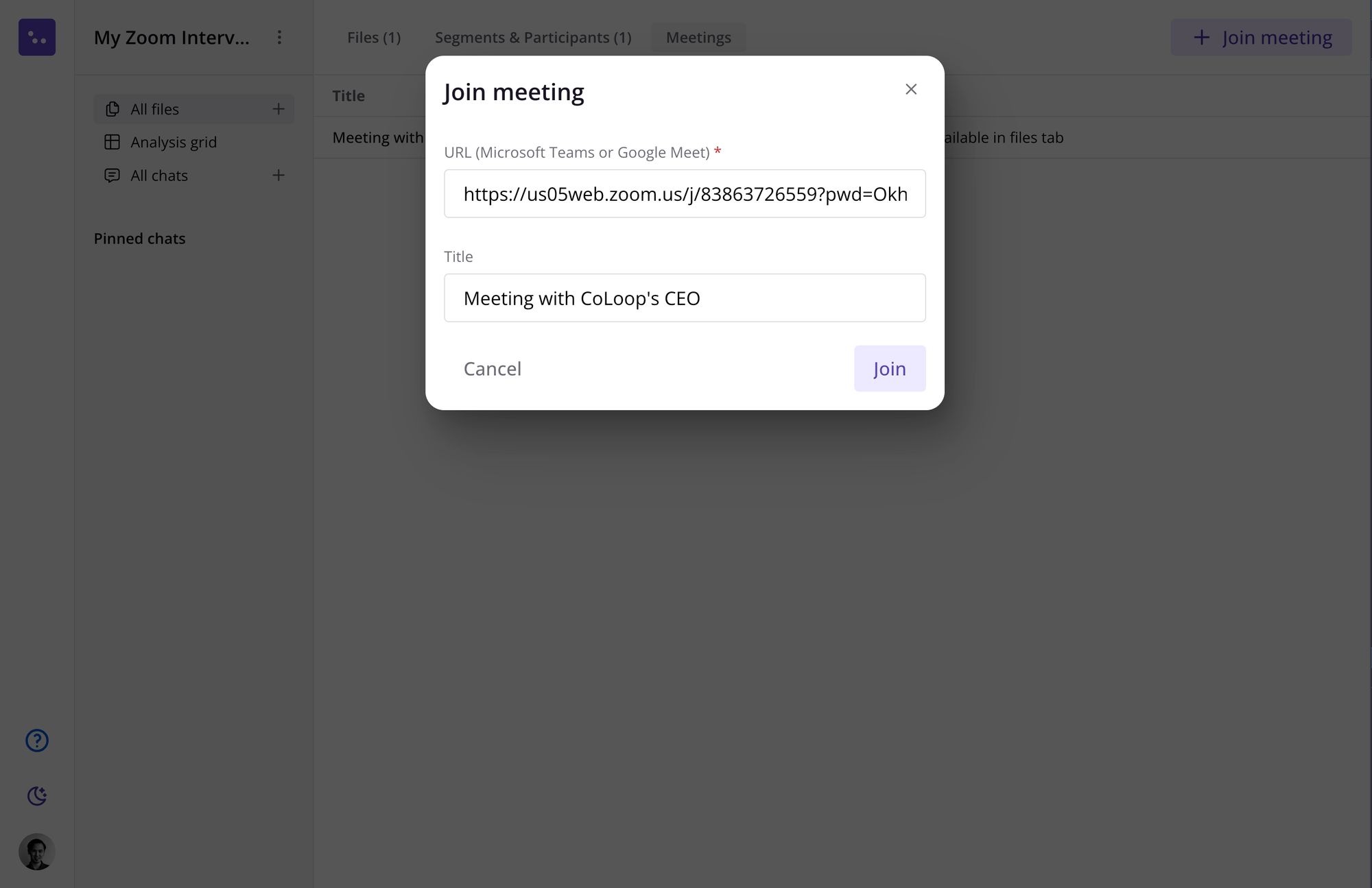
+Join Meeting: You can have CoLoop join meetings ad-hoc or right before meetings start by entering in the meeting URL after clicking ‘Join meeting.’- Click on the ’+’ sign next to the Meetings tab on the left hand menu.
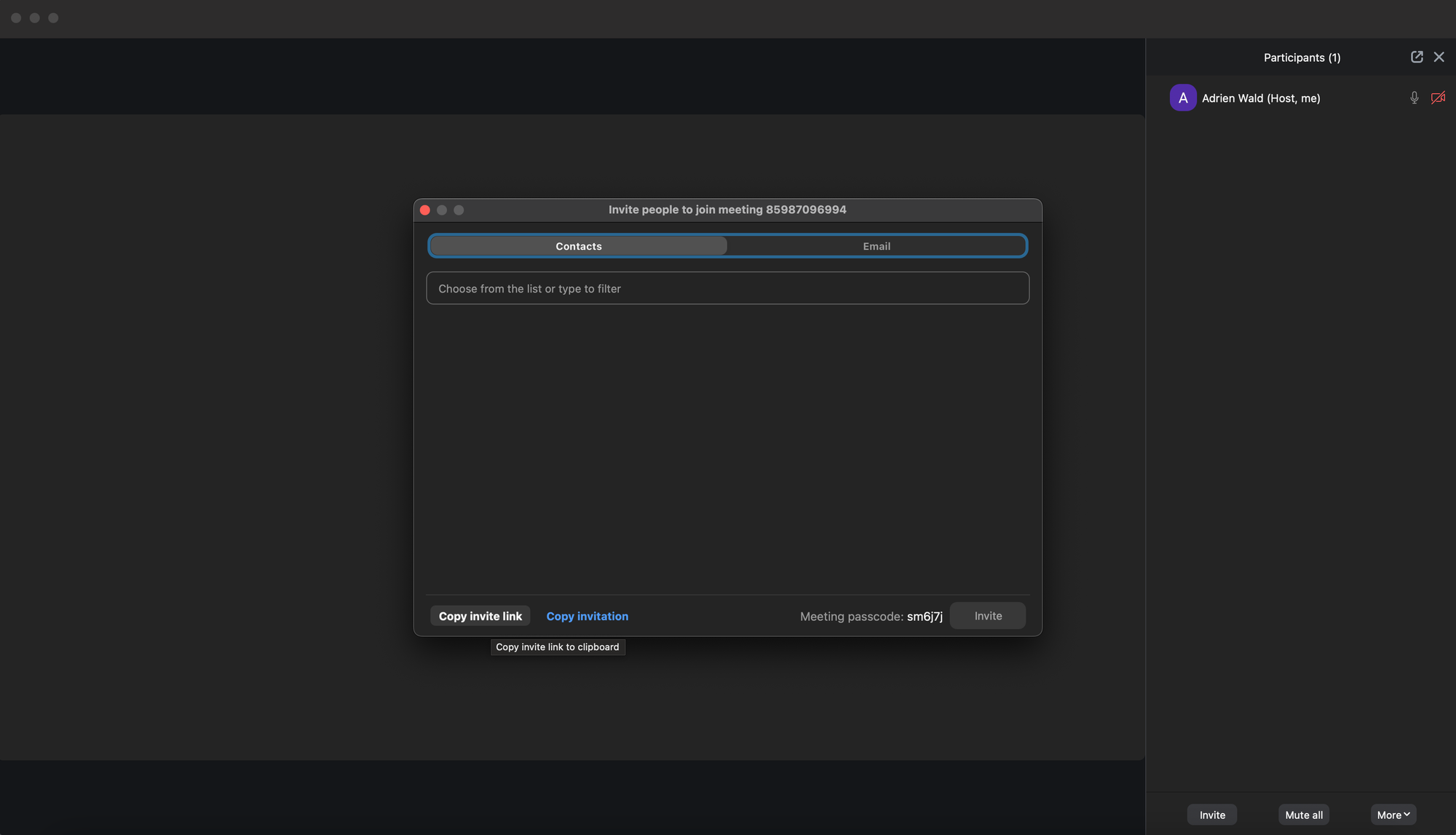
- In the Zoom app, copy the meeting link by clicking Invite followed by Copy invite link.
- Paste the meeting invite into the box in Join Call
- Enter a name for the meeting
- CoLoop Recorder will instantly join the meeting URL as a participant and will wait up to 15 minutes in the waiting room.
 Project Specifc Email Invite
Create an email address for specific CoLoop projects and add that email to all associated calls.
This method is ideal for adding CoLoop to multiple meetings or for allowing third parties to schedule calls by using the project-specific email.
Project Specifc Email Invite
Create an email address for specific CoLoop projects and add that email to all associated calls.
This method is ideal for adding CoLoop to multiple meetings or for allowing third parties to schedule calls by using the project-specific email.
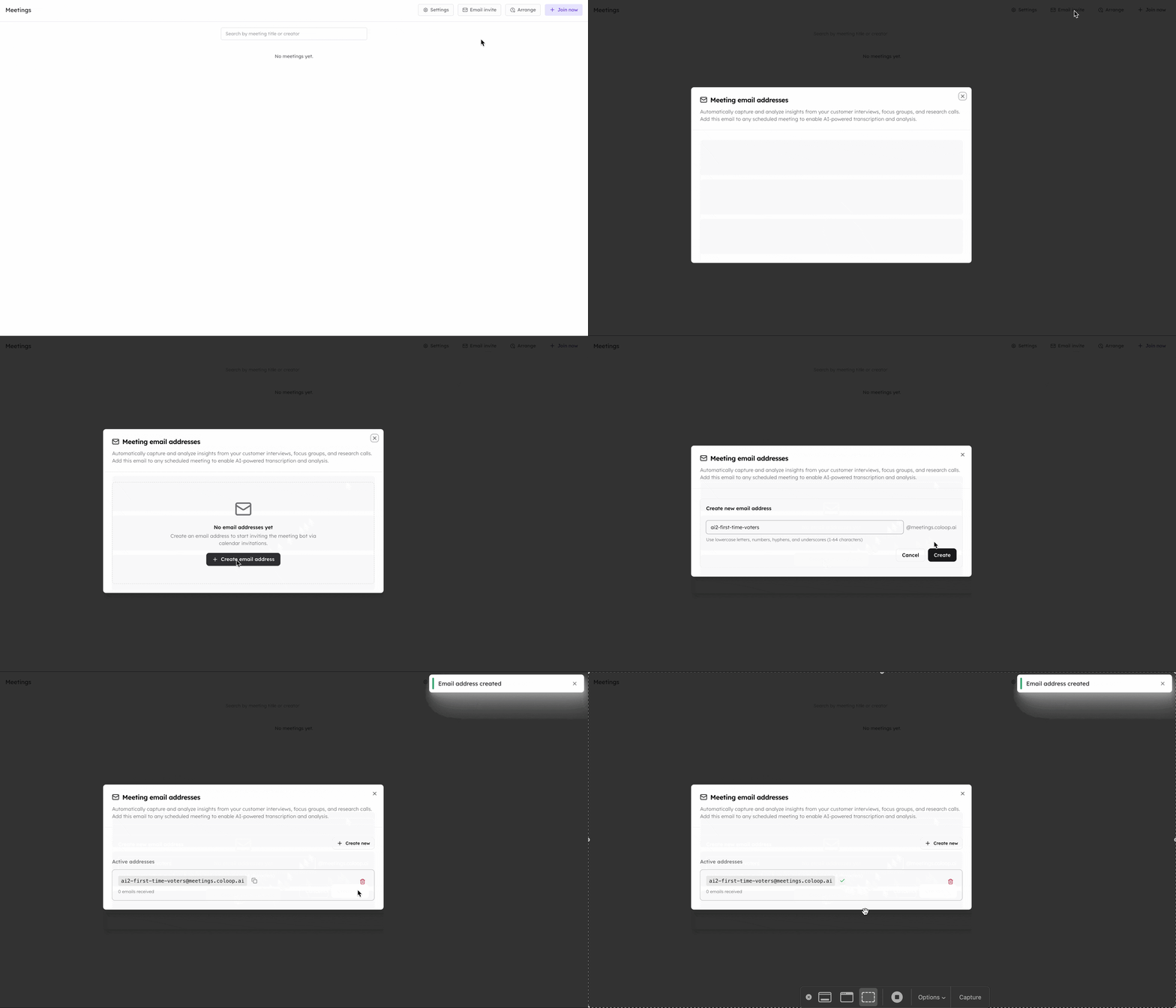
- Navigate to the Meetings section in CoLoop.
- Select Email Invite and create an email address for the project.
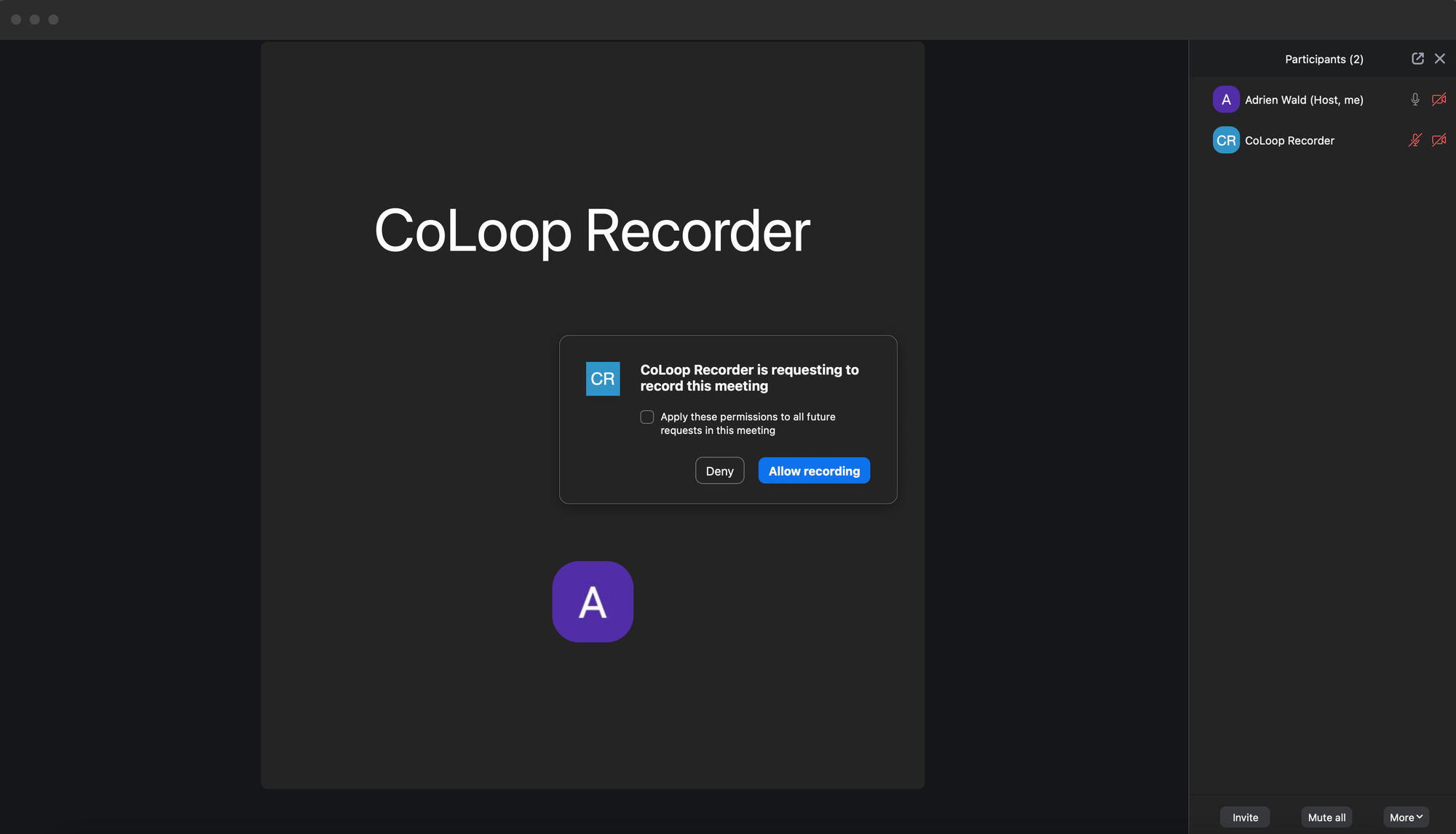
Allow the recording bot into the call
- At this point we recommend ensuring you have obtained permission to record from your participants
- Allow the meeting bot to record the meeting.
- The CoLoop Recorder will start recording soon thereafter.
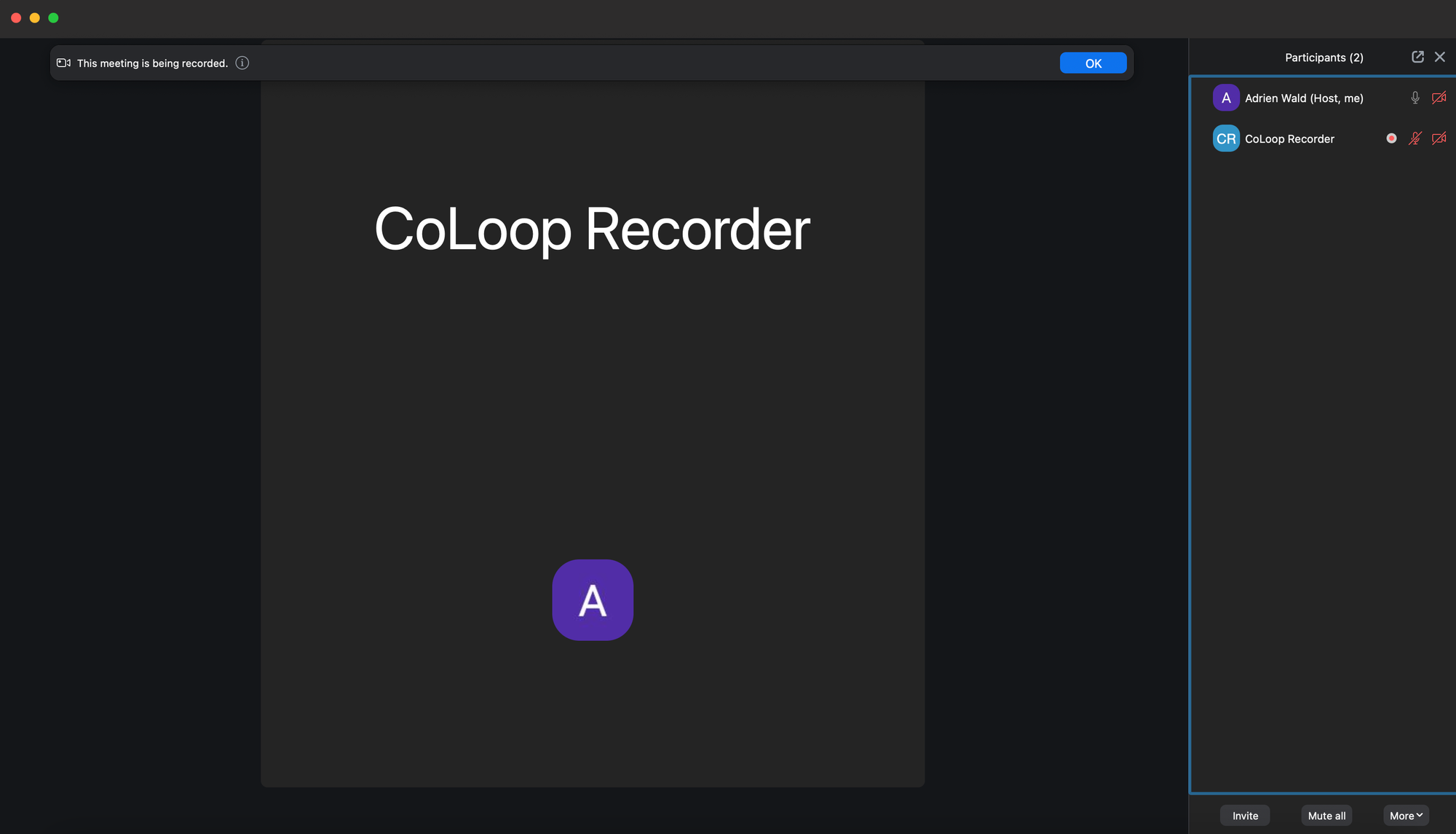
 You can verify the meeting is being recorded by checking the recording icon is present next to CoLoop Recorder participant in the Participants view.
Viewing Recordings
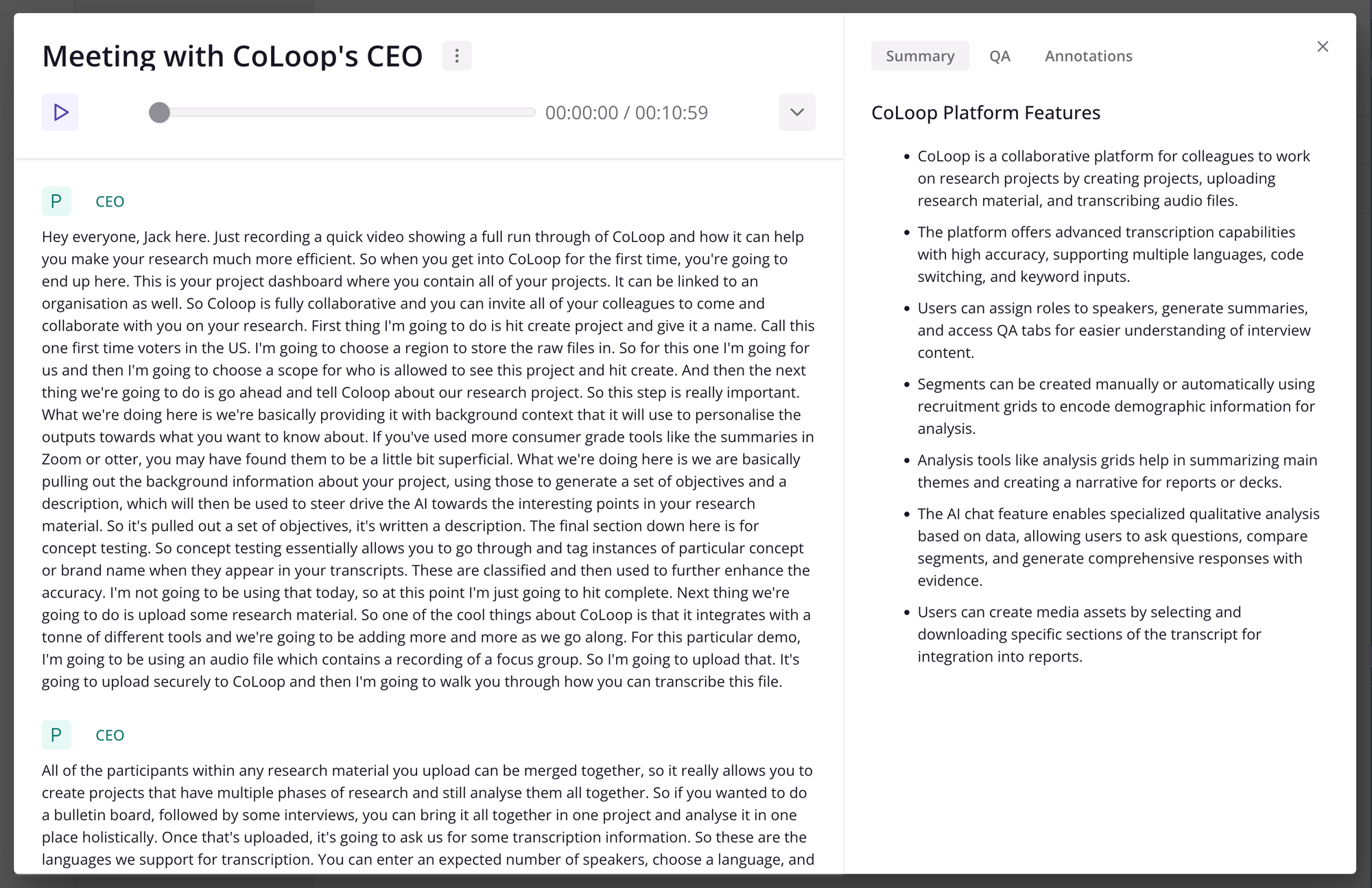
- After you have finished the meeting, CoLoop will automatically import the meeting recording.
- To view the meeting recording, navigate to Files tab in your project.
- From here simply follow the steps to transcribe your file (Creating a transcript)
Managing Meeting Bot Settings
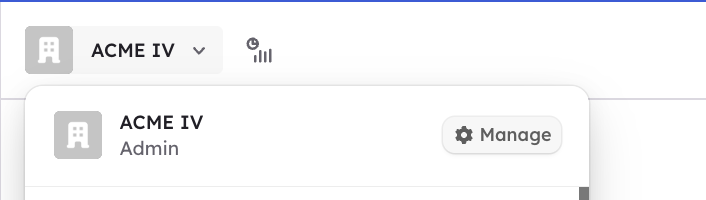
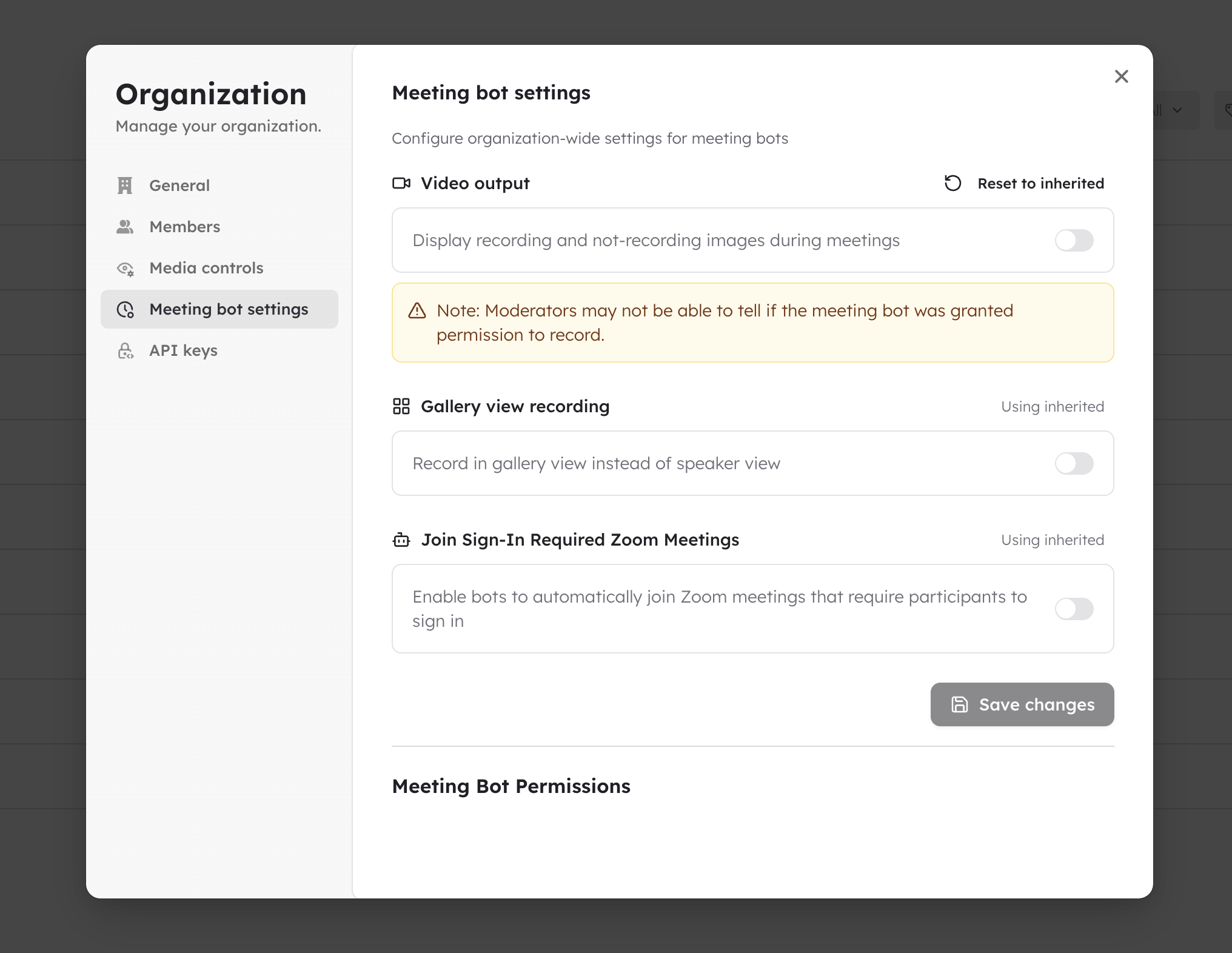
Meeting bot settings can be managed on an organisation level, or on a project level.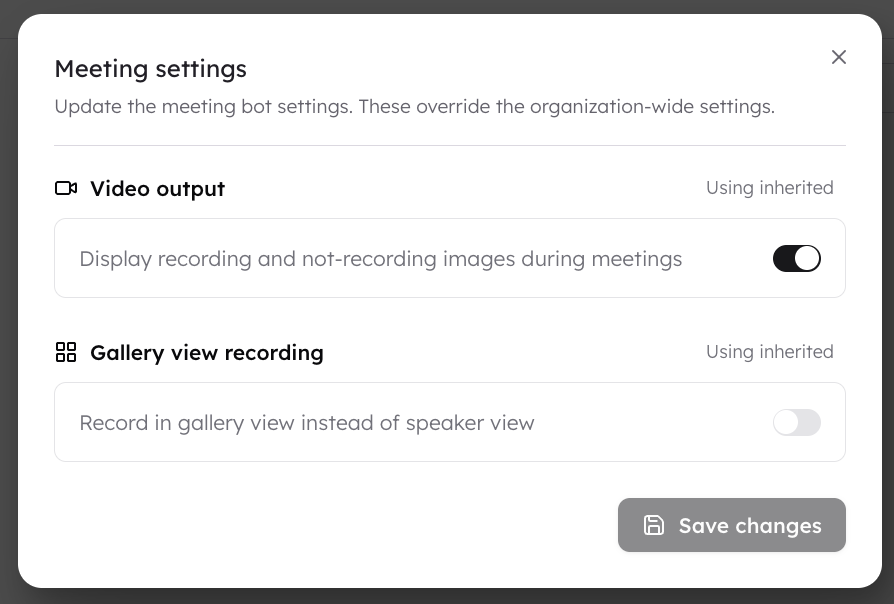 Video Output:
- In meetings by default, CoLoop will appear on the screen as another participant. To turn this off please toggle it off under ‘Video Output’.
- If you want CoLoop to record a zoom gallery view, rather than the individual speakers then you can enable the toggle. Please note recording in gallery view will negatively impact on-screen concept tests using slide decks as stimuli as these must be visible on the full screen when using CoLoop for concept analysis.
- Admins can enable bots to enter sign-in required meetings without host approval. Please note this does not bypass the Zoom waiting room. Please see the article here for more information on this.
- CoLoop recording bot can be set to record the gallery view, the default setting is speaker view. Zoom Webinars where registration is not required are supported.