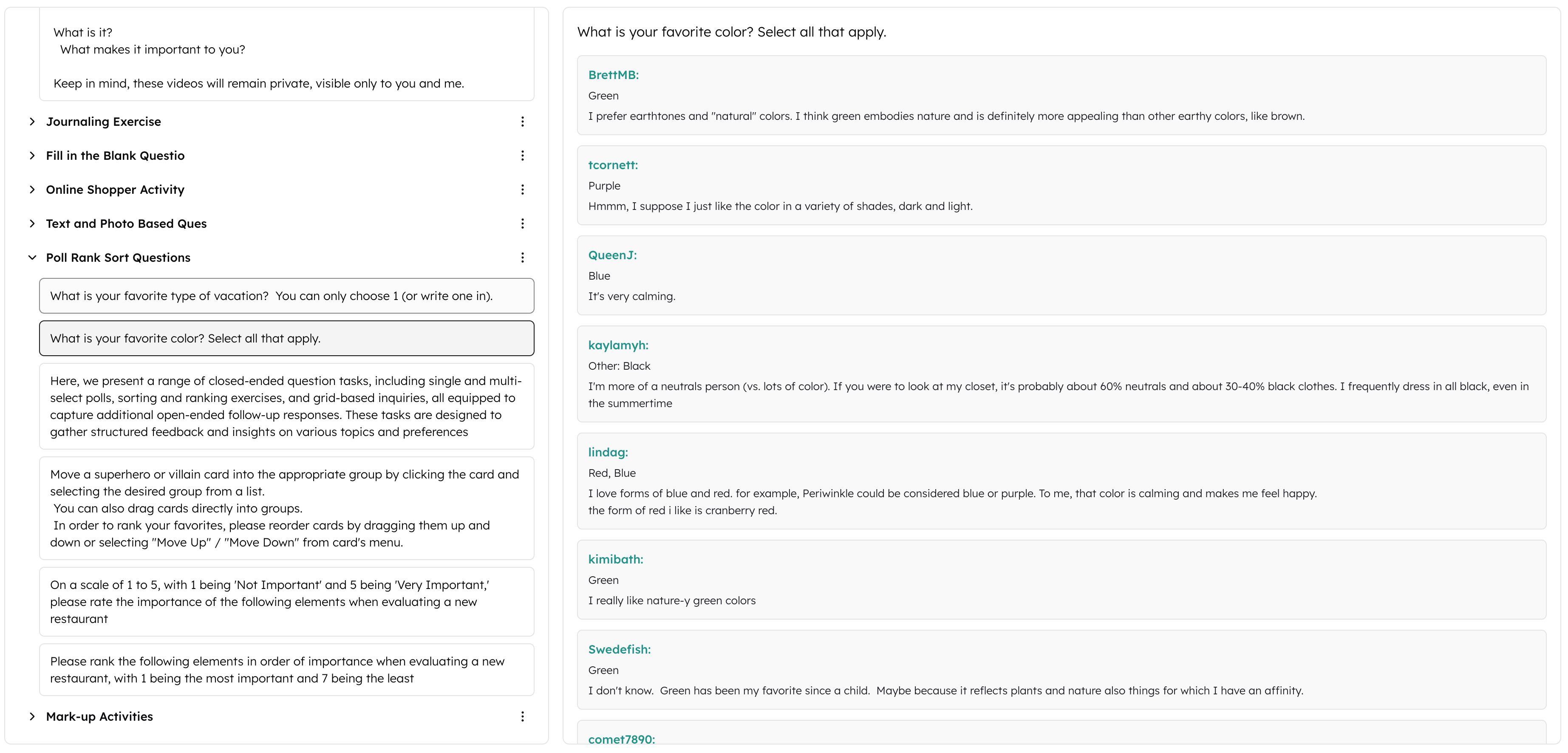

Discover how to leverage CoLoop for analyzing Dscout projects. Export entry data and media from Dscout missions, import it into CoLoop, and optimize your analysis workflow. CoLoop supports the analysis of Dscout Diary, Express, and Usability Test missions, including text-based entry data as well as photo and video media.Documentation Index
Fetch the complete documentation index at: https://docs.coloop.ai/llms.txt
Use this file to discover all available pages before exploring further.
Exporting Data from Dscout
1. Export Entry Data (csv)
To export entry data from a Dscout mission for import into CoLoop:- Open your mission in Dscout
- Navigate to the Entries page (Diary) or Responses tab (Express/ Usability Test)
- Click the export icon in the top-right corner of the screen (a box with an arrow pointing out of it)
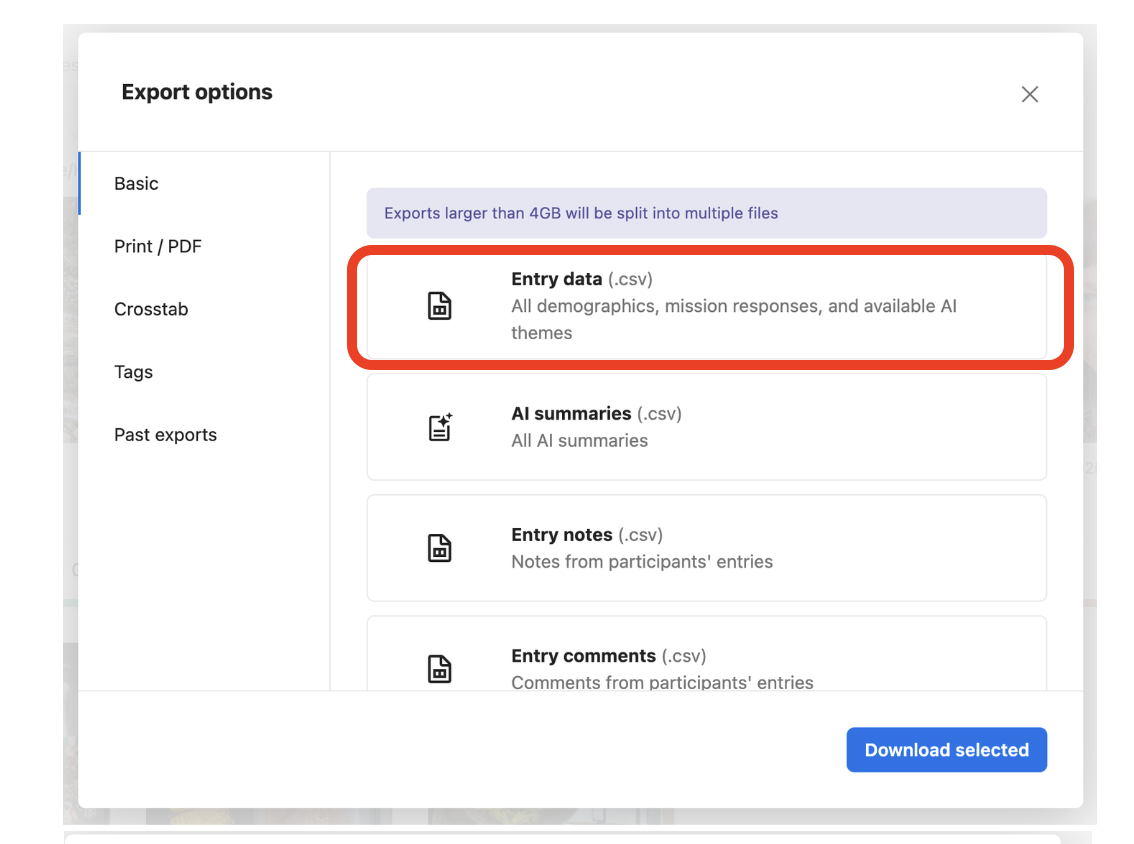
- In the export menu, go to the Basic tab
- Click Entry data to download a
.csvfile of all participant responses, including transcripts of any video responses
2. Export Media (Photos & Videos)
To export photo and video data from a Dscout mission for import into CoLoop:- Open your mission in scout
- Navigate to the Entries page (Diary) or Responses tab (Express/ Usability Test)
- Click the export icon in the top-right corner of the screen
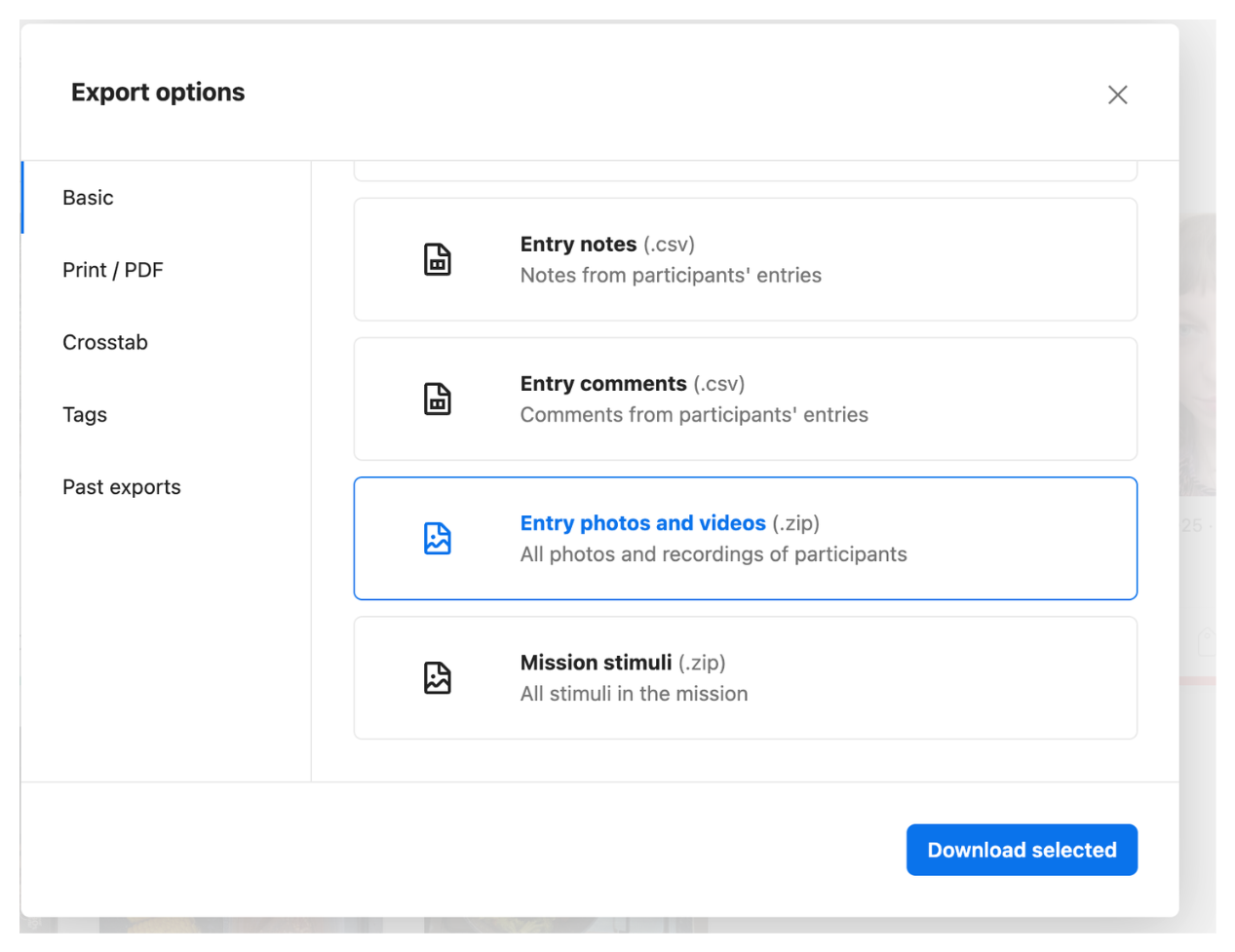
- In the export menu, go to the Basic tab
- Click Photos and videos to download a
.ziparchive of all media files submitted by participants
Importing Dscout data into CoLoop
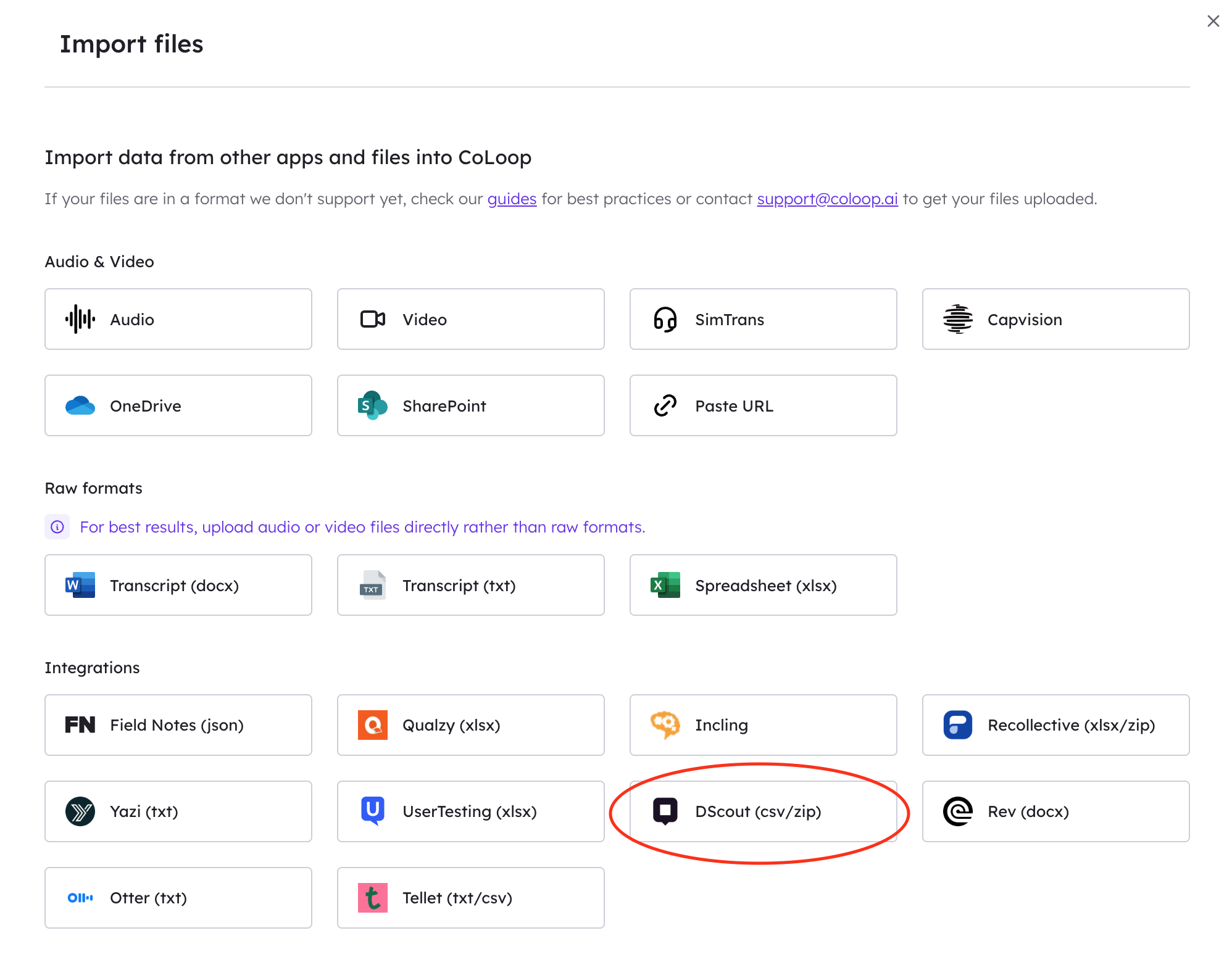
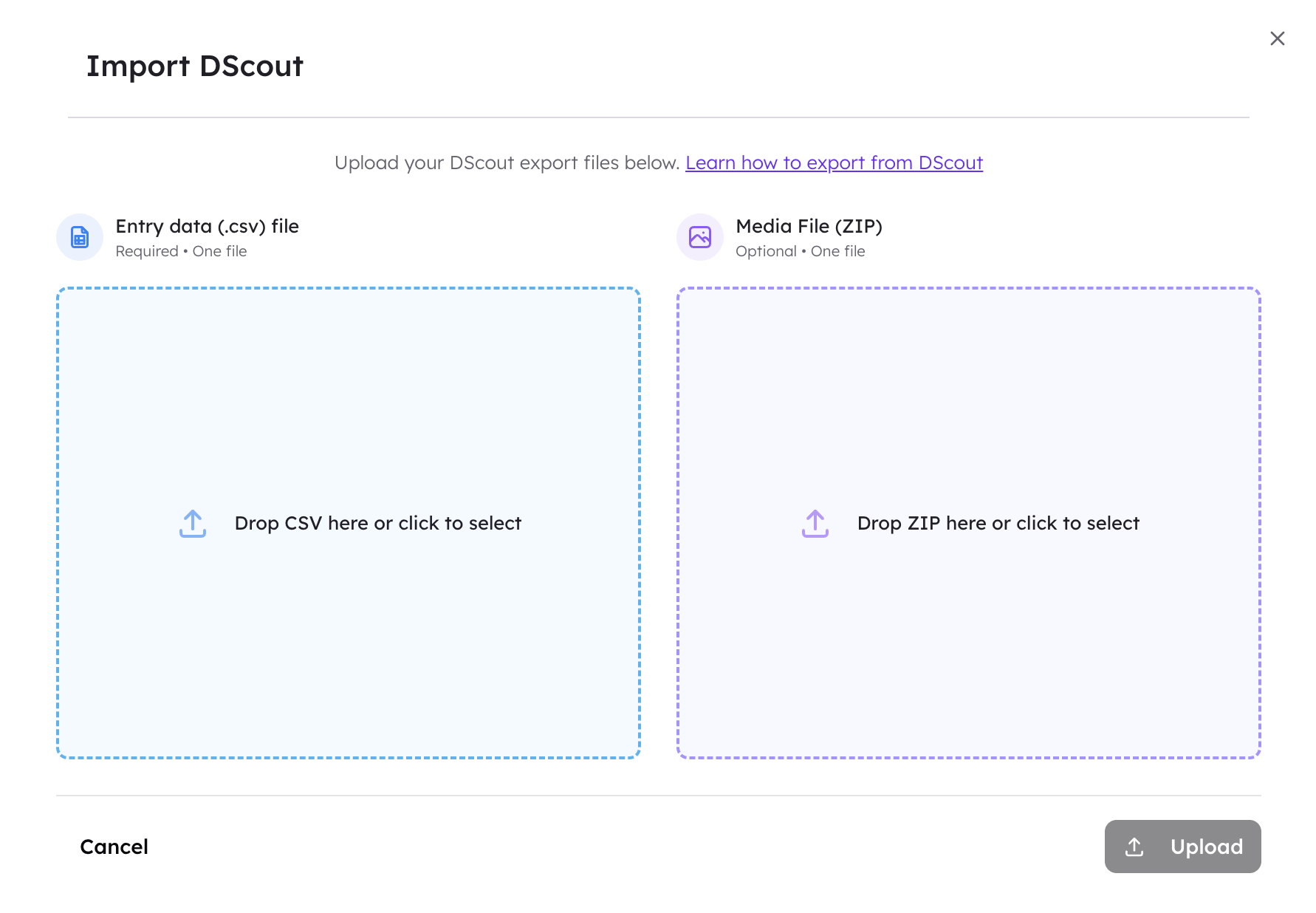
To import Dscout data into CoLoop:- Click Add Files
- Select Dscout
- Follow the on-screen instructions to upload your files: First, upload the (1) Entry data CSV file, then upload the (2) Media ZIP file (if applicable)
Viewing Dscout data in CoLoop
Once your Dscout data has uploaded into CoLoop, you can click to view the data inside.