

CoLoop can be integrated directly with Webex to capture and record interviews live as they are conducted. The recordings will be kept within the project you’ve selected and take away the layer of uploading videos to CoLoop. This can help to streamline the operational process and improves speaker accuracy particularly when conducting focus groups with multiple participants.Documentation Index
Fetch the complete documentation index at: https://docs.coloop.ai/llms.txt
Use this file to discover all available pages before exploring further.
CoLoop Recorder Key Information for Webex
Supported Features- Full support for standard Webex meetings.
- Scheduling in advance supported.
- Active speaker events availability:
- Only available when the meeting host has a paid Webex account and enables closed captions turned on.
- Without active speaker data, transcripts will not be diarized, resulting in null speaker labels.
- Audio limitations:
- Webex provides only one combined audio stream—individual speaker audio tracks are not available.
- Video limitations:
- Webex provides only one combined video stream.
- No support for configurable or alternative video layouts.
- Chat messages:
- Bots currently cannot send chat messages in Webex meetings.
How to Use CoLoop Recorder with Webex
You can record Webex meetings in CoLoop in two ways. You must have a project to upload the recordings into and all calendar invites must have a Teams link for the recorder bot to join.Create a project in CoLoop
- Open the project you’re recording an interview for within CoLoop (Creating a project for more information.)
Invite the Recording Bot using one of Two Methods
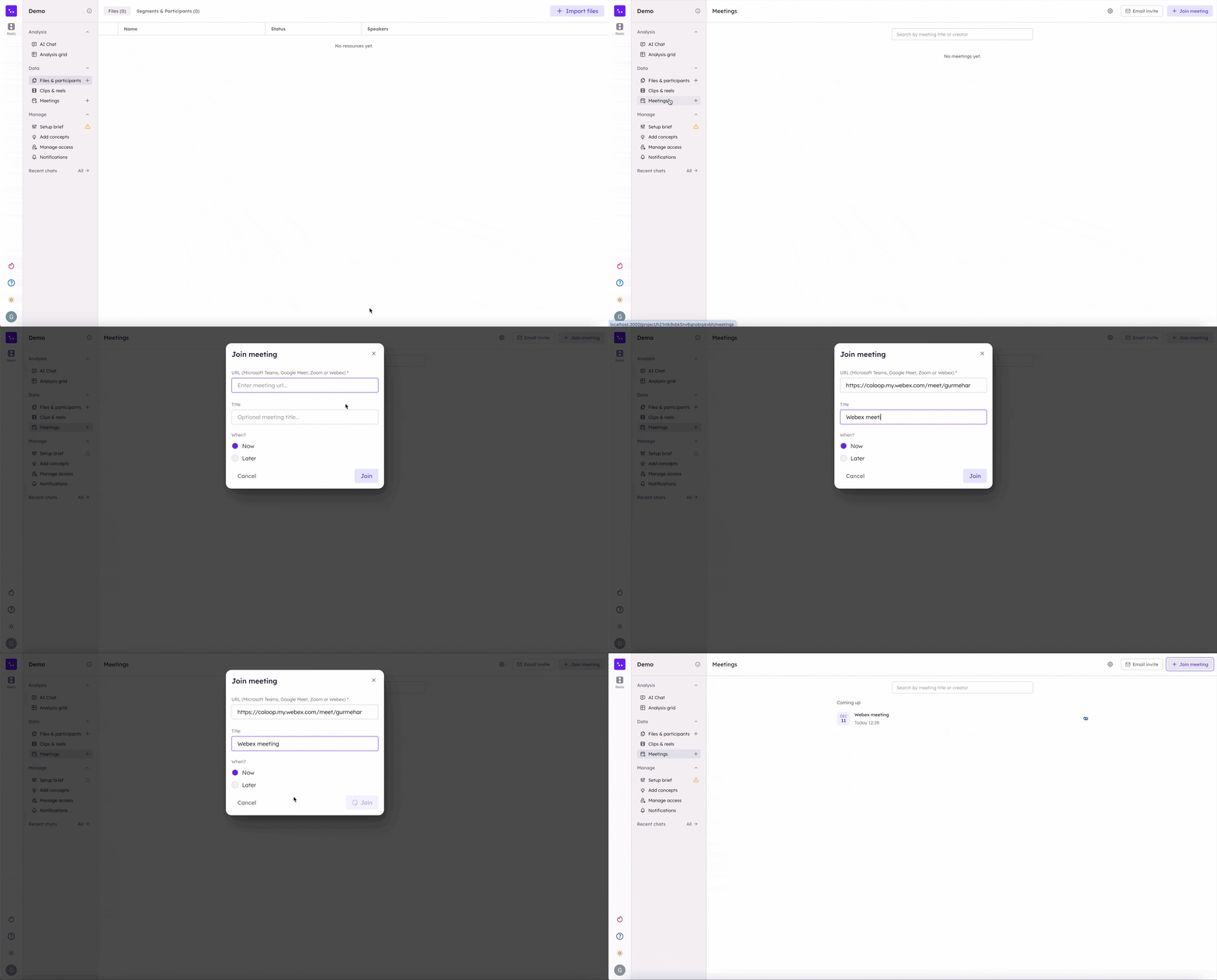
+Join Meetings You can have CoLoop join meetings ad-hoc or right before meetings start by entering in the meeting URL after clicking ‘Join meeting.’- Click on the ’+’ sign next to the Meetings tab on the left hand menu.
- In Webex, copy the meeting link and paste the invite into the URL box.
- Enter a name for the meeting to name the file once it’s uploaded.
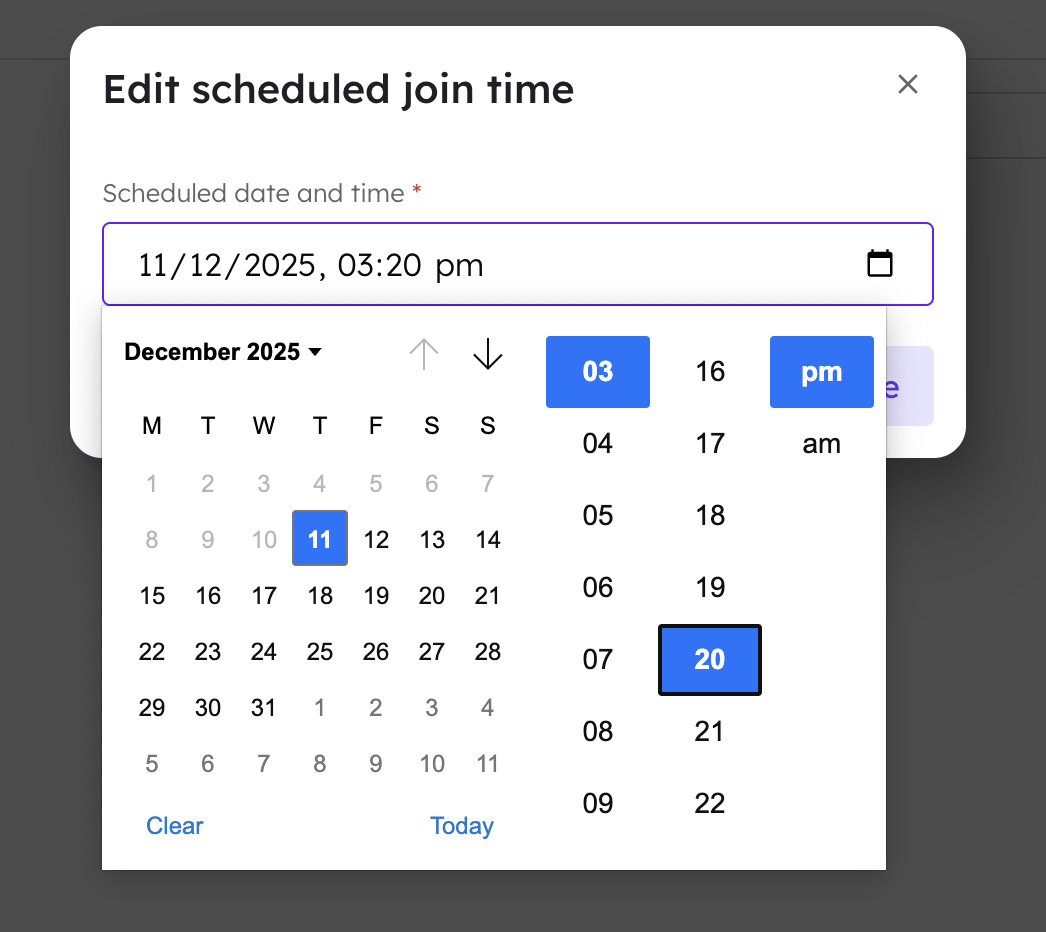
- Select now for the CoLoop Recorder bot to join immediately or select later and enter in the time. CoLoop recorder will wait in the waiting room for 10 minutes once the call starts.
 Project Specific Email Invite
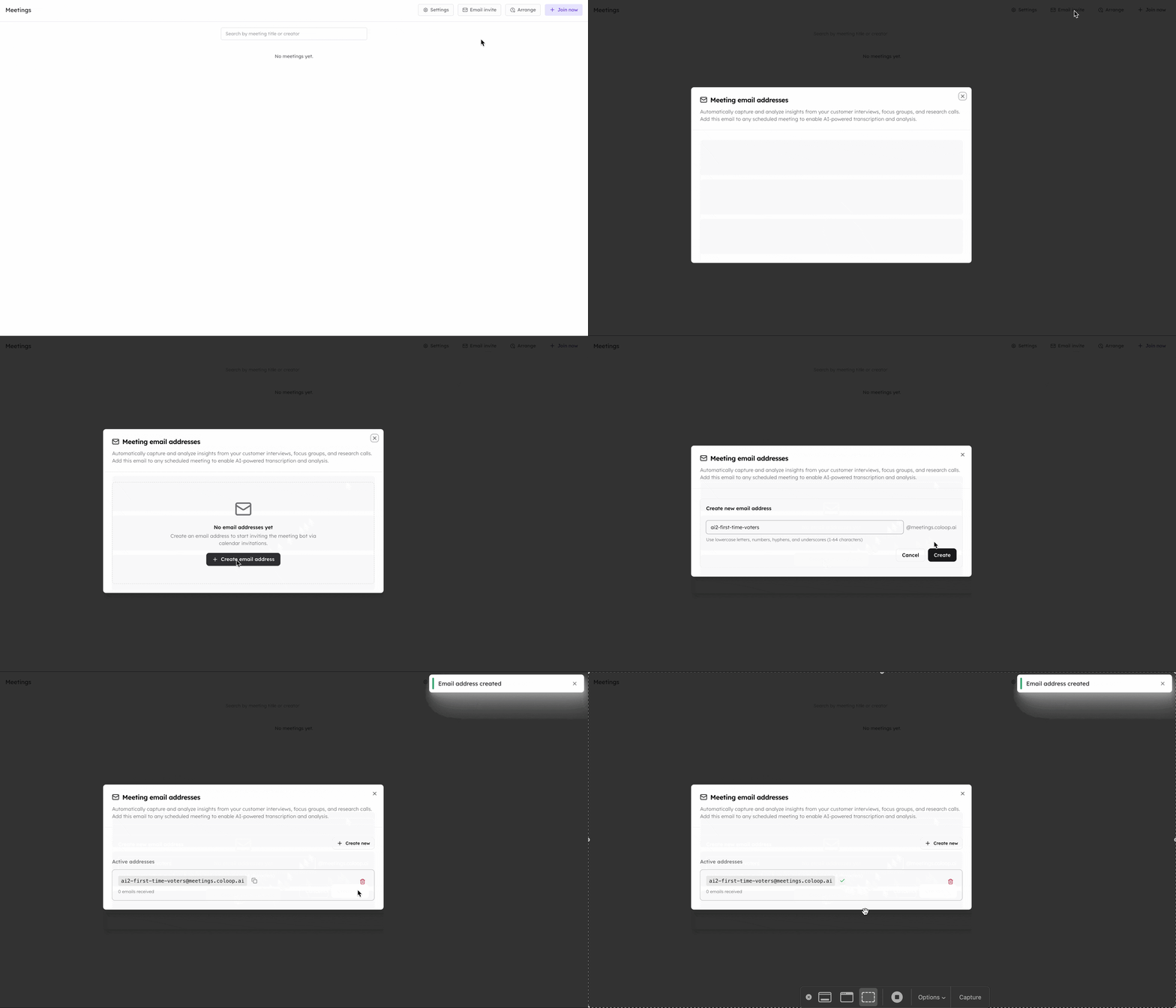
Create an email address for specific CoLoop projects and add that email to all associated calls.
This method is ideal for adding CoLoop to multiple meetings or for allowing third parties to schedule calls by using the project-specific email.
Project Specific Email Invite
Create an email address for specific CoLoop projects and add that email to all associated calls.
This method is ideal for adding CoLoop to multiple meetings or for allowing third parties to schedule calls by using the project-specific email.
- Navigate to the Meetings section in CoLoop.
- Select Email Invite and create an email address for the project.
Allow the recording bot into the call
- At this point we recommend ensuring you have obtained permission to record from your participants
- Allow the meeting bot to record the meeting.
- The CoLoop Recorder will start recording soon thereafter.
Viewing Recordings
- After you have finished the meeting, CoLoop will automatically import the meeting recording.
- To view the meeting recording, navigate to Files tab in your project.
- From here simply follow the steps to transcribe your file (Creating a transcript)
Managing Meeting Bot Settings
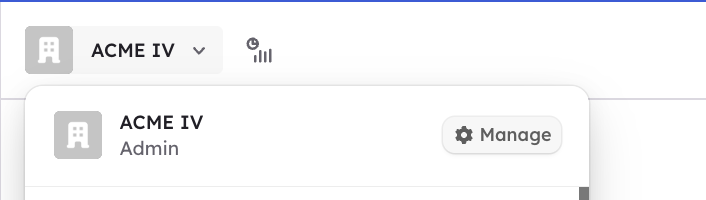
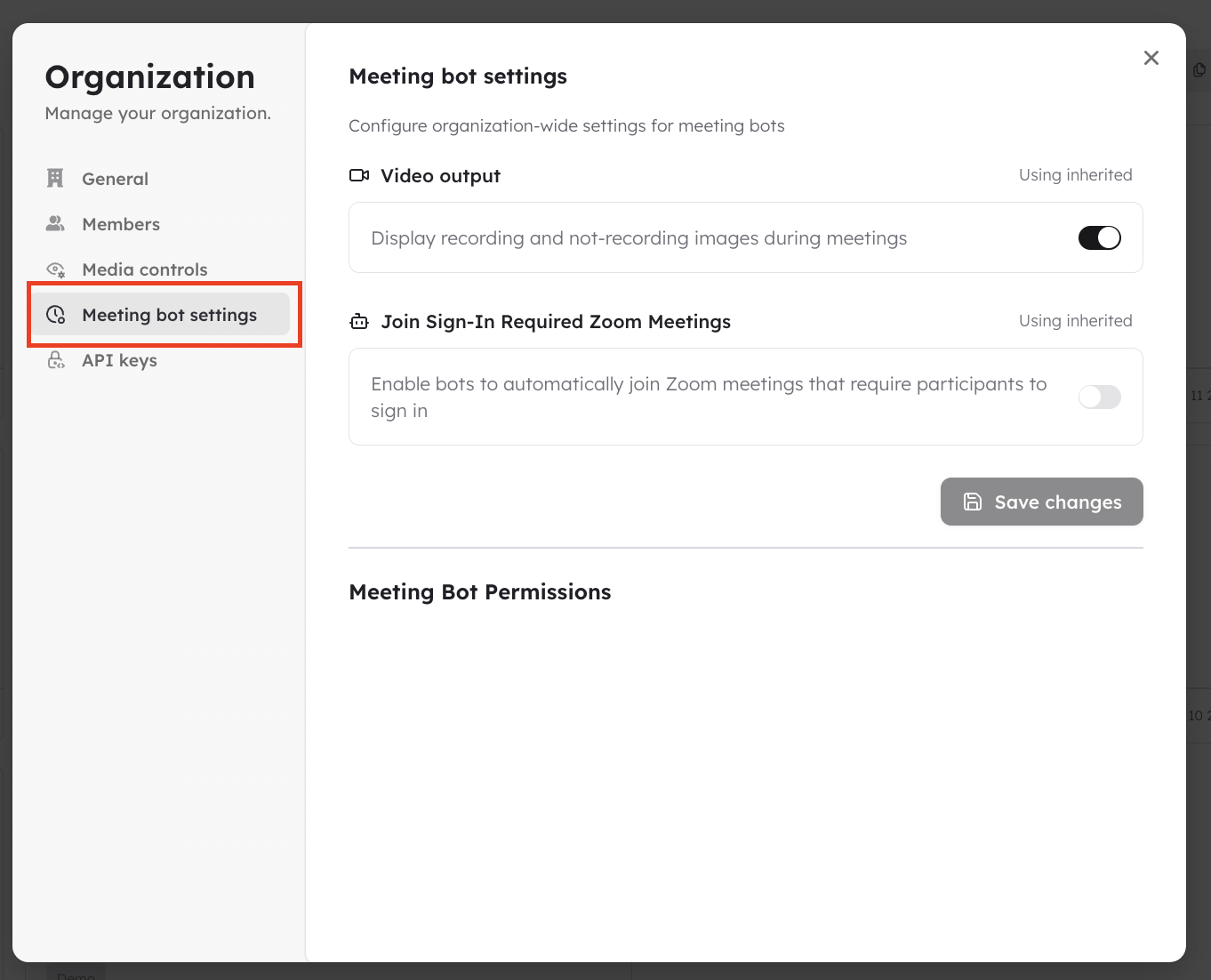
Meeting bot settings can be managed on an organisation level, or on a project level.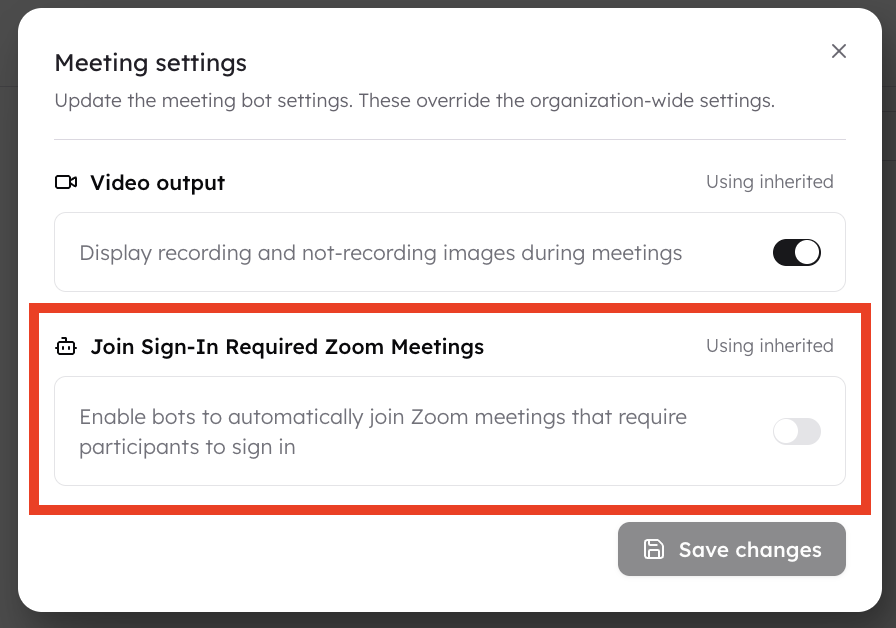 Video Output:
- In meetings by default, CoLoop will appear on the screen as another participant. To turn this off please toggle it off under ‘Video Output’.
 Project Level Management:
Making changes at the project levels will affect all call recordigns associated with that project only.
Project Level Management:
Making changes at the project levels will affect all call recordigns associated with that project only.
