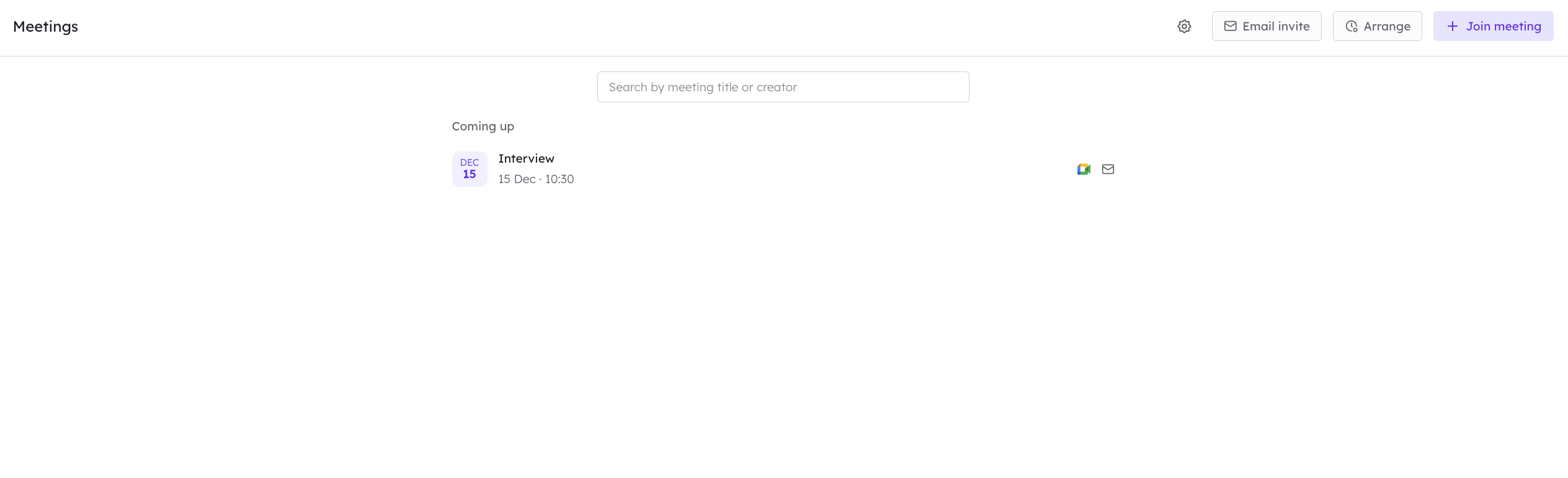

- Use +Join to invite the recorder with a meeting link
- Create a project-specific email address to add to your calendar invites
- Please read the specific guidance document for the platform you are recording with prior to using the interview recorder.
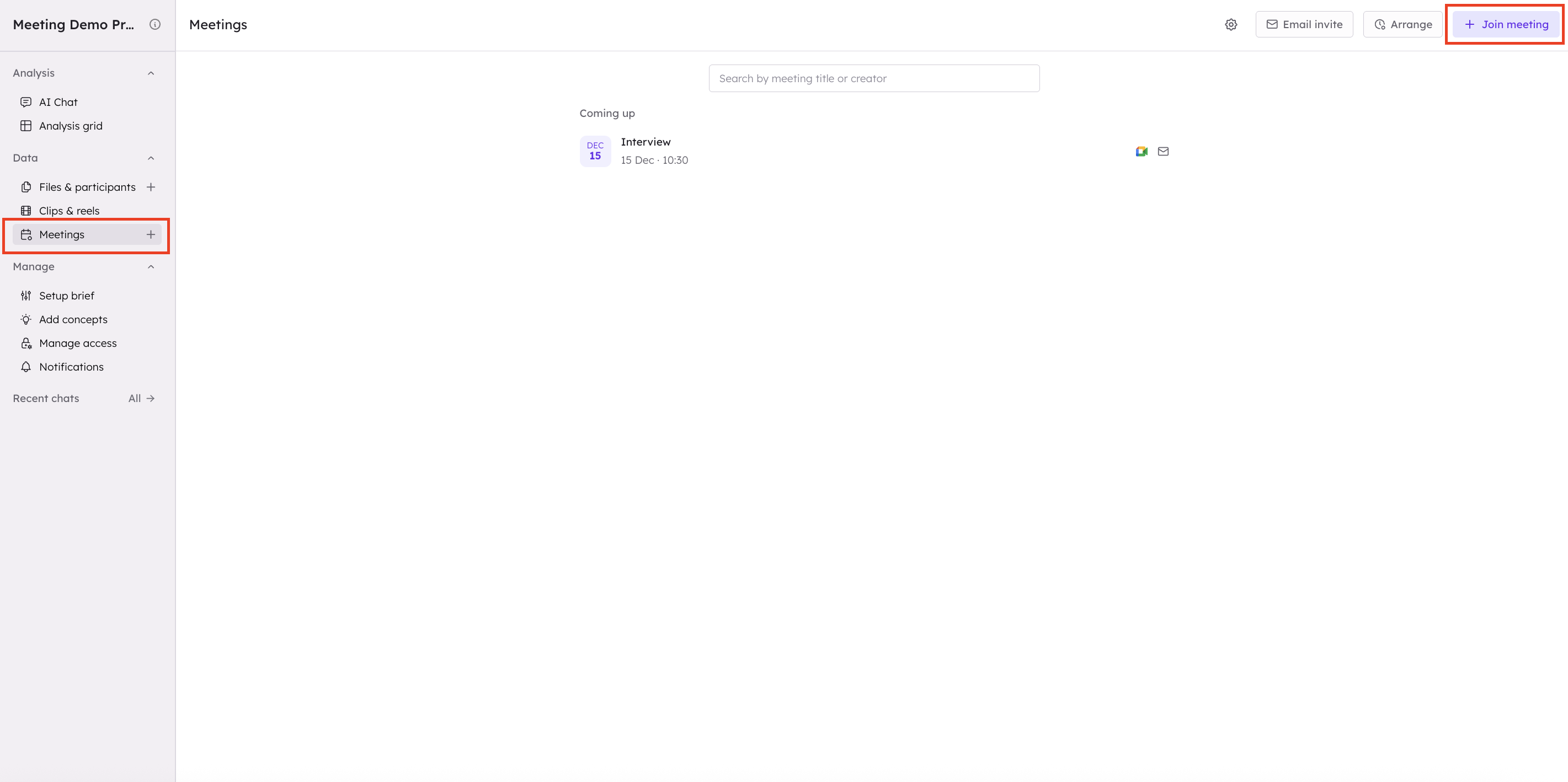
Join Meeting Button
To invite the interview recorder to a meeting that is start, follow these steps:- Navigate to the Meetings section in CoLoop.
- Select + Join Meeting.
-
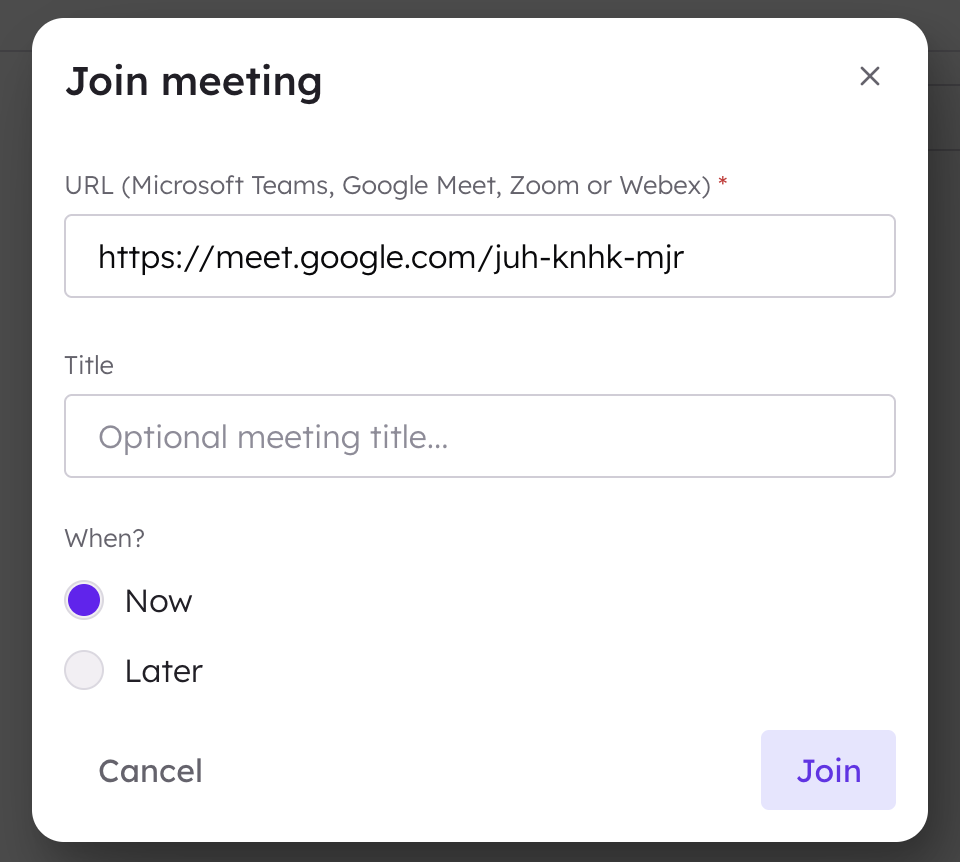
Paste in your Zoom, Teams, Google Meets or Webex meeting invite URL (the same URL you’d share with a participant).
 Schedule Meeting For Later
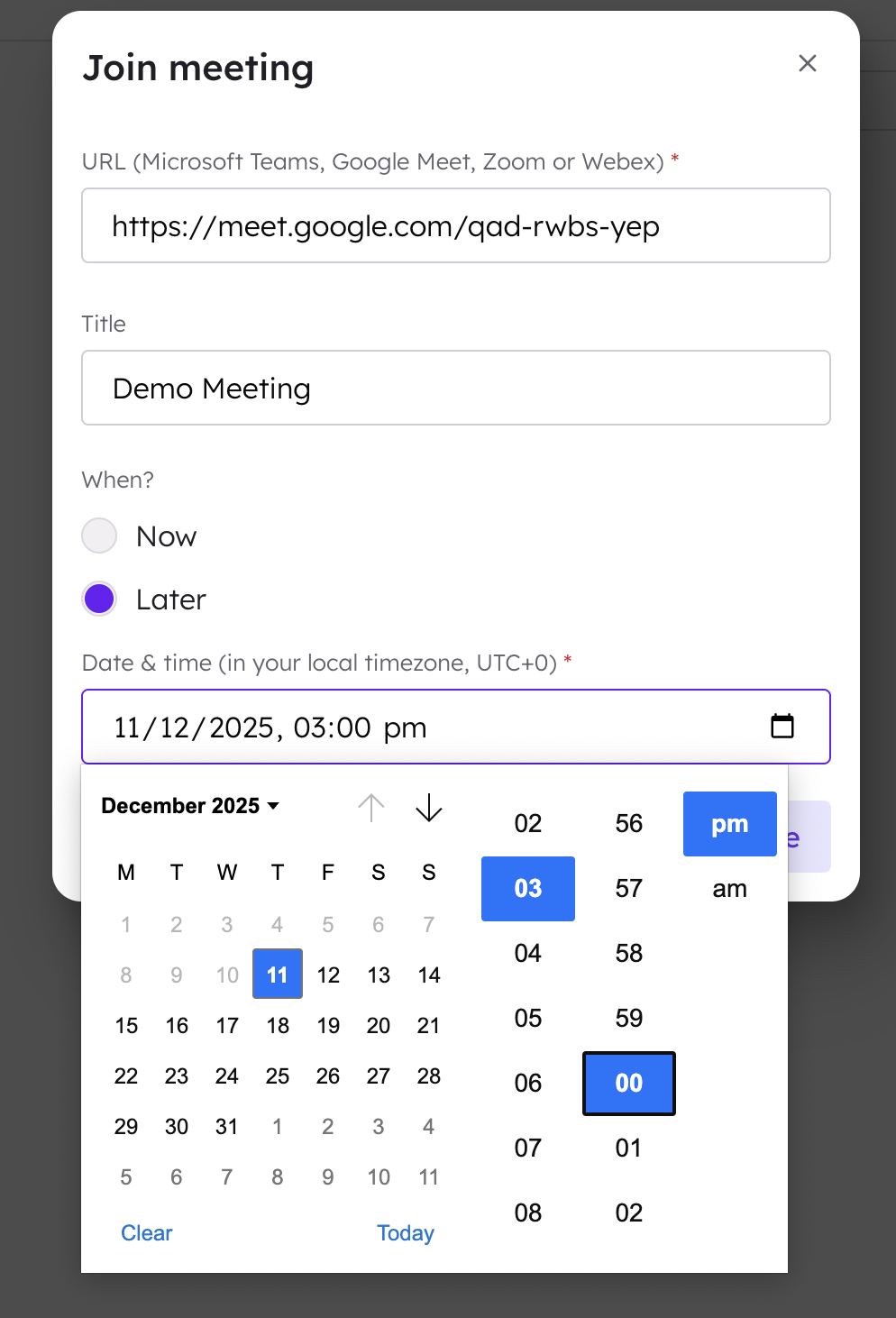
For a meeting starting later or in the future select ‘Later’ and then enter the date and time of the meeting. Please note the time shown will always match the timezone of your device.
Schedule Meeting For Later
For a meeting starting later or in the future select ‘Later’ and then enter the date and time of the meeting. Please note the time shown will always match the timezone of your device.
Project Email Invite
Users can also create an email address for specific CoLoop projects and add that email to all associated calls. This method is ideal for adding CoLoop to multiple meetings or for allowing third parties to schedule calls by using the project-specific email.- Navigate to the Meetings section in CoLoop.
- Select Email Invite and create an email address for the project.
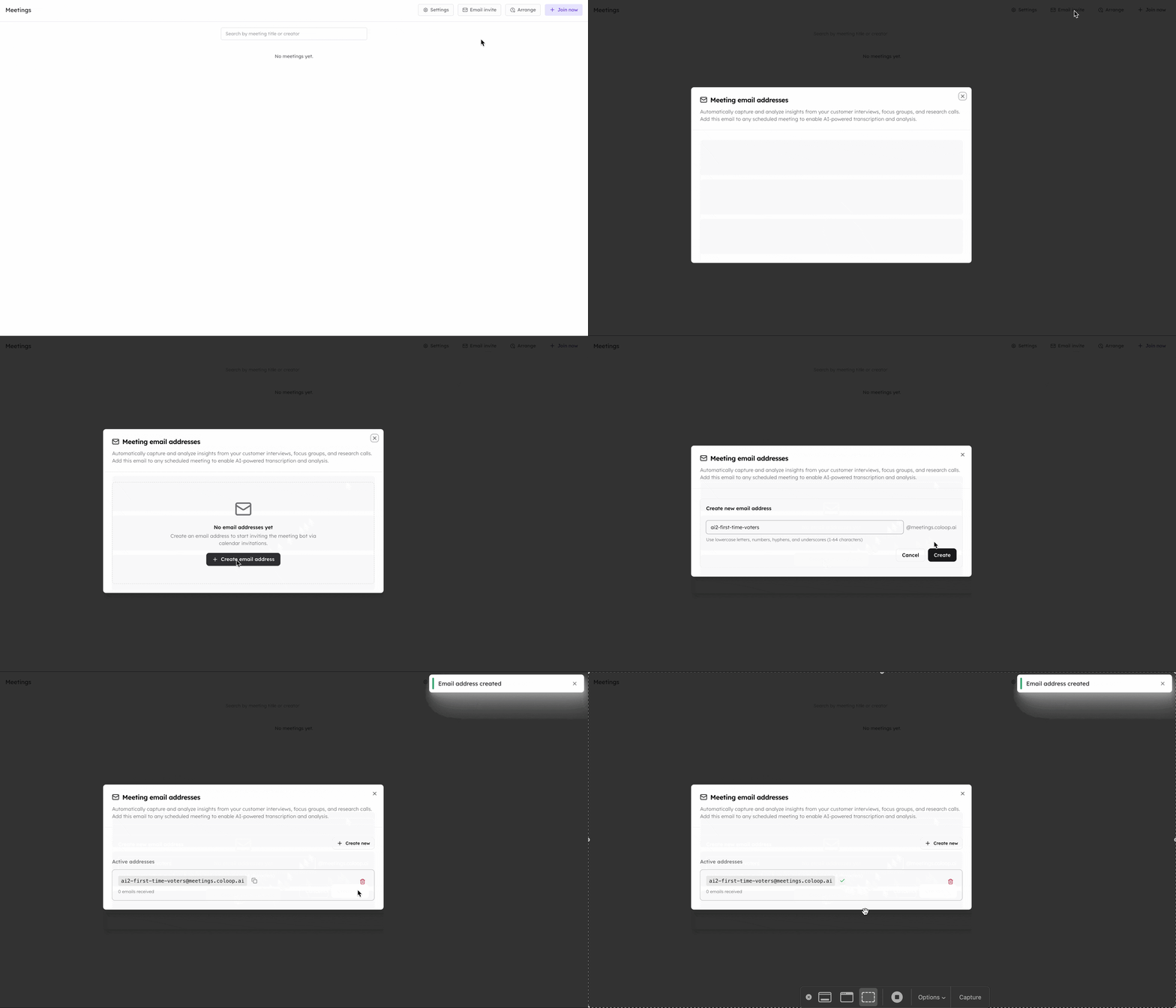
- Once the project email address is created, copy it and add it to all call invites.
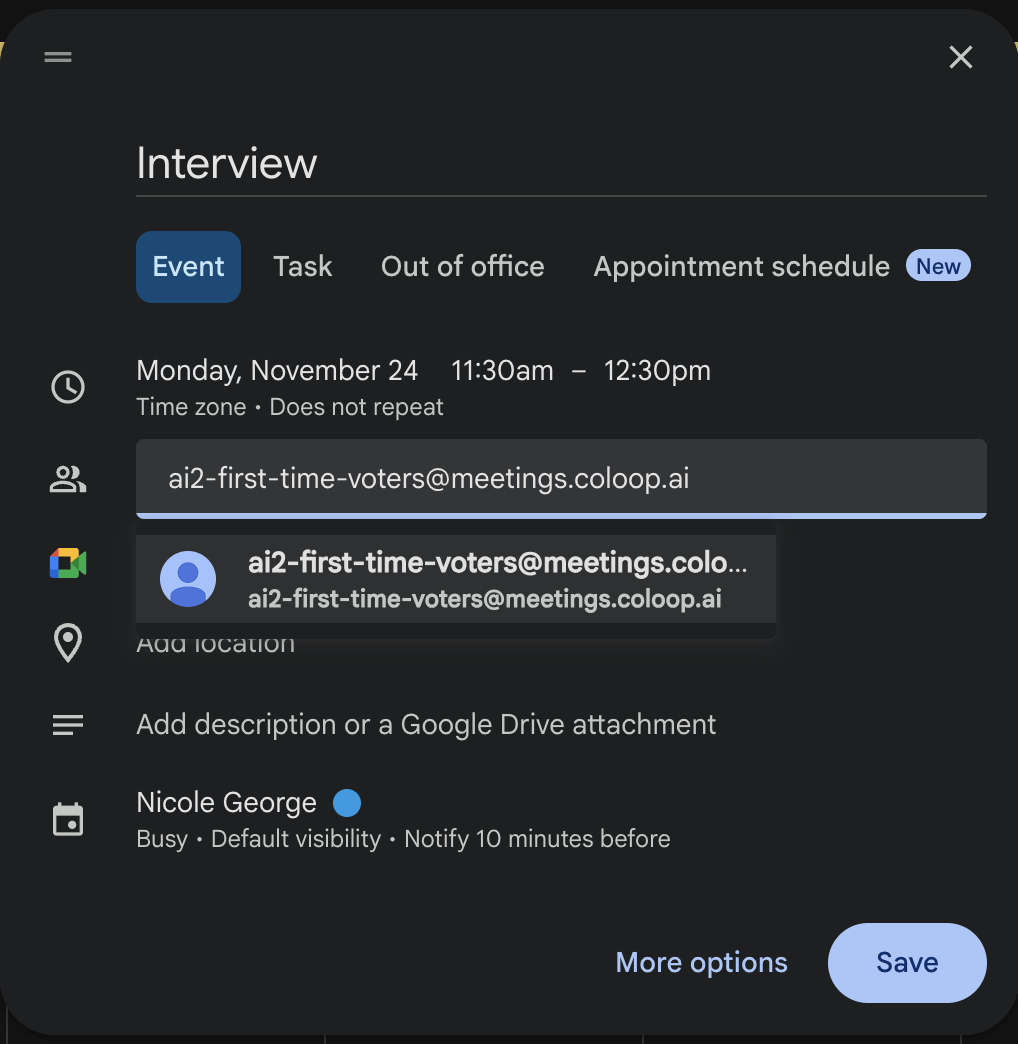
- All scheduled meetings will be displayed in the Meetings section. This method can be used to arrange the CoLoop interview recorder well ahead of the interview time.