

Introduction
Use the Thought Partner chat to explore themes, compare groups, drill into specific points, quantify what you find, and write up the result — all in one conversation, with every point grounded in the participants who said it.How to Use Thought Partner Chat
Ask your question in plain language and the chat works through your interviews to answer it. It keeps the conversation’s context, so you can refine with follow-up questions rather than starting over. Open the + menu in the message input to find Concepts, Segments, Filters, and Files. The chat selector shows Thought Partner.Focus the data
The chat picks the relevant data on every run, interpreting your question to choose the participants, segments, or concepts it needs. You can steer that, or lock it down, in two ways:- Mentions. Choose + → Segments to insert a segment or participant, or + → Concepts to insert a concept. You can also type @ or #. The chat then works from only that tagged subset.
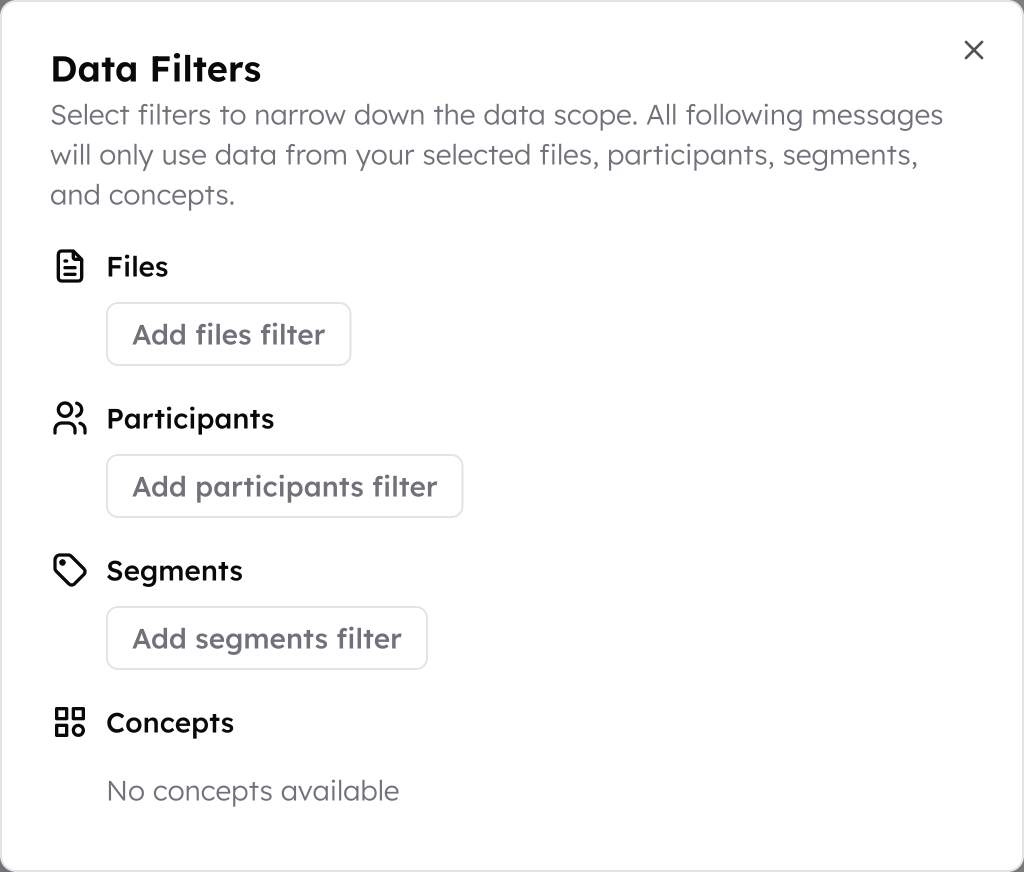
- A fixed scope. Open + → Filters and select the data to include: all following messages then use only your selected files, participants, segments, and concepts. The chat can narrow further within that scope, but never reach outside it, until you change it.
Check the evidence
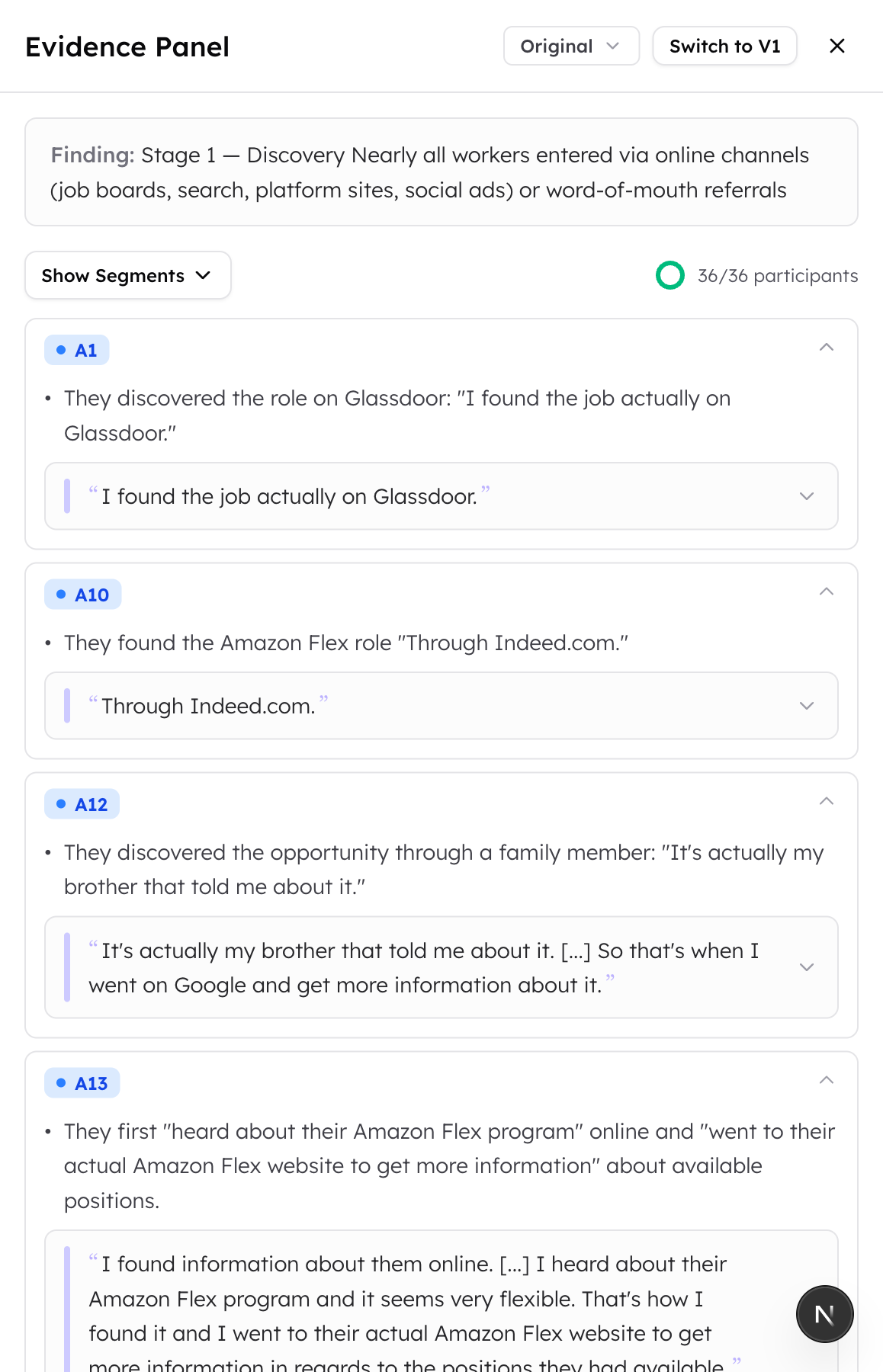
Every claim in the chat is backed by evidence, so you can always trace an insight back to the participants who said it and decide whether you agree. Each claim is followed by a citation showing how many participants support it.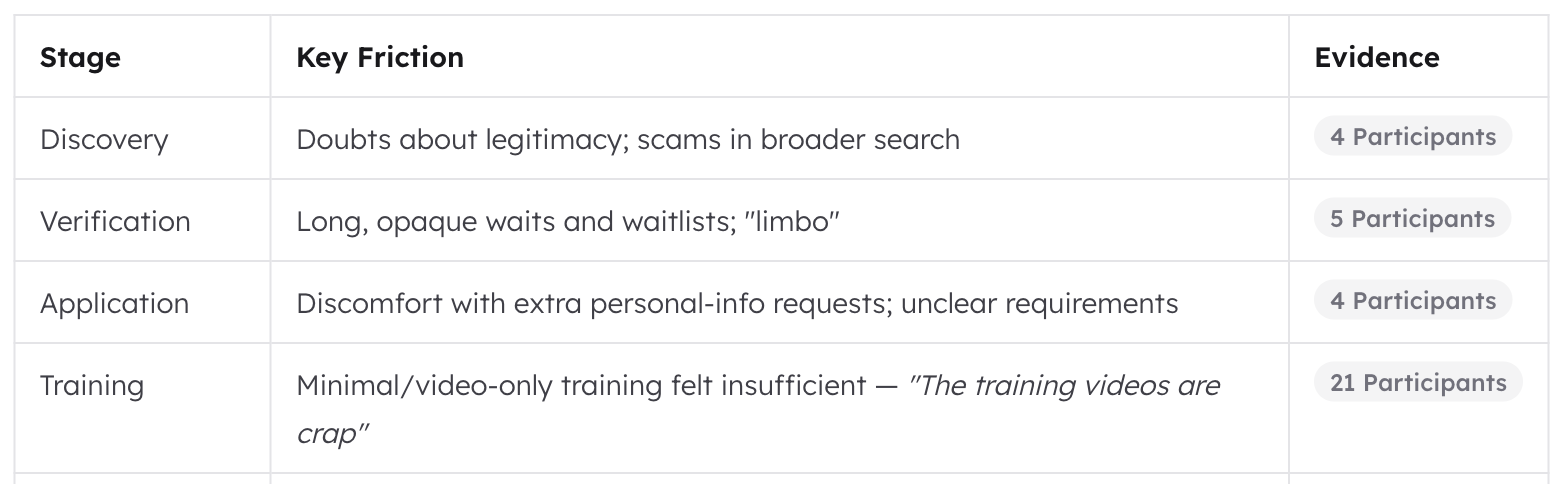 Click the citation — or any claim, theme, or quote — to open the evidence panel, which shows:
- Which participants were cited for that claim.
- Why each was selected: the reason that participant supports the point.
- Their exact words: the supporting quotes, pulled straight from the transcript.
Compare groups
Ask the chat to compare segments or individuals directly — for example, “Compare how Amazon, Uber, and Lyft drivers feel about their pay.” It builds a separate filter for each group, analyzes each one on its own, and combines them into a single comparison at the end. Name each group with an @ mention so the chat scopes it correctly, then glance at the filters it created to confirm each has the right participants before you read the result.Add files for extra context
You can attach images and files (PDF, Word, PowerPoint, or text) to a message for extra context, or ask the chat to confirm or validate their content. Attachments apply to the message you send them with — the AI reads them as part of that question. They’re background context, not part of your cited dataset; your project files remain the basis of the research. See Adding files & images to chat for full limits and handling.Use skills
Skills are saved prompt templates that customize how the Thought Partner chat analyzes your data. Instead of rewriting complex instructions each time, create a skill once and reuse it across chats and projects. CoLoop also maintains a built-in library of qualitative research skills available to everyone. See the Skills page for more.Tips to get the best results
Use the suggested prompts
A new chat suggests prompts tailored to your project. Click the category chips under the chat box to browse them by goal.Be specific in your prompts
The strongest prompts name the analysis you want, say how to break it down (by segment, participant, or concept), and ask for quotes and citations. For detailed example prompts grouped by goal, see Top Tips and Prompting Advice.Data: Enriquez, Diana, “Delivery Gig Worker Interviews on Automation at Work” (2019), https://doi.org/10.34770/4324-yn77. Licensed under CC BY 4.0. Analyzed/processed for demonstration purposes.