

What are Skills?
Skills are saved prompt templates that customize how the Thought Partner chat analyzes your data. Instead of rewriting complex instructions each time, you can create a skill once and reuse it across chats and projects. The CoLoop team creates and maintains a library of high-quality qualitative research skills across a variety of domains, available to all users out of the box. You can access skills via the Explore Skills dialog in the project sidebar.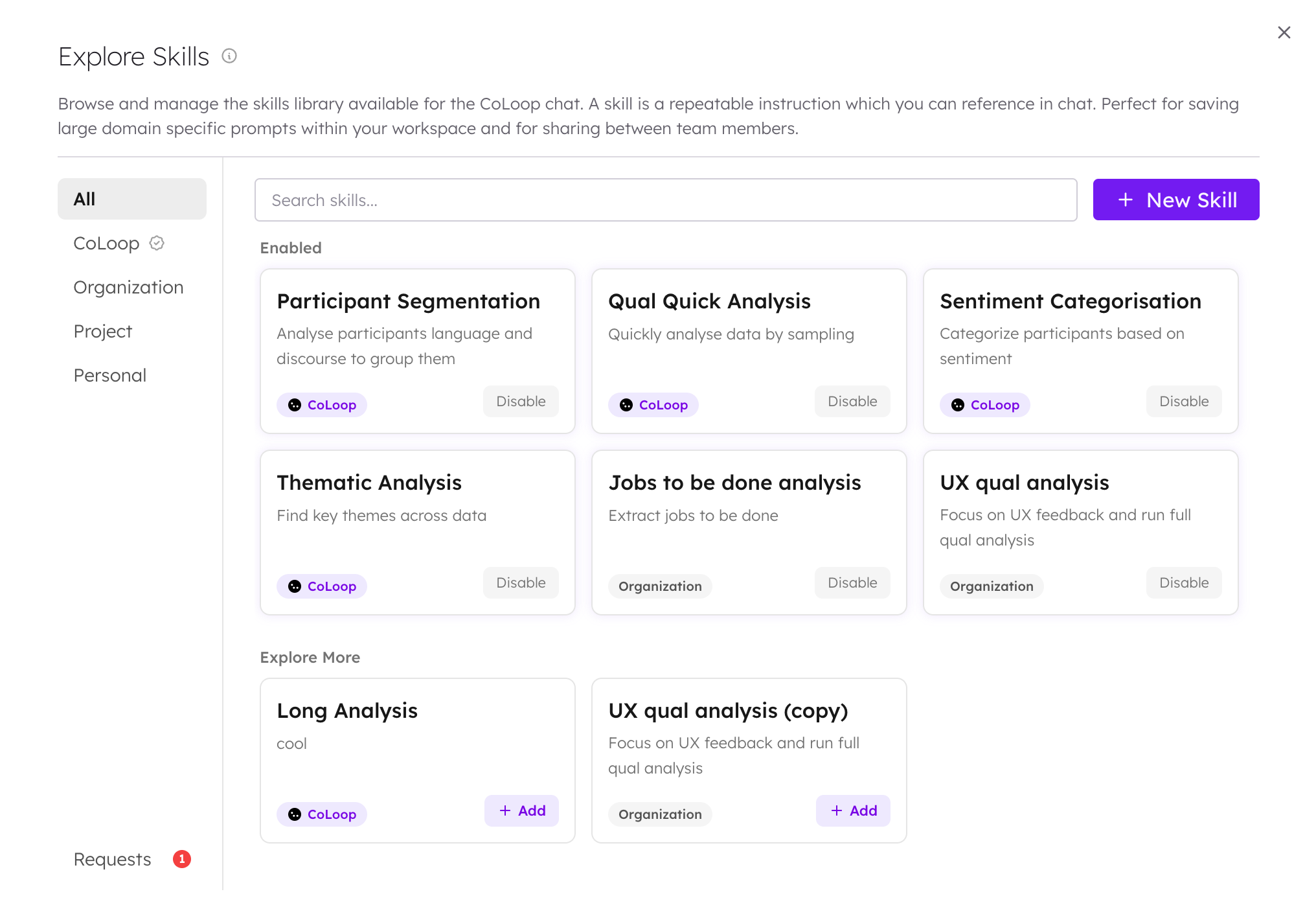
Skill Scopes
Skills exist at four levels. What you can see and do depends on your role and where the skill was created.Creating a Skill
- Open a project and click Explore Skills in the sidebar.
- Select the Personal tab and click New Skill.
- Give the skill a name, optional description, and write the instructions for the skill.
- Click Save.

Publishing Skills
You can publish a personal skill to a broader audience:- Publish to Project — copies the skill to the current project so all project members can use it.
- Publish to Organization (admin only) — copies the skill so everyone in your workspace can use it.
- Request Publish to Organization (non-admin) — sends a request for an organization admin to review and approve.
Managing Organization Skill Requests
If you’re an organization admin, you will see a wand icon in the top bar of your workspace. Clicking it opens the Organization Skill Requests dialog where you can review pending publish requests from your team. For each request you can:- Expand the row to preview the full skill instructions.
- Approve — the skill becomes available to everyone in your workspace.
- Reject — optionally provide a reason. The requester’s original skill is not affected.