

How to add a file or image
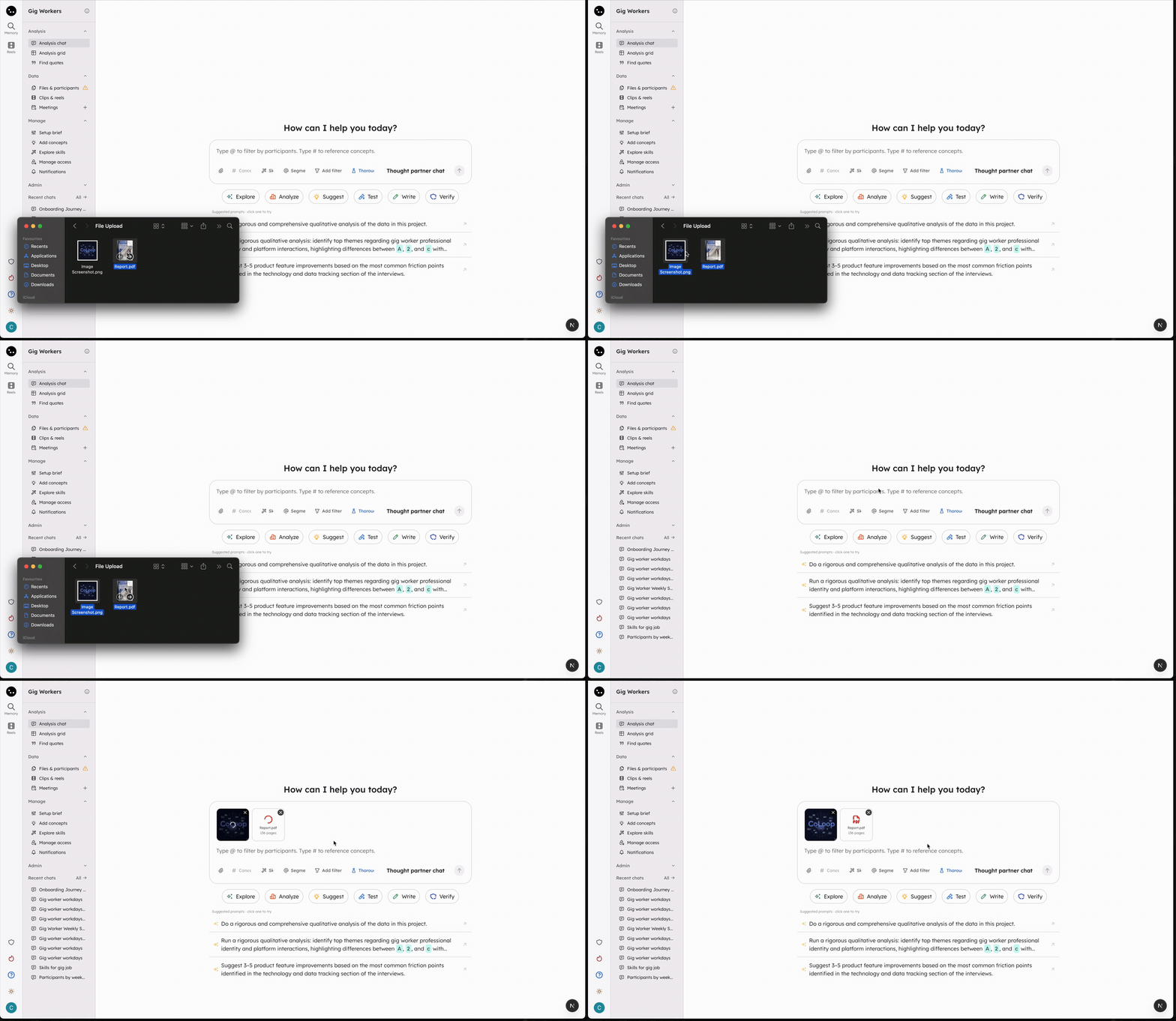
You can add a new file in three ways:- Open + → Files in the chat input, then click Upload from device.
- Drag and drop one or more files anywhere onto the chat.
- Paste an image or file you have copied to your clipboard.
Reuse a file you uploaded before
- Open + → Files in the chat input.
- Select one of your three most recent files, or click Browse uploaded files.
- To find an older file, search by file name.
Supported file types and limits
If a file is the wrong type or over a limit, CoLoop tells you when you try to attach it and skips that file.
How your files are handled
Images are resized automatically. If an image is larger than 2000px on its longest side or over the 5 MB limit, CoLoop resizes it before sending so you rarely need to worry about size. If an image is still too large after resizing, upload a smaller version. PowerPoint is converted to a PDF. When you attach a.pptx file, CoLoop converts it to a PDF so the AI can read each slide visually, including charts, images, and layout. This happens automatically after upload.
Word files are read as text only. For .docx files, the AI reads the text content. Images, charts, and other visuals embedded in the document are not recognized.