Send a complete copy of a qualitative project to another CoLoop workspace.
Project transfers let another CoLoop user create a separate copy of your project in their workspace. Your source project does not change when they accept the transfer.
You need permission to manage access to the source project. The project must contain at least one file or other research resource.
Open the project and select Manage access.
Open the Transfers tab.
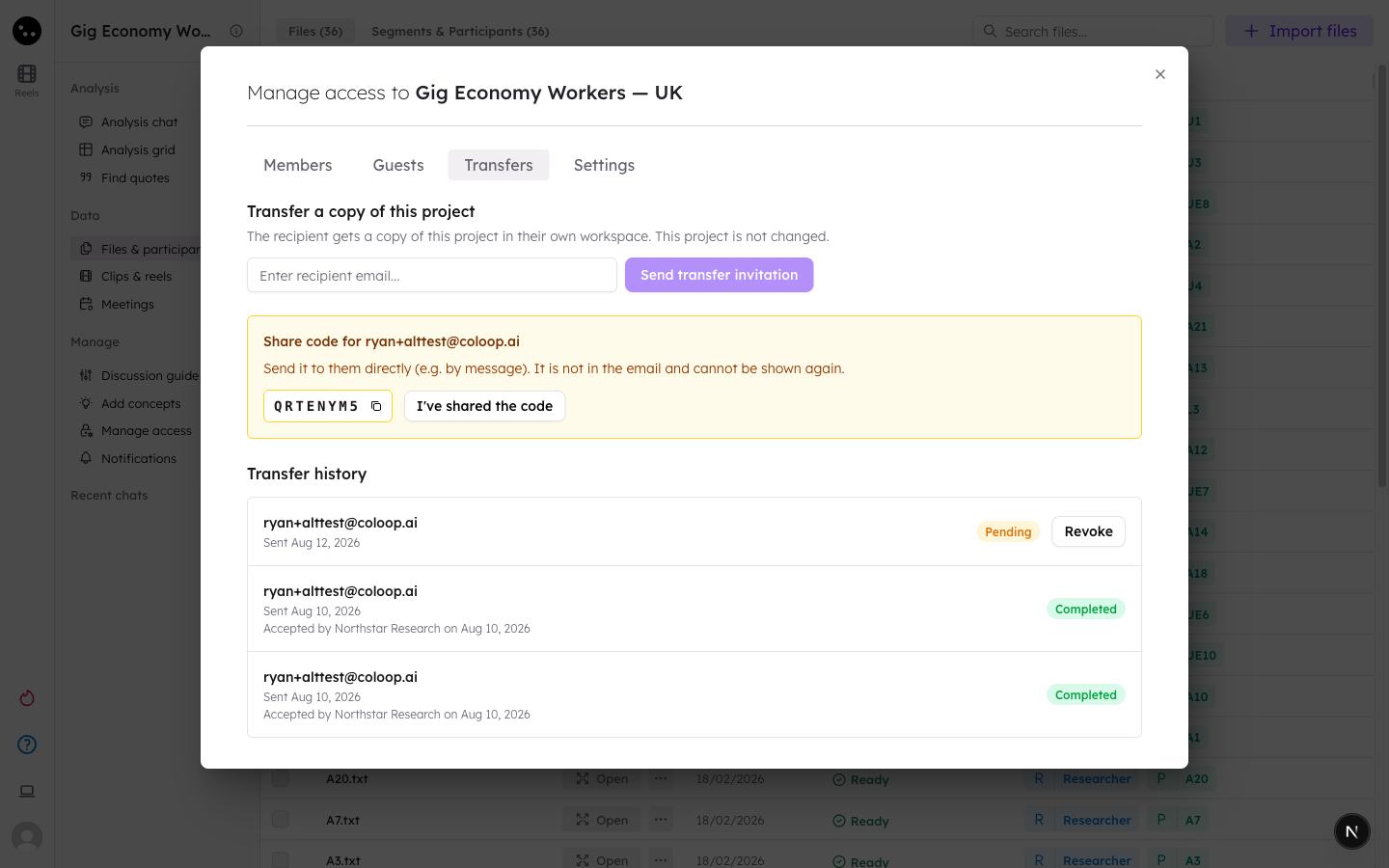
Enter the recipient’s email address.
Click Send transfer invitation.
Copy the one-time share code that CoLoop shows after sending the invitation.
Send the share code to the recipient through a separate channel, such as a direct message.
Click I’ve shared the code after the recipient has it.
The invitation email contains a private transfer link but does not contain the share code. The share code appears only once and cannot be recovered. Send the code separately from the email.
Use the organization switcher to select the workspace that should receive the copy.
Enter the share code from the sender.
Click Accept transfer.
Keep the page open to follow progress, or close it and return to your project list later.
Large projects can take longer to copy because CoLoop also copies their media files. When the transfer is complete, the new project appears in the selected workspace.
The Transfer history section shows whether each transfer is pending, copying, completed, failed, revoked, or expired.You can revoke a pending transfer before the recipient accepts it. Invitations expire after seven days. Create a new transfer if an invitation expires, fails, or is revoked.
Was this page helpful?
{"docsConfig":{"theme":"mint","$schema":"https://mintlify.com/docs.json","name":"CoLoop.ai","colors":{"primary":"#7017FF","light":"#23C2A0","dark":"#7017FF"},"logo":{"light":"https://mintcdn.com/coloop/ymQOqY80NhE9wNnz/logos/logo-black.png?fit=max\u0026auto=format\u0026n=ymQOqY80NhE9wNnz\u0026q=85\u0026s=501017bf15d7cff7dc78de97ccbe006f","dark":"https://mintcdn.com/coloop/ymQOqY80NhE9wNnz/logos/logo-white.png?fit=max\u0026auto=format\u0026n=ymQOqY80NhE9wNnz\u0026q=85\u0026s=554fc014c777c89d3ba5e41a9c42ac87"},"favicon":"https://mintcdn.com/coloop/ymQOqY80NhE9wNnz/logos/logo.svg?fit=max\u0026auto=format\u0026n=ymQOqY80NhE9wNnz\u0026q=85\u0026s=4c7d6e11e692e032a4c7e817d8cd5397","navbar":{"links":[{"href":"https://coloop-knowledge-base.help.usepylon.com","label":"Knowledge Base"},{"href":"https://app.coloop.ai","label":"Go to CoLoop"}],"primary":{"type":"button","label":"Book a Demo","href":"https://www.coloop.ai/contact?utm_source=docs\u0026utm_medium=header"}},"footer":{"socials":{"linkedin":"https://www.linkedin.com/company/coloopai"}},"integrations":{"posthog":{"apiKey":"phc_Tnk3gSqgaBU81FaieZjtfxbk3lGXC6jGGDxGyrl4z3f","apiHost":"https://eye.coloop.ai","sessionRecording":true}},"styling":{"latex":false},"navigation":{"global":{"anchors":[{"anchor":"Book a Demo","icon":"calendar-days","href":"https://www.coloop.ai/contact?utm_source=docs\u0026utm_medium=sidebar"},{"anchor":"Community","icon":"fire-flame-curved","href":"https://community.coloop.ai/users/sign_in"},{"anchor":"Back to CoLoop","icon":"house","href":"https://app.coloop.ai"}]},"pages":[]}},"deployment":{"deploymentMetadataValue":{"subdomain":"coloop","hasAudioNarration":false,"actualSubdomain":"coloop","customDomains":["docs.coloop.ai"],"gitSource":{"type":"github","owner":"genei-ltd","repo":"coloop","deployBranch":"main","contentDirectory":"apps/docs","isPrivate":true,"mountPath":"","label":""},"chroma":{"liveDeploymentHistoryId":"6ae8cd76b03ab4aa11276069","collectionId":"01d26161-3d61-4d33-a98f-fd1caa6005a8","schemaVersion":"v3","latestBuiltDeploymentHistoryId":"6ae8cd76b03ab4aa11276069"},"feedback":{"thumbs":true},"entitlements":{"AI_CHAT":{"status":"ENABLED"},"REMOVE_BRANDING":{"status":"DISABLED"},"CONTEXTUAL_FEEDBACK":{"status":"DISABLED"},"CODE_SNIPPET_FEEDBACK":{"status":"DISABLED"},"WEB_MCP":{"status":"ENABLED"},"NARRATION":{"status":"ENABLED"}},"buildId":"6ae8cd76b03ab4aa11276069","clientVersion":"0.0.4045","searchFilterCounts":[{"language":"default","tag":"Documentation","count":69},{"language":"default","tag":"Integrations","count":38},{"language":"default","tag":"Setting up a project","count":12},{"language":"default","tag":"Collaboration \u0026 Access Management","count":11},{"language":"default","tag":"Analysis Chat","count":7},{"language":"default","tag":"AI Skills Hub","count":5},{"language":"default","tag":"Advanced Analysis","count":5},{"language":"default","tag":"Analysis Grids","count":5},{"language":"default","tag":"Getting Started","count":5},{"language":"default","tag":"API","count":4}]},"assistantConfig":{},"basePath":"","hasChatPermissions":true,"hasWebMcpPermissions":true,"toggles":[{"name":"kill-isr","enabled":true,"variant":{"name":"disabled","enabled":false,"feature_enabled":true},"impressionData":false},{"name":"agent-mintlify-slack","enabled":true,"variant":{"name":"disabled","enabled":false,"feature_enabled":true},"impressionData":false},{"name":"agent-integrations-settings","enabled":true,"variant":{"name":"disabled","enabled":false,"feature_enabled":true},"impressionData":false},{"name":"automations-pr-grouping","enabled":true,"variant":{"name":"disabled","enabled":false,"feature_enabled":true},"impressionData":false},{"name":"custom-prefix","enabled":true,"variant":{"name":"disabled","enabled":false,"feature_enabled":true},"impressionData":false},{"name":"analytics-v7","enabled":true,"variant":{"name":"disabled","enabled":false,"feature_enabled":true},"impressionData":false},{"name":"user-flows-analytics","enabled":true,"variant":{"name":"disabled","enabled":false,"feature_enabled":true},"impressionData":false},{"name":"no-publish-flow","enabled":true,"variant":{"name":"disabled","enabled":false,"feature_enabled":true},"impressionData":false},{"name":"workos-onboarding","enabled":true,"variant":{"name":"disabled","enabled":false,"feature_enabled":true},"impressionData":false},{"name":"llms-txt-v2","enabled":true,"variant":{"name":"disabled","enabled":false,"feature_enabled":true},"impressionData":false},{"name":"snapshot-serving-live","enabled":true,"variant":{"name":"disabled","enabled":false,"feature_enabled":true},"impressionData":false},{"name":"stripTemperatureMiddleware","enabled":true,"variant":{"name":"disabled","enabled":false,"feature_enabled":true},"impressionData":false},{"name":"support-platform-pylon-zendesk","enabled":true,"variant":{"name":"disabled","enabled":false,"feature_enabled":true},"impressionData":false},{"name":"snapshot-serving","enabled":true,"variant":{"name":"disabled","enabled":false,"feature_enabled":true},"impressionData":false},{"name":"instant-rollback","enabled":true,"variant":{"name":"disabled","enabled":false,"feature_enabled":true},"impressionData":false},{"name":"granular-notifications-server","enabled":true,"variant":{"name":"disabled","enabled":false,"feature_enabled":true},"impressionData":false},{"name":"granular-notifications","enabled":true,"variant":{"name":"disabled","enabled":false,"feature_enabled":true},"impressionData":false},{"name":"automations-fable","enabled":true,"variant":{"name":"disabled","enabled":false,"feature_enabled":true},"impressionData":false},{"name":"fixed-ai-action-pricing","enabled":true,"variant":{"name":"disabled","enabled":false,"feature_enabled":true},"impressionData":false},{"name":"automation-resolve-merge-conflict","enabled":true,"variant":{"name":"disabled","enabled":false,"feature_enabled":true},"impressionData":false},{"name":"scoped-publishing","enabled":true,"variant":{"name":"disabled","enabled":false,"feature_enabled":true},"impressionData":false},{"name":"mintql","enabled":true,"variant":{"name":"disabled","enabled":false,"feature_enabled":true},"impressionData":false},{"name":"page-level-analytics","enabled":true,"variant":{"name":"disabled","enabled":false,"feature_enabled":true},"impressionData":false},{"name":"editor-version-history-v2","enabled":true,"variant":{"name":"disabled","enabled":false,"feature_enabled":true},"impressionData":false},{"name":"billing-page-v2","enabled":true,"variant":{"name":"disabled","enabled":false,"feature_enabled":true},"impressionData":false},{"name":"full-page-search","enabled":true,"variant":{"name":"disabled","enabled":false,"feature_enabled":true},"impressionData":false},{"name":"workspace-projects","enabled":true,"variant":{"name":"disabled","enabled":false,"feature_enabled":true},"impressionData":false},{"name":"assistant-v5","enabled":true,"variant":{"name":"disabled","enabled":false,"feature_enabled":true},"impressionData":false},{"name":"byok-sep-25","enabled":true,"variant":{"name":"disabled","enabled":false,"feature_enabled":true},"impressionData":false},{"name":"fork-pr-previews","enabled":true,"variant":{"name":"disabled","enabled":false,"feature_enabled":true},"impressionData":false},{"name":"revalidation-jwt","enabled":true,"variant":{"name":"disabled","enabled":false,"feature_enabled":true},"impressionData":false},{"name":"vite-origin","enabled":true,"variant":{"name":"disabled","enabled":false,"feature_enabled":true},"impressionData":false},{"name":"billing-updated-9-15","enabled":true,"variant":{"name":"disabled","enabled":false,"feature_enabled":true},"impressionData":false},{"name":"workos-sso-scim","enabled":true,"variant":{"name":"disabled","enabled":false,"feature_enabled":true},"impressionData":false},{"name":"hobby-abuse-scan","enabled":true,"variant":{"name":"disabled","enabled":false,"feature_enabled":true},"impressionData":false},{"name":"dashboard-inbox","enabled":true,"variant":{"name":"disabled","enabled":false,"feature_enabled":true},"impressionData":false},{"name":"workos-signup","enabled":true,"variant":{"name":"disabled","enabled":false,"feature_enabled":true},"impressionData":false},{"name":"turbopuffer-dual-write","enabled":true,"variant":{"name":"disabled","enabled":false,"feature_enabled":true},"impressionData":false},{"name":"workos-enabled","enabled":true,"variant":{"name":"disabled","enabled":false,"feature_enabled":true},"impressionData":false},{"name":"approve-review-flow","enabled":true,"variant":{"name":"disabled","enabled":false,"feature_enabled":true},"impressionData":false},{"name":"sso-setup-deadline-banner","enabled":true,"variant":{"name":"disabled","enabled":false,"feature_enabled":true},"impressionData":false}],"googleFontsInlined":false},"customCss":[],"page":{"pagePath":"docs/collab-and-access-management/transferring-projects","slug":"/docs/collab-and-access-management/transferring-projects","pageMetadata":{"title":"Transfer a Project Copy","description":"Send a complete copy of a qualitative project to another CoLoop workspace.","href":"/docs/collab-and-access-management/transferring-projects"},"description":{"compiledSource":"\"use strict\";\nconst {jsx: _jsx} = arguments[0];\nconst {useMDXComponents: _provideComponents} = arguments[0];\nfunction _createMdxContent(props) {\n const _components = {\n p: \"p\",\n ..._provideComponents(),\n ...props.components\n };\n return _jsx(_components.p, {\n children: \"Send a complete copy of a qualitative project to another CoLoop workspace.\"\n });\n}\nfunction MDXContent(props = {}) {\n const {wrapper: MDXLayout} = {\n ..._provideComponents(),\n ...props.components\n };\n return MDXLayout ? _jsx(MDXLayout, {\n ...props,\n children: _jsx(_createMdxContent, {\n ...props\n })\n }) : _createMdxContent(props);\n}\nreturn {\n default: MDXContent\n};\n","frontmatter":{},"scope":{}},"pageType":"default","mdx":{"mdxSource":{"compiledSource":"\"use strict\";const{Fragment:_Fragment,jsx:_jsx,jsxs:_jsxs}=arguments[0];const{useMDXComponents:_provideComponents}=arguments[0];function _createMdxContent(props){const _components={li:`li`,ol:`ol`,p:`p`,strong:`strong`,..._provideComponents(),...props.components},{Heading,OptimizedImage,Warning}=_components;if(!Heading)_missingMdxReference(`Heading`,true);if(!OptimizedImage)_missingMdxReference(`OptimizedImage`,true);if(!Warning)_missingMdxReference(`Warning`,true);return _jsxs(_Fragment,{children:[_jsx(_components.p,{children:`Project transfers let another CoLoop user create a separate copy of your project in their workspace. Your source project does not change when they accept the transfer.`}),`\n`,_jsx(Heading,{level:`2`,id:`send-a-transfer`,children:`Send a transfer`}),`\n`,_jsx(_components.p,{children:`You need permission to manage access to the source project. The project must contain at least one file or other research resource.`}),`\n`,_jsxs(_components.ol,{children:[`\n`,_jsxs(_components.li,{children:[`Open the project and select `,_jsx(_components.strong,{children:`Manage access`}),`.`]}),`\n`,_jsxs(_components.li,{children:[`Open the `,_jsx(_components.strong,{children:`Transfers`}),` tab.`]}),`\n`,_jsx(_components.li,{children:`Enter the recipient’s email address.`}),`\n`,_jsxs(_components.li,{children:[`Click `,_jsx(_components.strong,{children:`Send transfer invitation`}),`.`]}),`\n`,_jsx(_components.li,{children:`Copy the one-time share code that CoLoop shows after sending the invitation.`}),`\n`,_jsx(_components.li,{children:`Send the share code to the recipient through a separate channel, such as a direct message.`}),`\n`,_jsxs(_components.li,{children:[`Click `,_jsx(_components.strong,{children:`I’ve shared the code`}),` after the recipient has it.`]}),`\n`]}),`\n`,_jsx(OptimizedImage,{src:`https://cdn.coloop.ai/mintlify-coloop-docs/images/docs-assets/collaboration/project-transfer-share-code.png`,alt:`Transfers tab in Manage access showing the recipient email field and the one-time share code`,style:{borderRadius:`6px`}}),`\n`,_jsx(Warning,{children:_jsx(_components.p,{children:`The invitation email contains a private transfer link but does not contain the share code. The share code appears only once and cannot be recovered. Send the code separately from the email.`})}),`\n`,_jsx(Heading,{level:`2`,id:`accept-a-transfer`,children:`Accept a transfer`}),`\n`,_jsxs(_components.ol,{children:[`\n`,_jsx(_components.li,{children:`Open the transfer link in the invitation email.`}),`\n`,_jsx(_components.li,{children:`Sign in to CoLoop.`}),`\n`,_jsx(_components.li,{children:`Use the organization switcher to select the workspace that should receive the copy.`}),`\n`,_jsx(_components.li,{children:`Enter the share code from the sender.`}),`\n`,_jsxs(_components.li,{children:[`Click `,_jsx(_components.strong,{children:`Accept transfer`}),`.`]}),`\n`,_jsx(_components.li,{children:`Keep the page open to follow progress, or close it and return to your project list later.`}),`\n`]}),`\n`,_jsx(_components.p,{children:`Large projects can take longer to copy because CoLoop also copies their media files. When the transfer is complete, the new project appears in the selected workspace.`}),`\n`,_jsx(Heading,{level:`2`,id:`manage-a-sent-transfer`,children:`Manage a sent transfer`}),`\n`,_jsxs(_components.p,{children:[`The `,_jsx(_components.strong,{children:`Transfer history`}),` section shows whether each transfer is pending, copying, completed, failed, revoked, or expired.`]}),`\n`,_jsx(_components.p,{children:`You can revoke a pending transfer before the recipient accepts it. Invitations expire after seven days. Create a new transfer if an invitation expires, fails, or is revoked.`})]})}function MDXContent(props={}){const{wrapper:MDXLayout}={..._provideComponents(),...props.components};return MDXLayout?_jsx(MDXLayout,{...props,children:_jsx(_createMdxContent,{...props})}):_createMdxContent(props)}return{default:MDXContent};function _missingMdxReference(id,component){throw new Error(`Expected `+(component?`component`:`object`)+\" `\"+id+\"` to be defined: you likely forgot to import, pass, or provide it.\")}","frontmatter":{},"scope":{"config":{},"pageMetadata":{"title":"Transfer a Project Copy","description":"Send a complete copy of a qualitative project to another CoLoop workspace.","href":"/docs/collab-and-access-management/transferring-projects"}}},"mdxSourceWithNoJs":null},"mdxExtracts":{"tableOfContents":[{"title":"Send a transfer","slug":"send-a-transfer","depth":2,"children":[]},{"title":"Accept a transfer","slug":"accept-a-transfer","depth":2,"children":[]},{"title":"Manage a sent transfer","slug":"manage-a-sent-transfer","depth":2,"children":[]}],"codeExamples":{}},"jsLinks":[],"subdomain":"coloop","siteName":"CoLoop.ai","title":"Transfer a Project Copy - CoLoop.ai","navMaps":{"firstHrefInVersion":{},"firstHrefInLanguage":{}},"lastModified":"2026-08-14T09:43:31.282Z","originalFileLocation":"docs/collab-and-access-management/transferring-projects.mdx"},"headHtml":"\u003cscript data-mint-head>(function(){var d=document.documentElement,p=null;if(!p){try{p=localStorage.getItem(\"isDarkMode\")}catch(e){}if(p==='true')p='dark';else if(p==='false')p='light';if(p!=='light'\u0026\u0026p!=='dark'\u0026\u0026p!=='system')p=\"system\"}var r=p==='system'?(matchMedia(\"(prefers-color-scheme: dark)\").matches?'dark':'light'):p;d.classList.remove(r==='dark'?'light':'dark');d.classList.add(r);d.setAttribute(\"data-theme-preference\",p)})();\u003c/script>\u003cmeta data-mint-head name=\"description\" content=\"Send a complete copy of a qualitative project to another CoLoop workspace.\">\u003cmeta data-mint-head name=\"application-name\" content=\"CoLoop.ai\">\u003cmeta data-mint-head name=\"generator\" content=\"Mintlify\">\u003clink data-mint-head rel=\"icon\" type=\"image/png\" sizes=\"192x192\" href=\"/mintlify-assets/_mintlify/favicons/coloop/FtJam5eu_ZqK6AyR/_generated/favicon/android-chrome-192x192.png\" media=\"(prefers-color-scheme: light)\">\u003clink data-mint-head rel=\"apple-touch-icon\" type=\"image/png\" sizes=\"180x180\" href=\"/mintlify-assets/_mintlify/favicons/coloop/FtJam5eu_ZqK6AyR/_generated/favicon/apple-touch-icon.png\">\u003clink data-mint-head rel=\"icon\" type=\"image/png\" sizes=\"16x16\" href=\"/mintlify-assets/_mintlify/favicons/coloop/FtJam5eu_ZqK6AyR/_generated/favicon/favicon-16x16.png\" media=\"(prefers-color-scheme: light)\">\u003clink data-mint-head rel=\"icon\" type=\"image/png\" sizes=\"32x32\" href=\"/mintlify-assets/_mintlify/favicons/coloop/FtJam5eu_ZqK6AyR/_generated/favicon/favicon-32x32.png\" media=\"(prefers-color-scheme: light)\">\u003clink data-mint-head rel=\"shortcut icon\" type=\"image/x-icon\" href=\"/mintlify-assets/_mintlify/favicons/coloop/FtJam5eu_ZqK6AyR/_generated/favicon/favicon.ico\" media=\"(prefers-color-scheme: light)\">\u003clink data-mint-head rel=\"icon\" type=\"image/png\" sizes=\"192x192\" href=\"/mintlify-assets/_mintlify/favicons/coloop/FtJam5eu_ZqK6AyR/_generated/favicon-dark/android-chrome-192x192.png\" media=\"(prefers-color-scheme: dark)\">\u003clink data-mint-head rel=\"icon\" type=\"image/png\" sizes=\"16x16\" href=\"/mintlify-assets/_mintlify/favicons/coloop/FtJam5eu_ZqK6AyR/_generated/favicon-dark/favicon-16x16.png\" media=\"(prefers-color-scheme: dark)\">\u003clink data-mint-head rel=\"icon\" type=\"image/png\" sizes=\"32x32\" href=\"/mintlify-assets/_mintlify/favicons/coloop/FtJam5eu_ZqK6AyR/_generated/favicon-dark/favicon-32x32.png\" media=\"(prefers-color-scheme: dark)\">\u003clink data-mint-head rel=\"shortcut icon\" type=\"image/x-icon\" href=\"/mintlify-assets/_mintlify/favicons/coloop/FtJam5eu_ZqK6AyR/_generated/favicon-dark/favicon.ico\" media=\"(prefers-color-scheme: dark)\">\u003cmeta data-mint-head property=\"og:title\" content=\"Transfer a Project Copy - CoLoop.ai\">\u003cmeta data-mint-head property=\"og:description\" content=\"Send a complete copy of a qualitative project to another CoLoop workspace.\">\u003cmeta data-mint-head property=\"og:site_name\" content=\"CoLoop.ai\">\u003cmeta data-mint-head property=\"og:url\" content=\"https://docs.coloop.ai/docs/collab-and-access-management/transferring-projects\">\u003cmeta data-mint-head property=\"og:type\" content=\"website\">\u003cmeta data-mint-head property=\"og:image\" content=\"https://coloop.mintlify.app/_mintlify/api/og/v2?division=Collaboration+%26+Access+Management\u0026amp;title=Transfer+a+Project+Copy\u0026amp;description=Send+a+complete+copy+of+a+qualitative+project+to+another+CoLoop+workspace.\u0026amp;theme=cb5d633f518c0610a929dff8\u0026amp;signature=65fa14674cb3d9f110c28ab7af1919e366b28633a87b6985f9bc0c401700cddc\">\u003cmeta data-mint-head property=\"og:image:width\" content=\"1200\">\u003cmeta data-mint-head property=\"og:image:height\" content=\"630\">\u003cmeta data-mint-head name=\"twitter:card\" content=\"summary_large_image\">\u003cmeta data-mint-head name=\"twitter:title\" content=\"Transfer a Project Copy - CoLoop.ai\">\u003cmeta data-mint-head name=\"twitter:description\" content=\"Send a complete copy of a qualitative project to another CoLoop workspace.\">\u003cmeta data-mint-head name=\"twitter:image\" content=\"https://coloop.mintlify.app/_mintlify/api/og/v2?division=Collaboration+%26+Access+Management\u0026amp;title=Transfer+a+Project+Copy\u0026amp;description=Send+a+complete+copy+of+a+qualitative+project+to+another+CoLoop+workspace.\u0026amp;theme=cb5d633f518c0610a929dff8\u0026amp;signature=65fa14674cb3d9f110c28ab7af1919e366b28633a87b6985f9bc0c401700cddc\">\u003cmeta data-mint-head name=\"twitter:image:width\" content=\"1200\">\u003cmeta data-mint-head name=\"twitter:image:height\" content=\"630\">\u003cmeta data-mint-head name=\"msapplication-config\" content=\"/mintlify-assets/_mintlify/favicons/coloop/FtJam5eu_ZqK6AyR/_generated/favicon/browserconfig.xml\">\u003cmeta data-mint-head name=\"apple-mobile-web-app-title\" content=\"CoLoop.ai\">\u003cmeta data-mint-head name=\"msapplication-TileColor\" content=\"#7017FF\">\u003clink data-mint-head rel=\"canonical\" href=\"https://docs.coloop.ai/docs/collab-and-access-management/transferring-projects\">\u003clink data-mint-head rel=\"alternate\" type=\"application/xml\" href=\"/sitemap.xml\">\u003clink data-mint-head rel=\"alternate\" type=\"text/markdown\" href=\"/docs/collab-and-access-management/transferring-projects.md\">\u003cscript data-mint-head type=\"application/ld+json\">{\"@context\":\"https://schema.org\",\"@graph\":[{\"@type\":\"Organization\",\"@id\":\"https://docs.coloop.ai/#organization\",\"name\":\"CoLoop.ai\",\"url\":\"https://docs.coloop.ai\",\"logo\":{\"@type\":\"ImageObject\",\"url\":\"https://mintcdn.com/coloop/ymQOqY80NhE9wNnz/logos/logo-black.png?fit=max\u0026auto=format\u0026n=ymQOqY80NhE9wNnz\u0026q=85\u0026s=501017bf15d7cff7dc78de97ccbe006f\"}},{\"@type\":\"WebSite\",\"@id\":\"https://docs.coloop.ai#website\",\"name\":\"CoLoop.ai\",\"url\":\"https://docs.coloop.ai\",\"publisher\":{\"@id\":\"https://docs.coloop.ai/#organization\"}},{\"@type\":\"WebPage\",\"@id\":\"https://docs.coloop.ai/docs/collab-and-access-management/transferring-projects#webpage\",\"url\":\"https://docs.coloop.ai/docs/collab-and-access-management/transferring-projects\",\"name\":\"Transfer a Project Copy\",\"description\":\"Send a complete copy of a qualitative project to another CoLoop workspace.\",\"dateModified\":\"2026-08-14T09:43:31.282Z\",\"isPartOf\":{\"@id\":\"https://docs.coloop.ai#website\"},\"breadcrumb\":{\"@id\":\"https://docs.coloop.ai/docs/collab-and-access-management/transferring-projects#breadcrumb\"}},{\"@type\":\"BreadcrumbList\",\"@id\":\"https://docs.coloop.ai/docs/collab-and-access-management/transferring-projects#breadcrumb\",\"itemListElement\":[{\"@type\":\"ListItem\",\"position\":1,\"name\":\"Collaboration \u0026 Access Management\",\"item\":\"https://docs.coloop.ai/docs/collab-and-access-management/managing-an-org\"},{\"@type\":\"ListItem\",\"position\":2,\"name\":\"Transfer a Project Copy\",\"item\":\"https://docs.coloop.ai/docs/collab-and-access-management/transferring-projects\"}]},{\"@type\":[\"Article\",\"TechArticle\"],\"@id\":\"https://docs.coloop.ai/docs/collab-and-access-management/transferring-projects#article\",\"headline\":\"Transfer a Project Copy\",\"name\":\"Transfer a Project Copy\",\"description\":\"Send a complete copy of a qualitative project to another CoLoop workspace.\",\"url\":\"https://docs.coloop.ai/docs/collab-and-access-management/transferring-projects\",\"mainEntityOfPage\":{\"@id\":\"https://docs.coloop.ai/docs/collab-and-access-management/transferring-projects#webpage\"},\"dateModified\":\"2026-08-14T09:43:31.282Z\",\"publisher\":{\"@id\":\"https://docs.coloop.ai/#organization\"},\"isPartOf\":{\"@id\":\"https://docs.coloop.ai#website\"}}]}\u003c/script>\u003cscript data-mint-head type=\"application/ld+json\">{\"@context\":\"https://schema.org\",\"@type\":\"WebSite\",\"name\":\"CoLoop.ai\",\"creator\":{\"@type\":\"Organization\",\"name\":\"Mintlify\",\"url\":\"https://mintlify.com\"}}\u003c/script>","siteName":"CoLoop.ai","nav":{"global":{"anchors":[{"anchor":"Book a Demo","icon":"calendar-days","href":"https://www.coloop.ai/contact?utm_source=docs\u0026utm_medium=sidebar"},{"anchor":"Community","icon":"fire-flame-curved","href":"https://community.coloop.ai/users/sign_in"},{"anchor":"Back to CoLoop","icon":"house","href":"https://app.coloop.ai"}]},"tabs":[{"tab":"Documentation","groups":[{"group":"Getting Started","pages":[{"title":"Introduction","icon":"handshake-angle","href":"/docs/getting-started/introduction"},{"title":"Live Interviews","icon":"microphone","href":"/docs/getting-started/live-interviews"},{"title":"Online Qualitative","icon":"globe","href":"/docs/getting-started/online-qual"},{"title":"Concept \u0026 Message Testing","icon":"magnifying-glass","href":"/docs/getting-started/concept-testing-mode"},{"title":"Multimarket studies","icon":"language","href":"/docs/getting-started/multi-market-studies"}]},{"group":"Setting up a project","pages":[{"title":"Creating projects","href":"/docs/setting-up-a-project/create-a-project"},{"title":"Finding and organizing projects","href":"/docs/setting-up-a-project/projects-list"},{"title":"Uploading data \u0026 creating transcripts","href":"/docs/setting-up-a-project/create-a-transcript"},{"title":"Translating transcripts","href":"/docs/setting-up-a-project/translation"},{"title":"Import simultaneous translation","href":"/docs/setting-up-a-project/simultaneous-translation"},{"title":"Import a translated transcript","href":"/docs/setting-up-a-project/import-a-translated-transcript"},{"title":"Supported languages","href":"/docs/setting-up-a-project/supported-languages"},{"title":"Language quality","href":"/docs/setting-up-a-project/language-quality"},{"title":"Adding segments","href":"/docs/setting-up-a-project/segments"},{"title":"Confirming speakers","href":"/docs/setting-up-a-project/confirming-speakers"},{"title":"Fixing speaker names and roles","href":"/docs/setting-up-a-project/fixing-speaker-naming"},{"title":"Setting up multi-market studies","href":"/docs/setting-up-a-project/setting-up-multi-market"}]},{"group":"Concept Testing","pages":[{"title":"Concept Testing","href":"/docs/concept-testing/overview"},{"title":"Concept Testing with No Stimulus Deck","href":"/docs/concept-testing/tagging-concepts-no-slide-deck"},{"title":"Stimulus Deck Concept Testing","href":"/docs/concept-testing/stimulus-deck-concept-testing"},{"title":"Analyzing Concepts","href":"/docs/concept-testing/analysing-concepts"}]},{"group":"Analysis Grids","pages":[{"title":"Analysis Grids","href":"/docs/analysis/analysis-grids"},{"title":"AI Grids Chat","href":"/docs/analysis/ai-grids-chat"},{"title":"Content Analysis Reports","href":"/docs/analysis/content-analysis-reports"},{"group":"Legacy grids","pages":[{"title":"Basic Grids","href":"/docs/analysis/basic-grid"},{"title":"Comparative Grids","href":"/docs/analysis/comparative-grids"}]}]},{"group":"Analysis Chat","pages":[{"title":"Thought Partner Chat","href":"/docs/analysis/thought-partner-chat"},{"title":"Quote Finding Chat","href":"/docs/analysis/quote-finding-chat"},{"title":"Adding Files \u0026 Images to Chat","href":"/docs/analysis/uploading-files-to-chat"},{"title":"Skills","href":"/docs/analysis/skills"},{"title":"Evidence Panels","href":"/docs/analysis/evidence-panels"},{"group":"Legacy chats","pages":[{"title":"Chat 1.0","href":"/docs/analysis/chat-1.0"},{"title":"Chat 2.0","href":"/docs/analysis/chat-2.0"}]}]},{"group":"Tips \u0026 Outputs","pages":[{"title":"Top Tips and Prompting Advice","href":"/docs/analysis/top-tips-and-prompting-advice"},{"title":"Topline Summaries","href":"/docs/analysis/writing-a-good-topline"},{"title":"Creating Clips and Reels","href":"/docs/analysis/creating-clips"}]},{"group":"Supported File Formats","pages":[{"title":"Video \u0026 Audio","href":"/docs/file-formats/video-audio"},{"title":"Spreadsheets","href":"/docs/file-formats/excel"},{"title":"DOCX \u0026 TXT Transcripts","href":"/docs/file-formats/docx"},{"title":"Community Data","href":"/docs/file-formats/community-data"}]},{"group":"Open Ends Analysis","pages":[{"title":"Setting up an Open Ends Project","href":"/docs/open-ends/open-ends-project-set-up"},{"title":"Analysing Open Ends Data","href":"/docs/open-ends/open-ends-analysis"},{"title":"Excel Formatting for Open Ends","href":"/docs/open-ends/excel-import-format"},{"title":"Uploading Additional Waves of Data in Open Ends","href":"/docs/open-ends/additional-waves"}]},{"group":"Adverse Events","pages":[{"title":"Detect and review adverse events","href":"/docs/adverse-events/detect-and-review"}]},{"group":"Collaboration \u0026 Access Management","pages":[{"title":"Managing an Organisation","href":"/docs/collab-and-access-management/managing-an-org"},{"title":"Managing Seats","href":"/docs/collab-and-access-management/managing-seats"},{"title":"Organisation Auto-Join","href":"/docs/collab-and-access-management/auto-join-organisation"},{"title":"Sharing Projects","description":"Discover how to share projects in CoLoop for real-time collaboration with your colleagues. This page explains how to share projects with other CoLoop users within your organisation’s workspace.","href":"/docs/collab-and-access-management/sharing-projects"},{"title":"Transfer a Project Copy","href":"/docs/collab-and-access-management/transferring-projects"},{"title":"Sharing Analysis Grids \u0026 AI Chats","description":"Learn how to share analysis grids and AI chats in CoLoop to facilitate collaboration and manage access across your organisation. Learn how to share and manage access to analysis grids, AI chats, and the benefits of pinning chats for easy access and collaboration across your team.","href":"/docs/collab-and-access-management/sharing-analysis-grids-ai-chats"},{"title":"Managing Project Visibility ","href":"/docs/collab-and-access-management/managing-visibillity"},{"title":"Guest Access","href":"/docs/collab-and-access-management/guest-access"},{"title":"Client Access","href":"/docs/collab-and-access-management/client-access"},{"title":"Enforcing a Storage Region","sidebarTitle":"Data Residency","href":"/docs/collab-and-access-management/data-residency"},{"title":"Getting Notified About New Projects","sidebarTitle":"Notifications","href":"/docs/collab-and-access-management/notifications"}]},{"group":"Recording Live Interviews","pages":[{"title":"Recording Using CoLoop","href":"/docs/recording-live-interviews/getting-started"},{"title":"Troubleshooting","href":"/docs/recording-live-interviews/troubleshooting"}]},{"group":"Compliance","pages":[{"title":"Security \u0026 Ethics - how does CoLoop remain secure","sidebarTitle":"Security \u0026 Ethics","href":"/docs/compliance/security-and-ethics"},{"title":"What happens to my data when I upload it to CoLoop?","sidebarTitle":"Your Data","href":"/docs/compliance/coloop-and-my-data"},{"title":"Participants Anonymization","sidebarTitle":"Participants Anonymization","href":"/docs/compliance/participants-anonymization"}]},{"group":"Troubleshooting","pages":[{"title":"Contact Support","href":"/docs/troubleshooting/contact-support"},{"title":"Network setup for IT","href":"/docs/troubleshooting/network-requirements"},{"title":"Ask the Community","href":"/docs/troubleshooting/ask-the-community"},{"title":"FAQs","href":"/docs/troubleshooting/faqs"}]},{"group":"API","pages":[{"title":"Getting Started","href":"/docs/api/getting-started"},{"title":"Managing API Keys","href":"/docs/api/managing-api-keys"},{"group":"Authentication","pages":[{"title":"OAuth Application Setup","href":"/docs/api/authentication/setup"},{"title":"OAuth Flow","href":"/docs/api/authentication/flow"}]}]}]},{"tab":"Integrations","pages":[{"title":"Integrations","href":"/integration/integration/zoom"}]},{"tab":"AI Skills Hub","pages":[{"title":"AI Skills Hub","href":"/ai-skills-hub/advanced-analysis/ai-chat-vs-ai-grids"}]}]},"basePath":"","title":"Transfer a Project Copy - CoLoop.ai","buildId":"dpl_36EDyZCDfRuoUD9af5CH4M1bqY2h","deploymentId":"dpl_36EDyZCDfRuoUD9af5CH4M1bqY2h","dynamics":["a74be98ba7"],"chunks":["zoom-image-lightbox-eHyQ0tlO.js","lightbox-handle-r17bVUz3.js"]}