

Quote Finding chat finds quotes. Ask a question and it answers with verbatim quotes from your project’s research data, each cited to its source. Use it when you know the point you want to make and need the quotes behind it. It does not analyze the full dataset, so it cannot count, find themes, or compare groups. For those, use the Thought Partner chat.

Find quotes

  1. Click Find quotes in the project sidebar, or choose Quote Finding in the chat selector when you create a chat.
  2. Ask for the quotes you want, for example “Find what participants said about pricing”.
  3. To narrow the search, click Segment or type @ to name a participant or segment, click Concept or type # to name a concept, or click Filter to limit the chat to certain files, activities, or tasks. The filter can only be set when you create the chat.
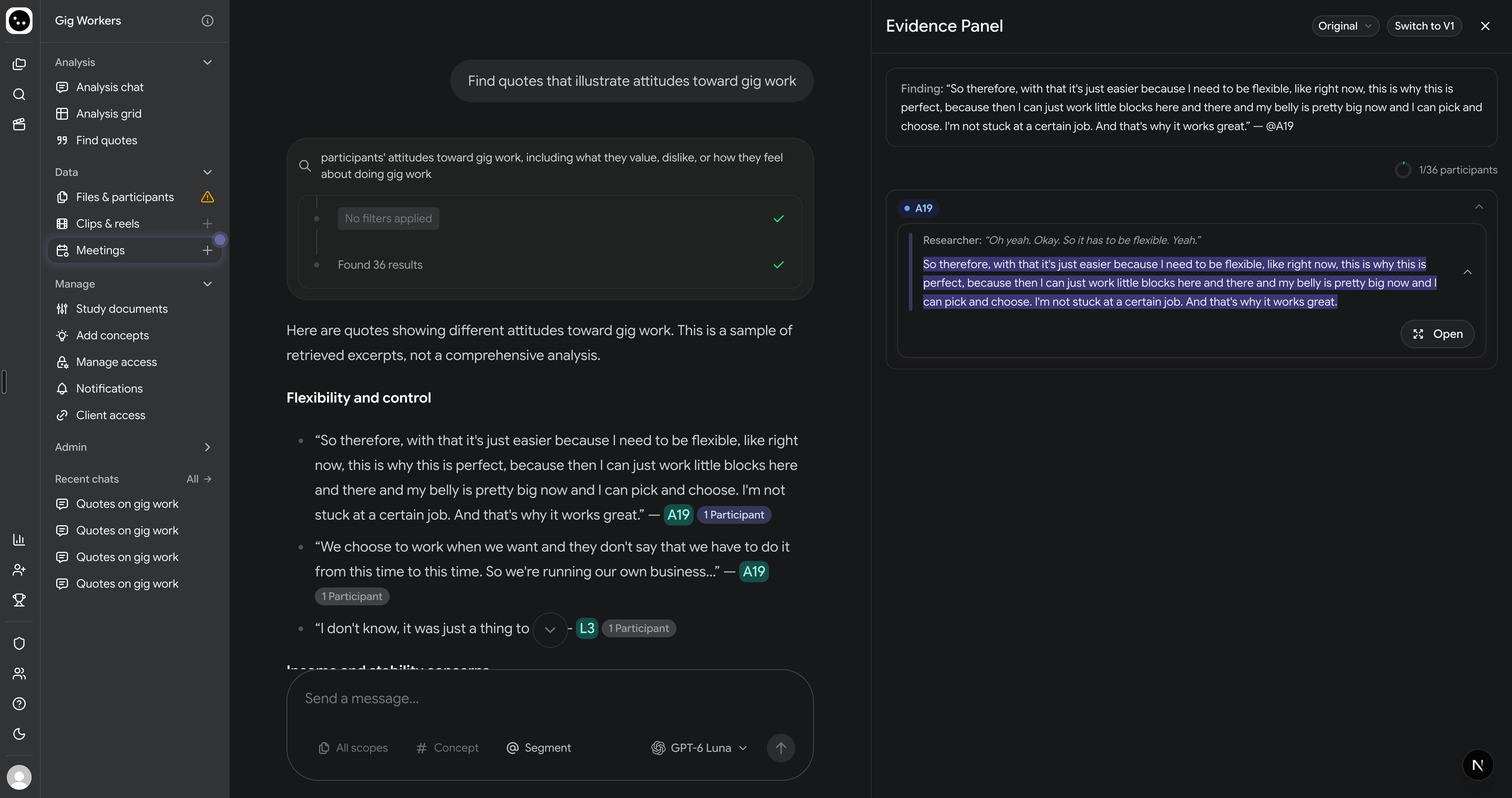
The answer quotes participants, with a citation after each quote. Click a citation to see the quote in context in the evidence panel. A Quote Finding chat answer listing quotes grouped by theme, each tagged with its participant, and the evidence panel open on the right showing one quote highlighted in its transcript context

If the answer is not what you asked for

  • Nothing found. The chat says it found nothing relevant. Rephrase the question, or widen the filter and ask again.
  • The question needs the full dataset. A banner says the question is best answered by analyzing the full dataset, with a button to ask it in Thought Partner. Click the button; your question is carried across.

Choose a model

Click the model name to the left of Quote Finding to choose GPT-5.6 Luna, GPT-6 Luna, or Claude Opus 5.5. New chats use the last model you chose in your browser, or GPT-5.6 Luna if you have not chosen one. The Quote Finding create screen with the model menu open, listing GPT-5.6 Luna, GPT-6 Luna, and Claude Opus 5.5, with GPT-6 Luna checked