

Prepare the recordings
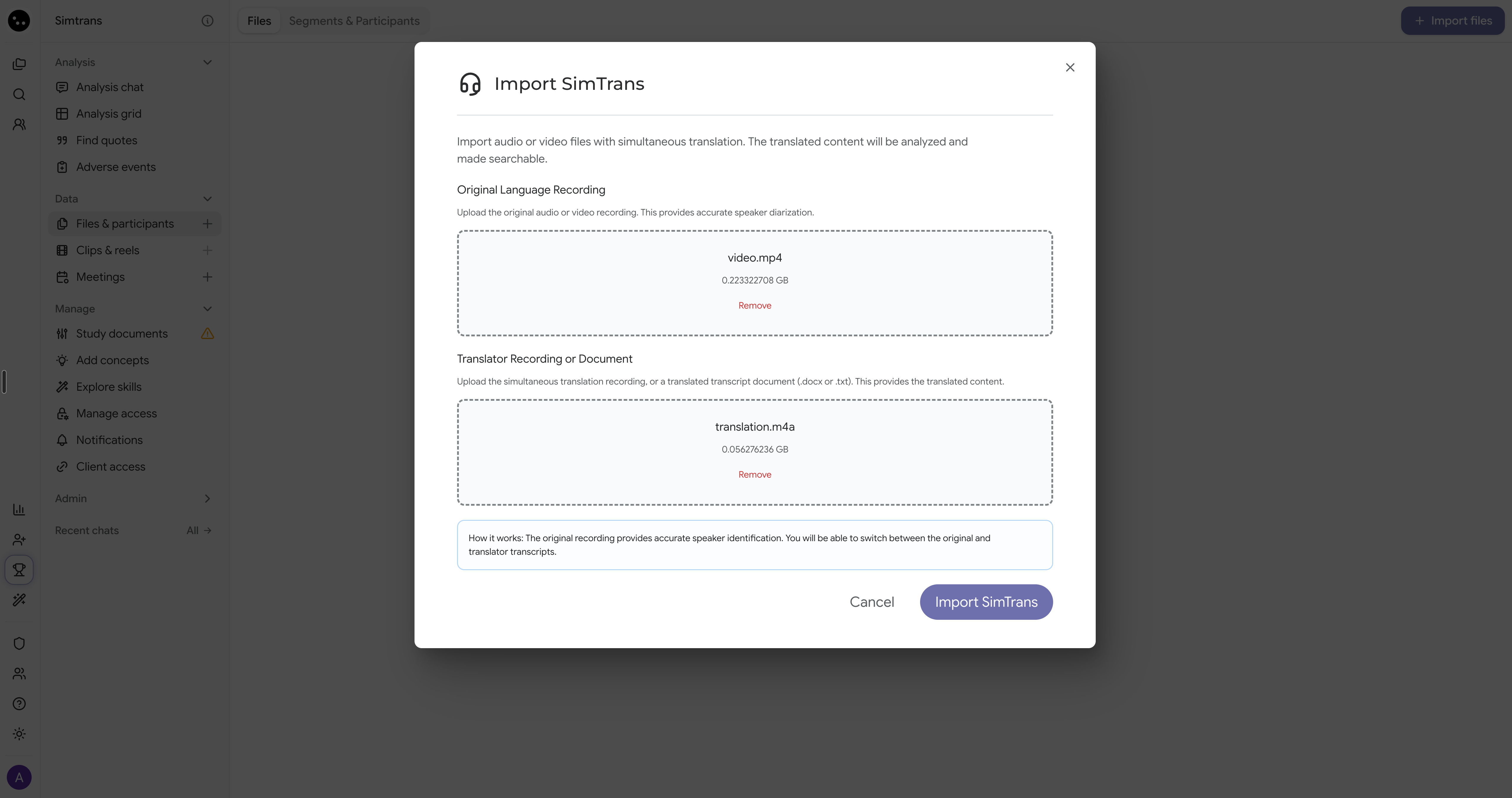
Use the original recording of the participants and moderator, plus the interpreter’s recording of the same interview. Import one interview at a time. If only the interpreter’s recording is available, ask the fieldwork team for the original recording or a transcript with speaker labels. The interpreter’s voice alone does not reliably identify participants and moderators.Upload separate files
- Open the project’s Files tab.
- Click Import data.
- Select SimTrans.
- Select Separate Files if the format choices appear.
- Add the original audio or video under Original Language Recording.
- Add the interpreter’s audio or video under Translator Recording or Document.
- Click Import SimTrans.
Use a stereo recording
If Stereo File is available, use a recording with the original speech on the left audio channel and the interpreter on the right. A recording with both voices mixed together cannot be separated by speaker using the stereo option.- Select Stereo File in Import data → SimTrans.
- Add the stereo audio or video recording.
- Click Import SimTrans.
Set the transcription languages
- After upload, click Complete in the file’s row.
- Set Spoken language to the language spoken by the participants and moderator.
- Set Translator language to the interpreter’s language. The translator language must differ from the spoken language.
- Enter the number of participants and moderators in Speakers expected, or leave the field blank if unknown.
- Click Continue.
Review the transcript
- Open the file after processing finishes.
- Open the language dropdown next to the file name.
- Select the language marked Translator, such as English (SimTrans).
- Check the translated text against the original transcript.
- Confirm speaker names and roles.
CoLoop automatically translates passages missing from the imported
translation. The completed transcript can contain both the interpreter’s
wording and automatic translations. Check translated quotes against the
original before sharing findings.
Resolve import problems
- SimTrans is missing: Contact support to request access.
- The stereo file is rejected: Ask the recording provider for separate original and interpreter recordings, or a stereo file with the required left and right channels.
- Untranslated passages remain hidden: Select Original to read the missing passages. Contact support if passages remain hidden after processing finishes.