

Prepare the translation
- Use a translation of the same interview, with the conversation in its original order.
- Save the document as Word (
.docx), plain text (.txt), or Markdown (.md), under 50 MB. The document must contain text. - Use a language different from the original transcript’s language. The Translation language menu excludes the original language.
- Transcribe the original audio or video before adding the document to an existing file.
Importing a document replaces an existing automatic translation in the same
language. The original transcript remains available.
Add the document
- Open the original audio or video transcript.
- Open Transcript actions using the three-dot button next to the file name.
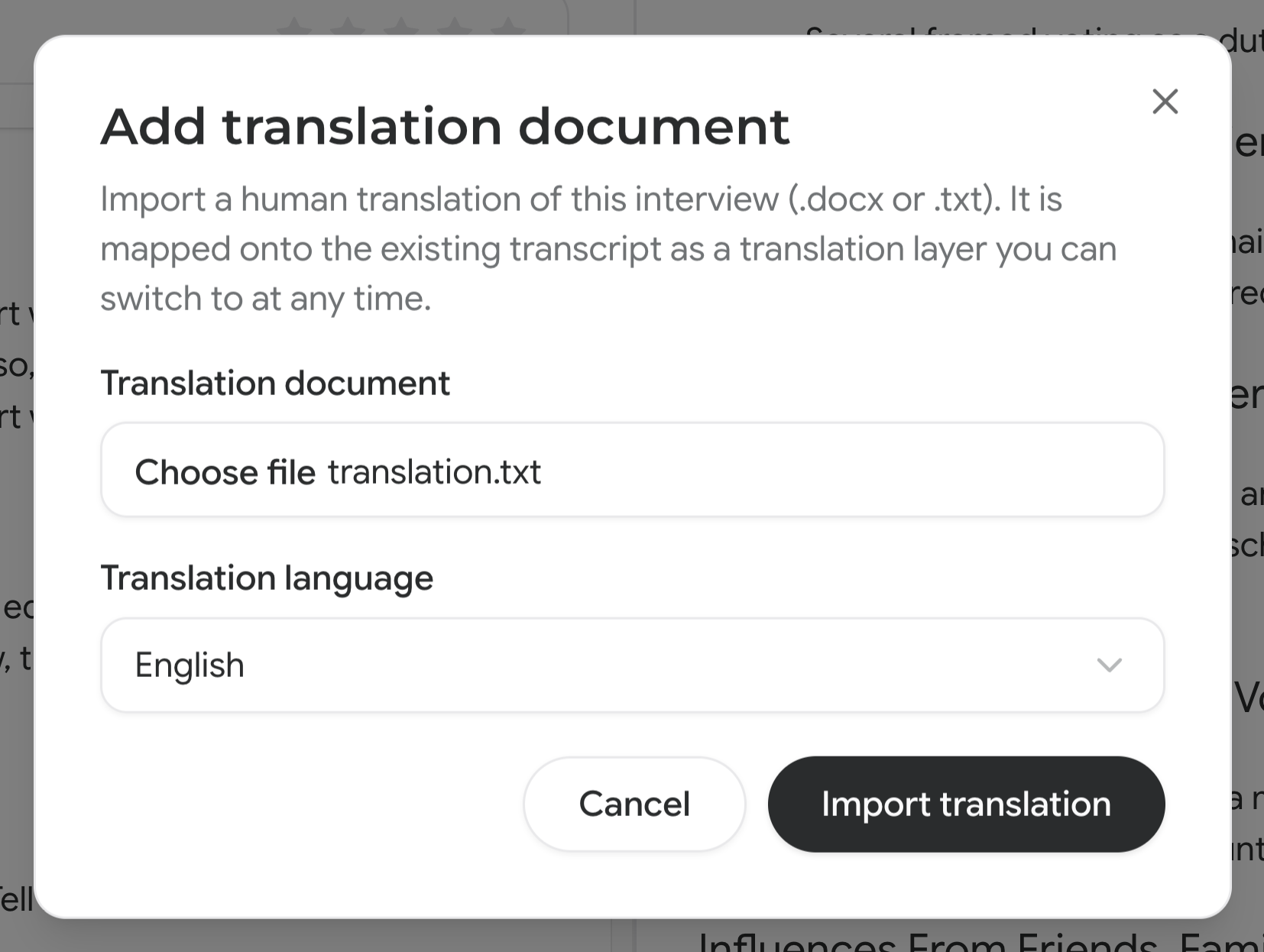
- Select Add translation document.
- Choose the file under Translation document.
- Set Translation language to the document’s language.
- Click Import translation.
 After processing, select the language marked Translator in the language dropdown next to the file name. Follow the transcript review steps to check speakers and automatically translated passages before analysis or export.
Playback uses the original recording when the translation comes from a document.
After processing, select the language marked Translator in the language dropdown next to the file name. Follow the transcript review steps to check speakers and automatically translated passages before analysis or export.
Playback uses the original recording when the translation comes from a document.
Resolve import problems
- Add translation document is missing: The option requires a transcribed audio or video file without an interpreter recording or a completed imported translation. For an eligible file, contact support to check access.
- The document is rejected: Check the file format and size, and confirm the document contains text.
- The wrong translation was imported: Contact support for help replacing the translation.