

Before you start
- You need edit access to the project to create, change or delete booking links.
- The host must connect a Google or Outlook calendar.
- The host must set their availability. You set availability in Availability in your account settings.
Open booking links
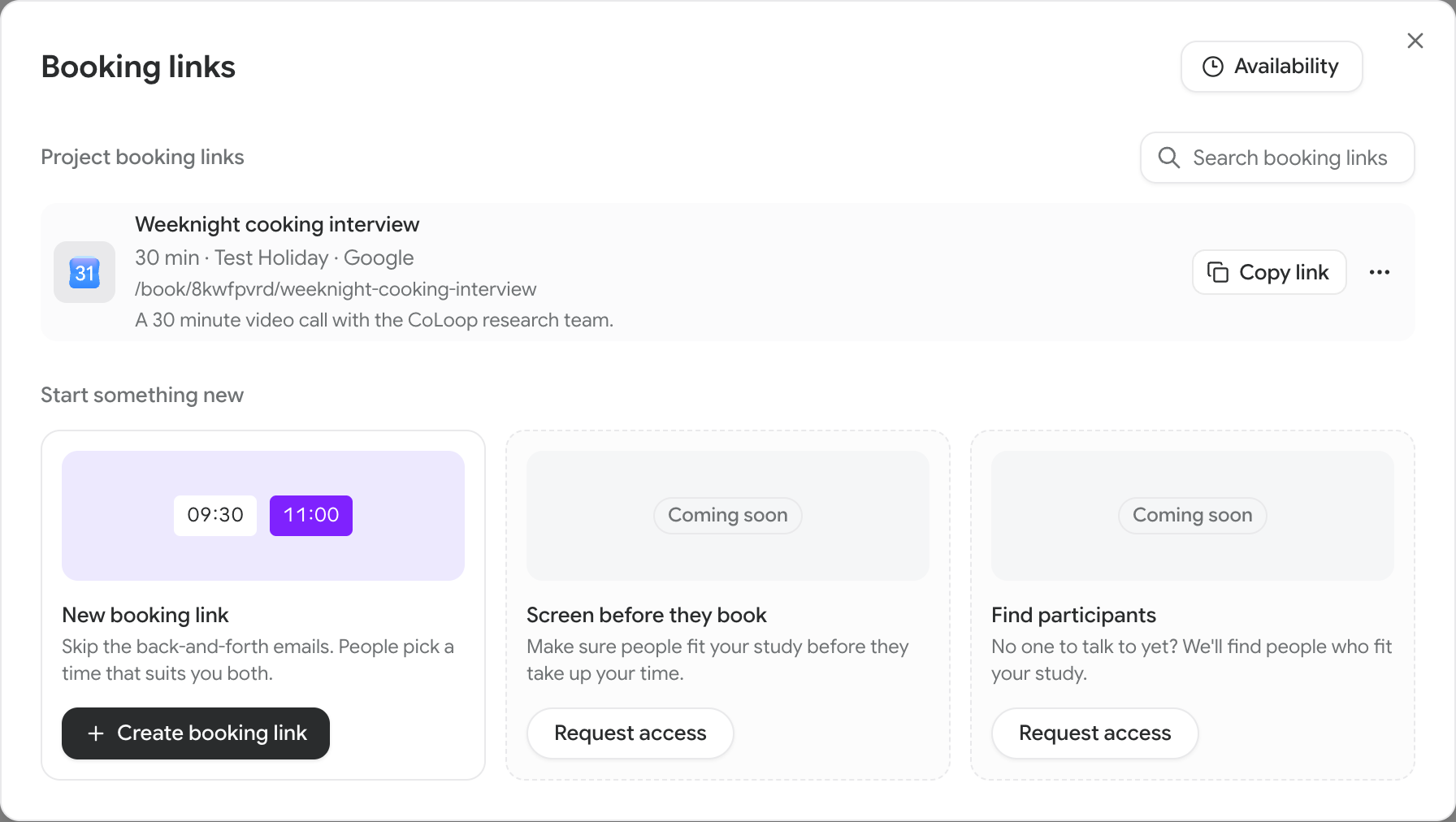
- Open your project and select Meetings in the sidebar.
- Select Booking links at the top of the page.
Set your availability
- In the Booking links window, select Availability.
- Set the hours when participants can book you.
- Save your changes.
Create a booking link
- In the Booking links window, under Start something new, select New booking link.
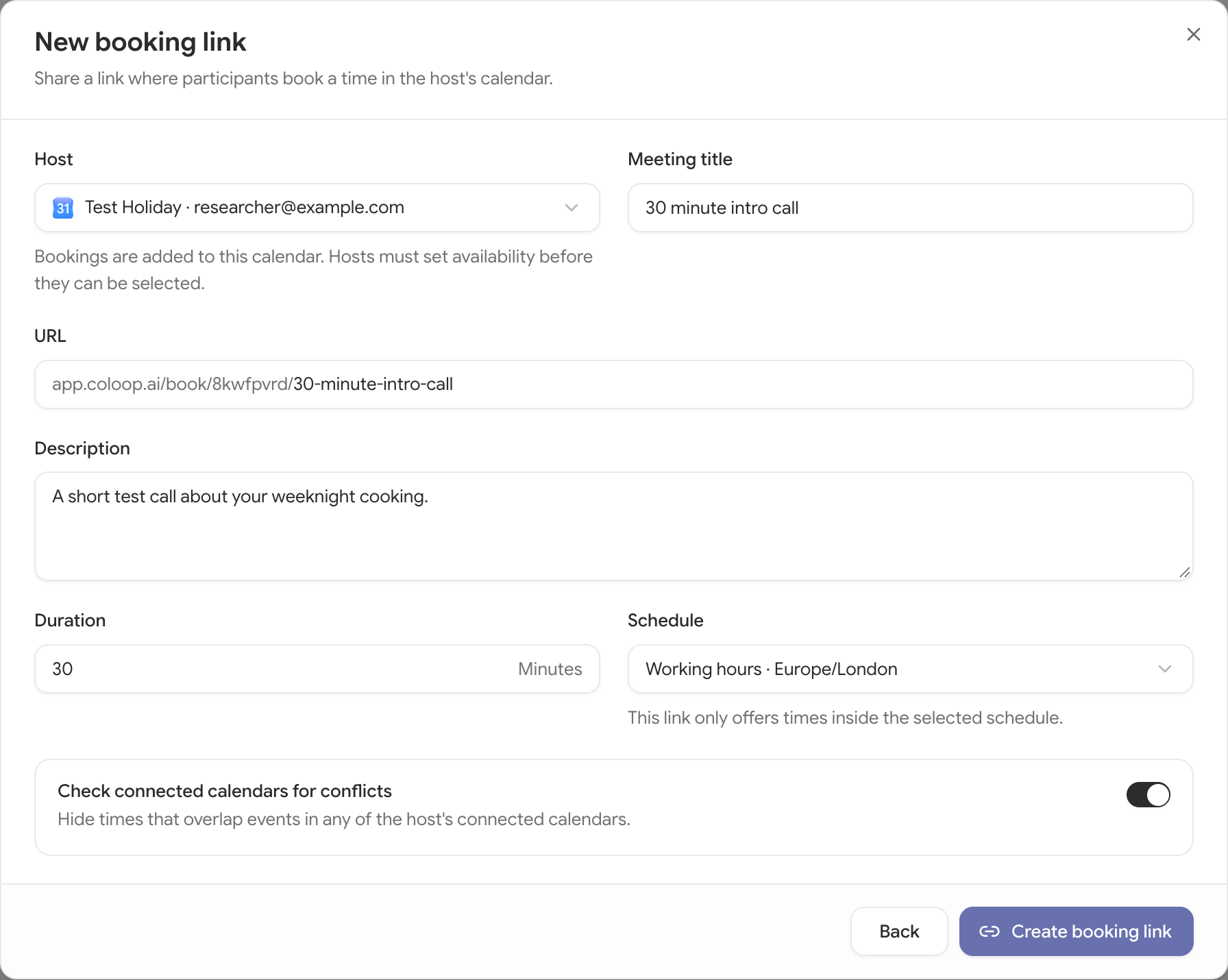
- Choose the Host. CoLoop adds bookings to this person’s calendar.
- Enter a Meeting title, for example “30 minute intro call”.
- Optional: change the URL and add a Description for participants.
- Enter the Duration in minutes.
- Choose the Schedule. The link offers only times inside this schedule.
- Optional: turn on Check connected calendars for conflicts. The link then hides times that overlap events in the host’s connected calendars.
- Select Create booking link.
 If you see Connect a calendar first, select Connect calendar. If you see Set availability first, select Set availability.
Share a booking link
- Find the link in Project booking links.
- Select Copy link.
- Send the link to your participants.
Change or delete a booking link
- To change the schedule or the conflict check, select …, then Edit. Select Save availability.
- To delete the link, select …, then Delete. Select Delete again to confirm.
Screen before they book and Find participants are coming soon. Select Request access to ask for early access.