

Before you start
- The share link from the research team. It usually arrives by email.
- Access to the email address the research team shared with, to receive a sign-in code.
- An AI assistant that can add custom connectors:
Other assistants work if they let you add a custom MCP server, sometimes called a connector or integration.
Confirm your email
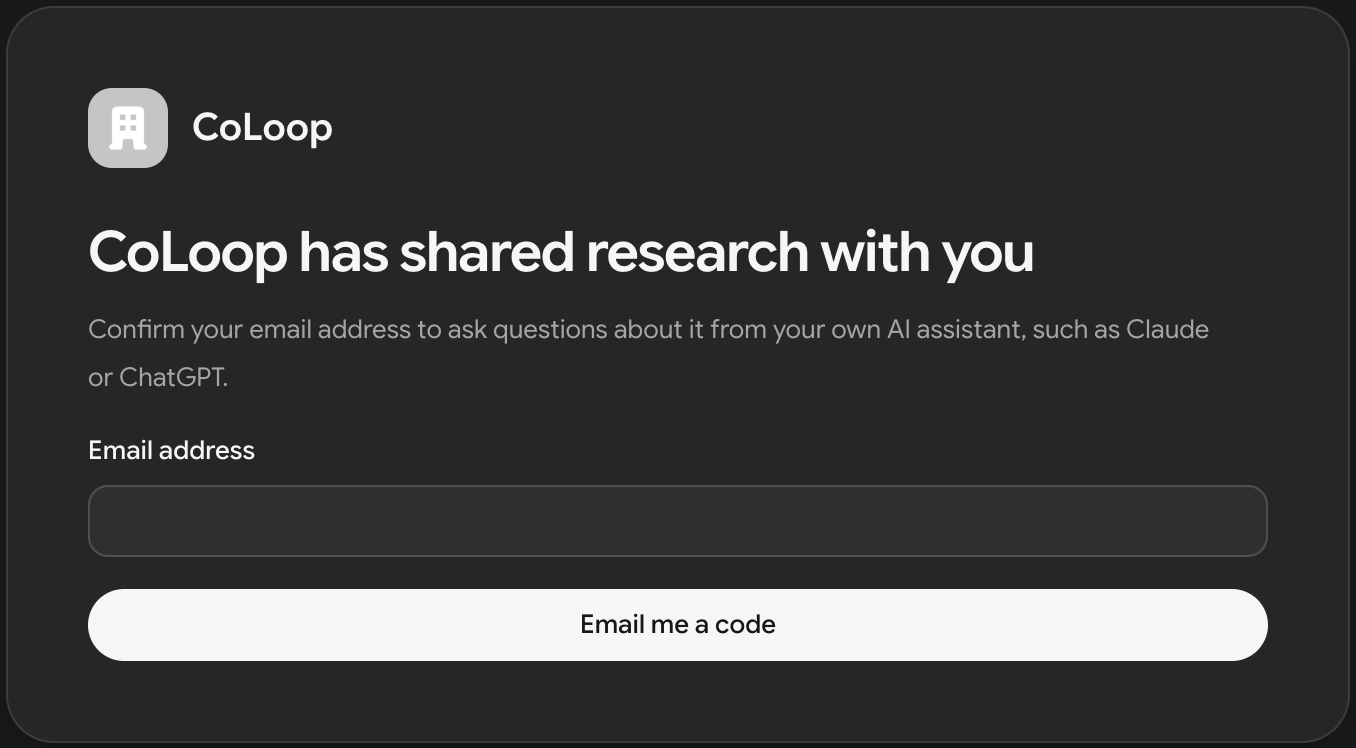
- Open the share link.
- Enter your work email address and click Email me a code.
- Enter the 6-digit code from the email and click Continue.
 The page shows You’re in and lists the projects shared with you, with the date your access ends for each.
Connect your AI assistant
On the same page, under Which AI assistant do you use?, choose your assistant and account type. The page shows the steps for that combination. The sections below match them.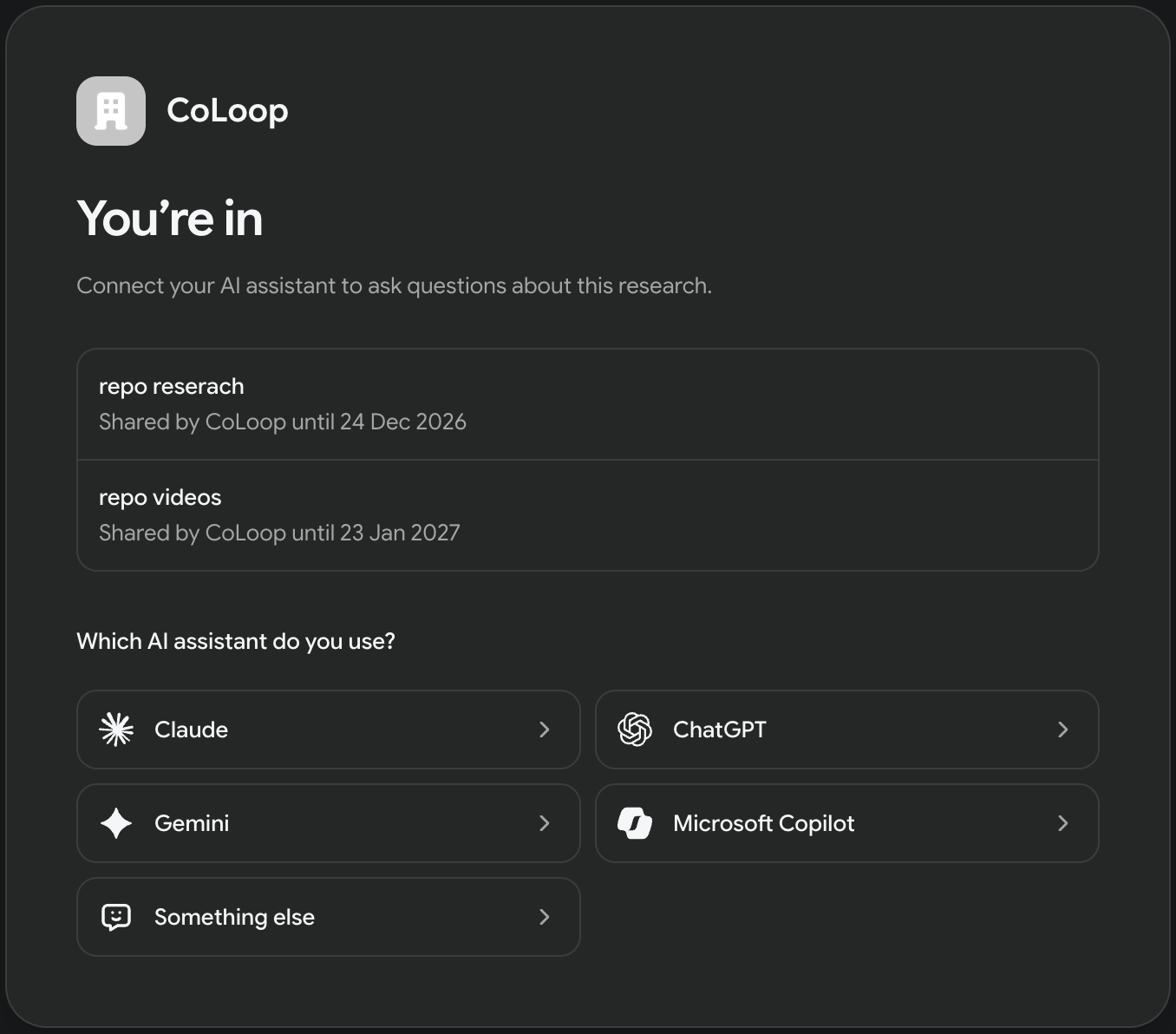 When your assistant asks you to sign in to CoLoop, use the same email address you confirmed. If you’re on the same device and browser, click Allow. On another device, CoLoop asks for your email and a new code.
Claude (personal)
- Click Add to Claude. Claude opens with the CoLoop connector filled in.
- Confirm adding the connector.
- Click Connect, then allow access.
ChatGPT (personal)
- Click Copy next to Server URL.
- Open chatgpt.com/plugins in a browser and click +.
- Choose Add custom MCP server, paste the URL, and click Create.
- Allow access.
Gemini (personal)
- Click Copy next to Server URL.
- In Gemini, open Settings → Connected Apps → Custom apps.
- Add the URL, then allow access.
Company accounts and Microsoft Copilot
At most companies, only an admin can add connectors. The page writes a message for your admin with everything they need: the connector name, CoLoop, and the server URL.- Click Copy message and send it to your admin or IT team.
- Once they’ve added CoLoop, connect it from your assistant:
- Claude: open Customize → Connectors, find CoLoop, and click Connect.
- ChatGPT: connect CoLoop and allow access.
- Gemini Enterprise and Microsoft Copilot: follow your admin’s instructions.
Something else
Look in your assistant’s settings for a way to add a custom MCP server, connector, or integration. Click Copy next to Server URL, paste it there, and sign in with the email you confirmed.Ask questions
Start a new chat in your assistant and ask about the research. Mention the project or topic so your assistant uses CoLoop. For example:- “What projects have been shared with me in CoLoop?”
- “Give me an overview of the main findings in the brand perception report.”
- “What did participants say about pricing?”
- “Show me more quotes behind that finding.”
[PERSON_NAME], blurred video, or altered voices, depending on what the research team chose.
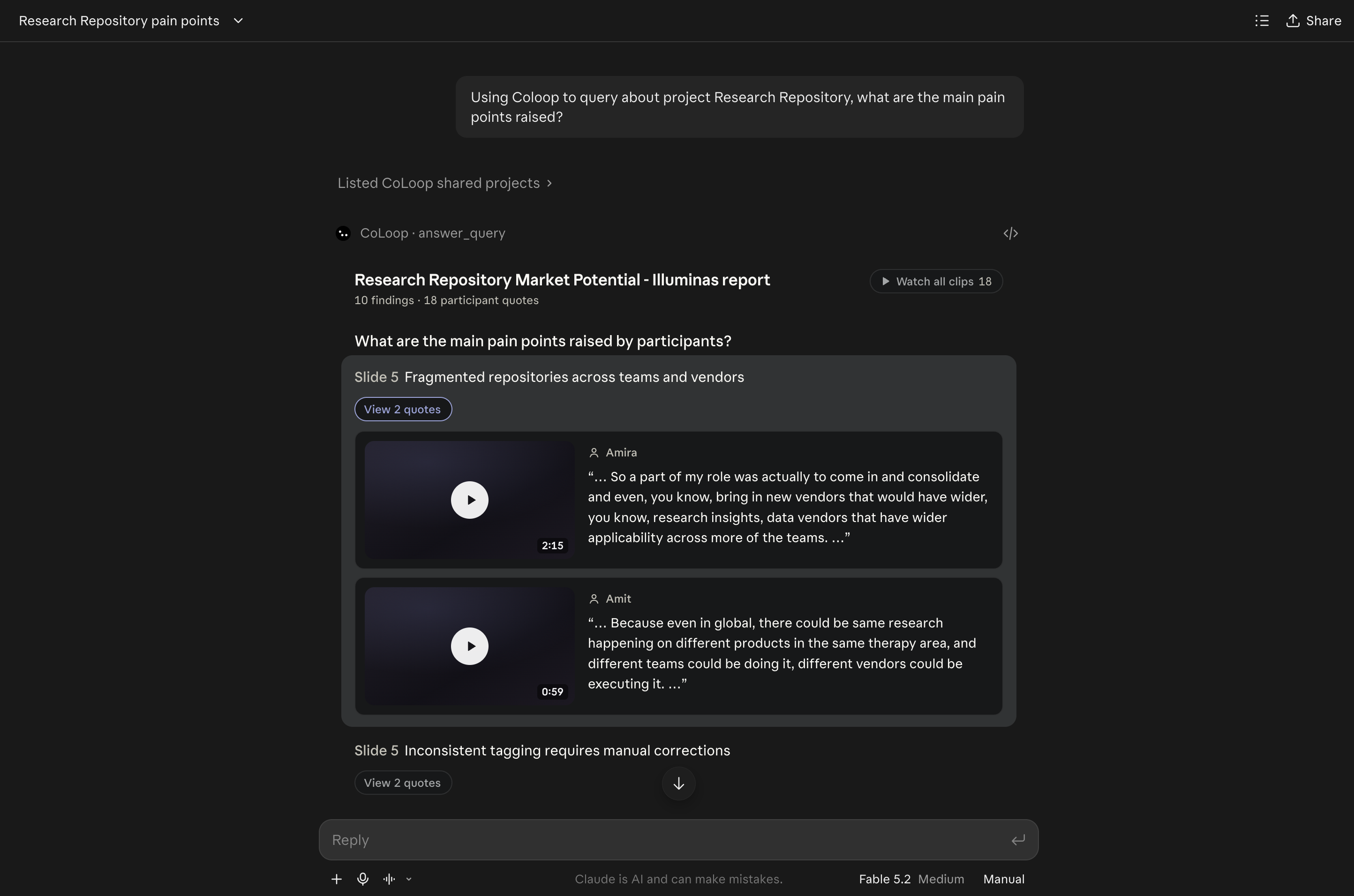 You can come back any time until your access ends. If a research team sends you another share link, confirm your email on it. Its projects then appear in the connector you already set up.